Monitor, Edit & Approve Student/Hourly Time — Timekeeper
Overview
This business process guide provides department Timekeepers and Managers step-by-step instruction on use of MYFRESNOSTATE to view, edit, and approve student employee time.
Student employees are to enter their time worked at the end of each business day. As department Timekeeper, you must approve student assistant time regularly (daily or weekly) via PeopleSoft Reported Time. You will also be responsible for updating and/or changing chartfields, updating and/or changing “reports to”, and running the monthly Department Paysheet report to verify hours paid by specific chartfields.
LOGGING IN
This section shows how to log into MYFRESNOSTATE.
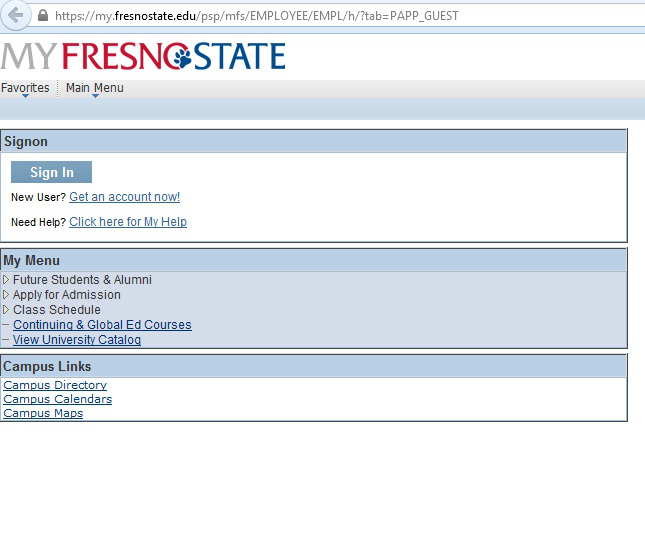
The MYFRESNOSTATE homepage displays.
- Go to MYFRESNOSTATE http://my.fresnostate.edu/
- Click the MYFRESNO STATE SIGN IN button.
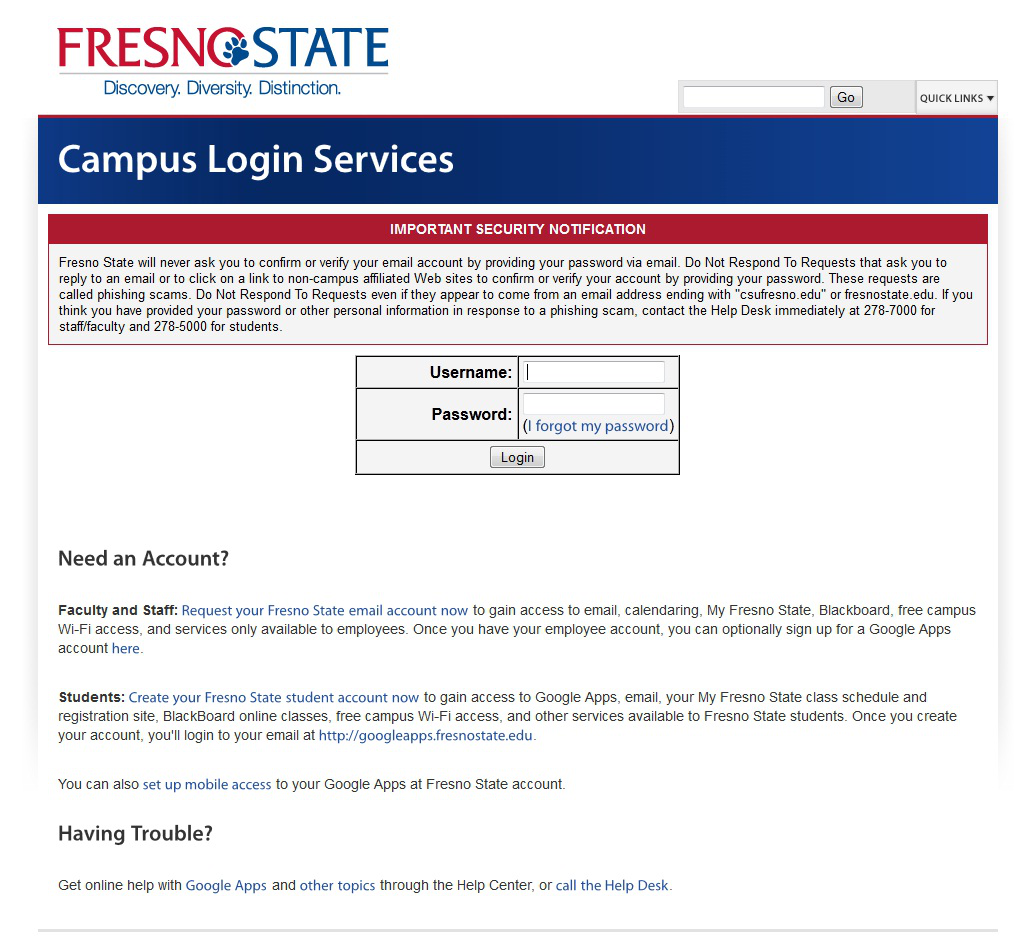
The Oracle PeopleSoft Enterprise Sign In page displays.
- Enter your Fresno State Log in and Password.
- Click the “Sign In” button.
Note: If you have difficulty logging in, contact the Help Desk at 278-5000.
CHANGING REPORTS TO
This section demonstrates how to change the Reports To Manager for Time Approval. Each employee’s Reports To Manager should be the MPP/Chair responsible for final approval of their time.
The Main Menu displays.
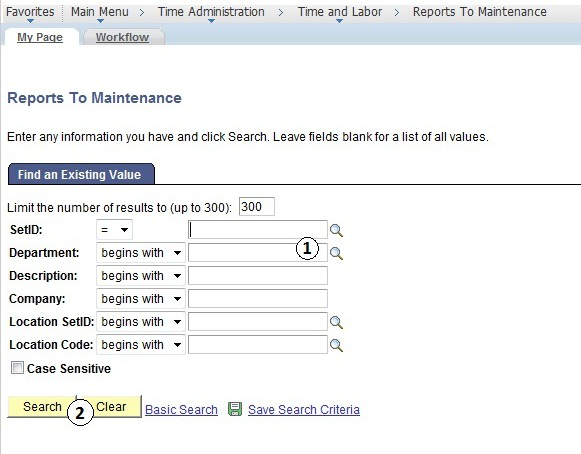
From the Main Menu > Time Administration > Time and Labor > Reports to Maintenance
- Enter Department #
- Search
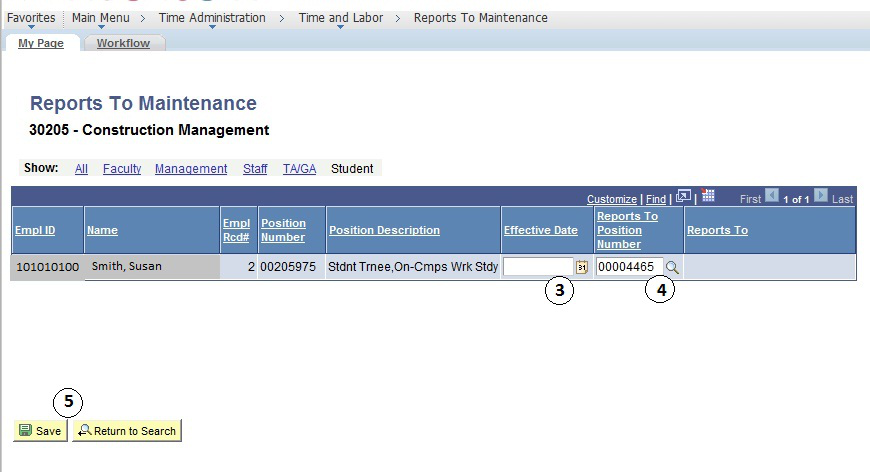
- Enter the Effective Date
- Enter the Reports To Position Number.
- Click “Save”
REVIEW AND APPROVE TIME (Timekeeper)
This section demonstrates how to review and approve reported time for both student and hourly employees.
The Main Menu displays.
From the Main Menu, click Time Administration > Time and Labor > Review Reported Time.
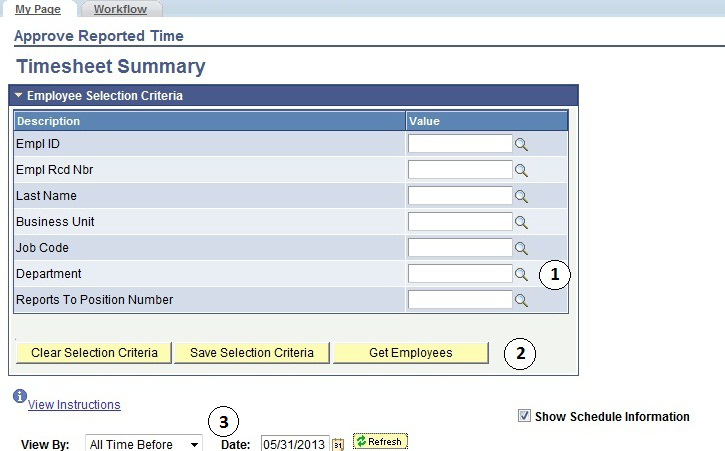
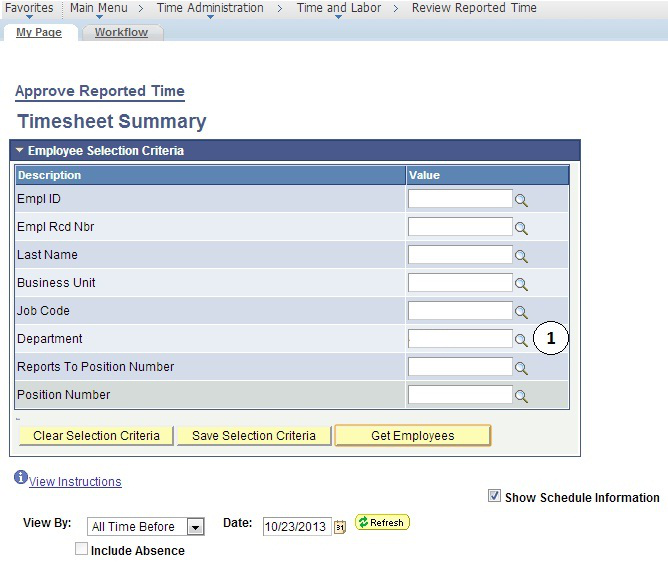
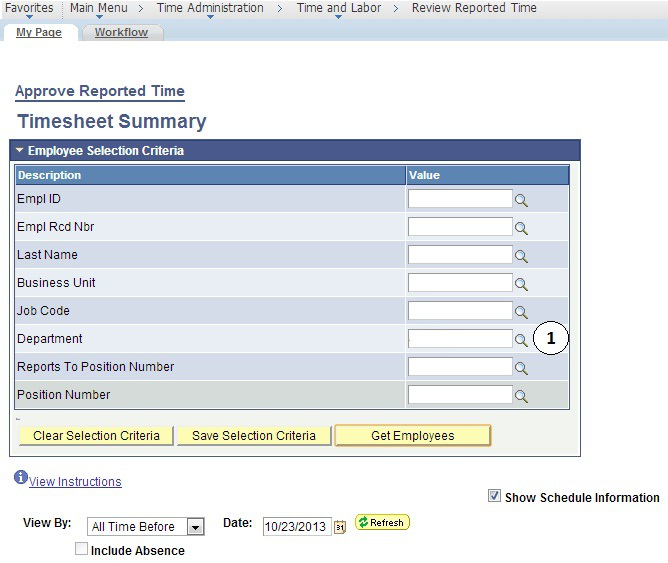
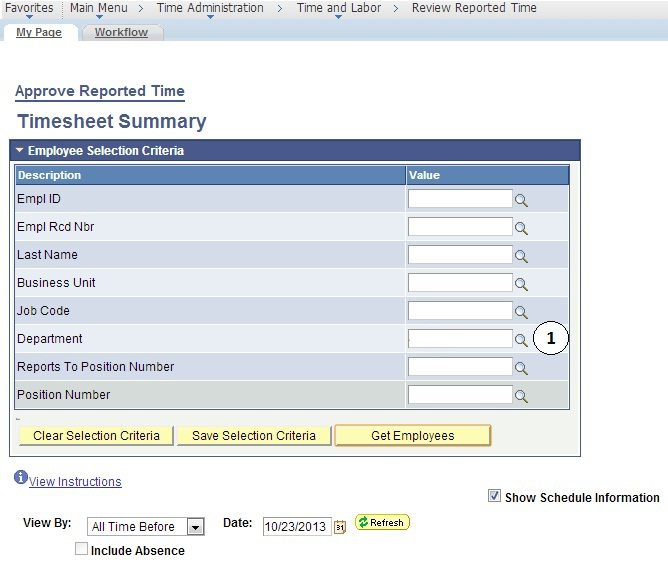
The Timesheet Summary page will display.
- Enter criteria. You may enter by:
- Department number, which will bring up all student employees.
- individual employees by using EmplID, Last Name, First Name,
- Group ID.
- Click “Get Employees”
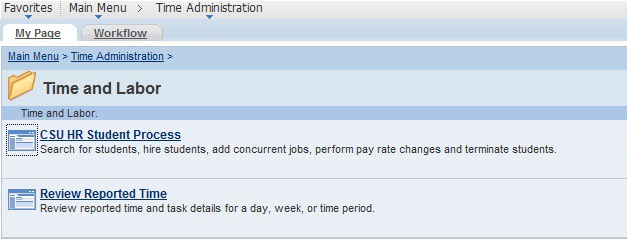
Note: You may view the employee population by:
- “All Time Before” Date, by “Week”, or by “Day”. You may approve all student employees’ time at once by clicking “Select All”, followed by “Approve Selected”.
NOTE: This will only display employees who have reported time NOT APPROVED. For full listing, run
DEPARTMENT PAYSHEET REPORT
(See pages 12 and 13).
If a detailed review of individual(s) student employee timesheet is necessary, then click on the individual’s name, and the following will appear:
- You may approve or deny submitted time by day (see arrows).
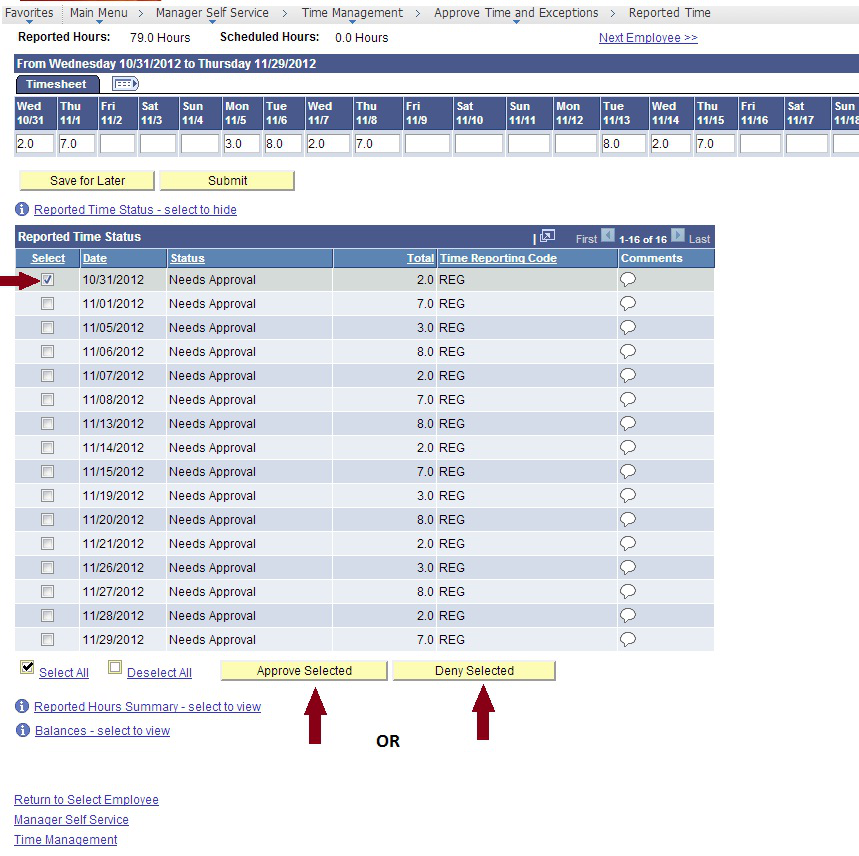
Note: Comments may be made for specific transactions (either by student or by Timekeeper). If comments are made, the comment “bubble” on the right will look like this:

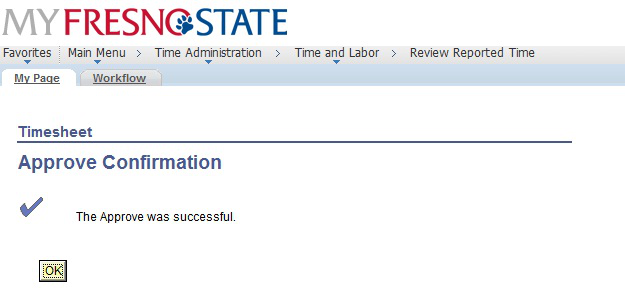
Once time is approved, you will receive the following confirmation message.
ADD, DELETE, OR CHANGE TIME
This section demonstrates how to add, delete, or change the time of your employees after they have submitted their hours. Your student employees do not have access to correct their time entry mistakes after they submit their hours. All corrected time will be available for approval immediately. Note: Students will not be allowed to enter over 8 hours worked per day.
Navigate to Timesheet
Search for and select the employee that needs time correction.
- Enter the corrected total hours worked that day. Select REG – Regular Hours Worked from the Time Reporting Code dropdown menu. The student will automatically be sent an email notifying them of the change.
- Click the “Submit” button
- Click on the “comments bubble” and add comments regarding the change
- Select the day to approve
- Click the “Approve Selected” button.
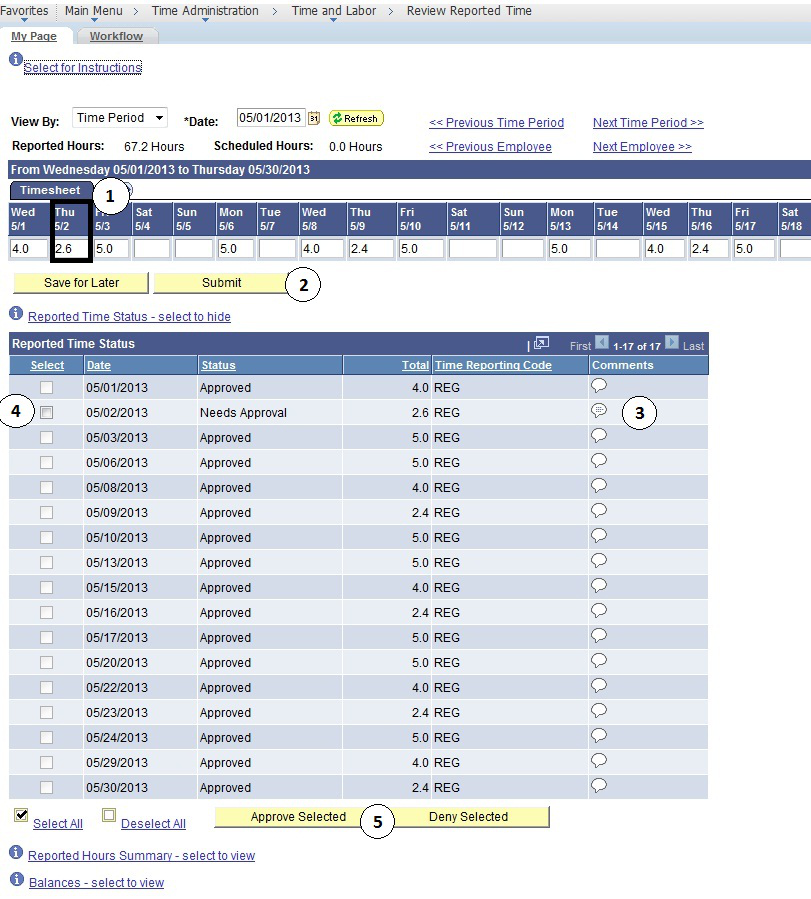
Click “Approve Selected”
Once you have approved changes, you will receive a confirmation notice.
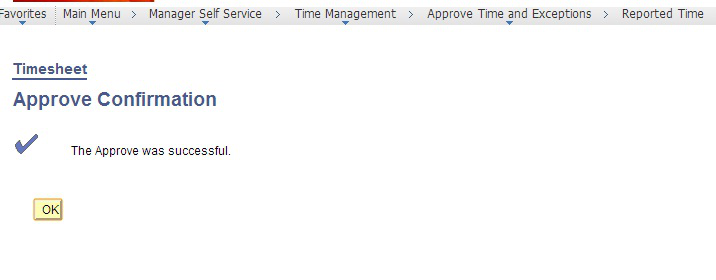
APPROVE TIME REPORTED USING WEB CLOCK (POLICE AND PUBLIC SAFETY)
This section demonstrates how the timekeeper for Police and Public Safety will approve reportable time of their employees once punch time has been entered by the student employees. The Timekeeper may change Activity and should have previously reviewed the Department Paysheet Report to view total time paid to specific Chartfields.
Main Menu > Time Administration > Time and Labor > Review Reported Time
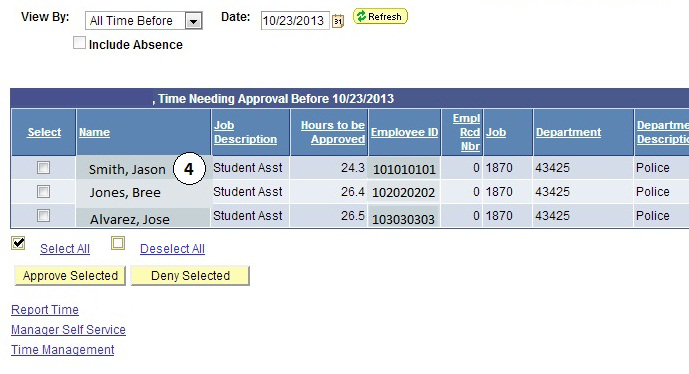
- Enter department number.
- If all employees time is correct, click “Select All”. This will put a check mark next to all employees’ names.
- Click “Approve Selected”. This will approve all employees.
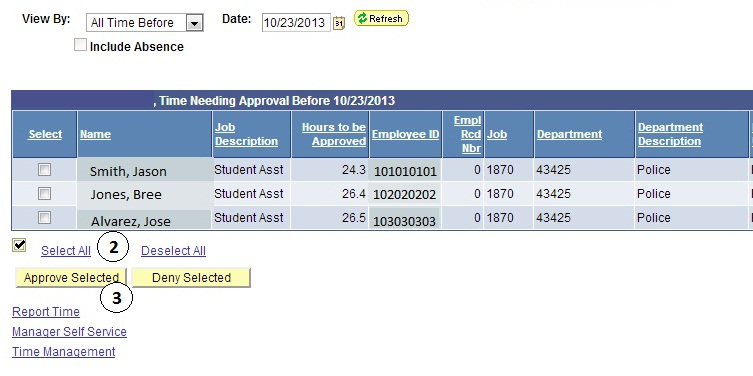
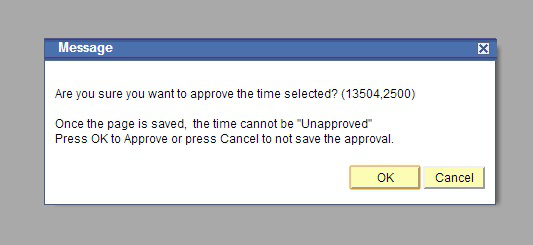
If correct, click “OK”. You will receive a confirmation message once this has been completed.
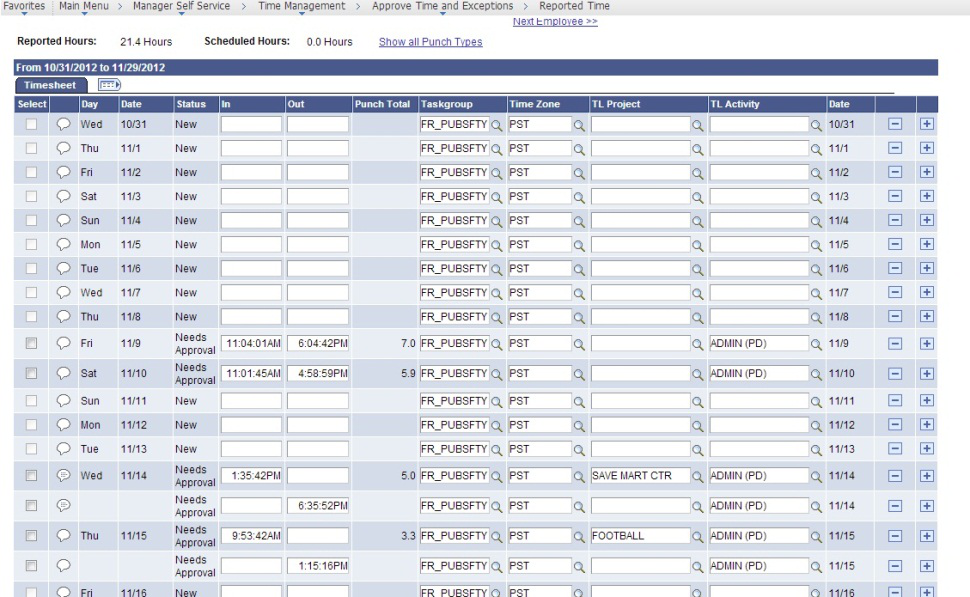
- If you would like to view an individual employee’s time, you may click on that employee’s name and view their timesheet.
ADD, DELETE, OR CHANGE TIME USING WEB CLOCK (POLICE AND PUBLIC SAFETY)
This section demonstrates how the timekeeper for Police and Public Safety will approve reportable time of their employees once punch time has been entered by the student employees. The Timekeeper may change Activity and should have previously reviewed the Department Paysheet Report to view total time paid to specific Chartfields.
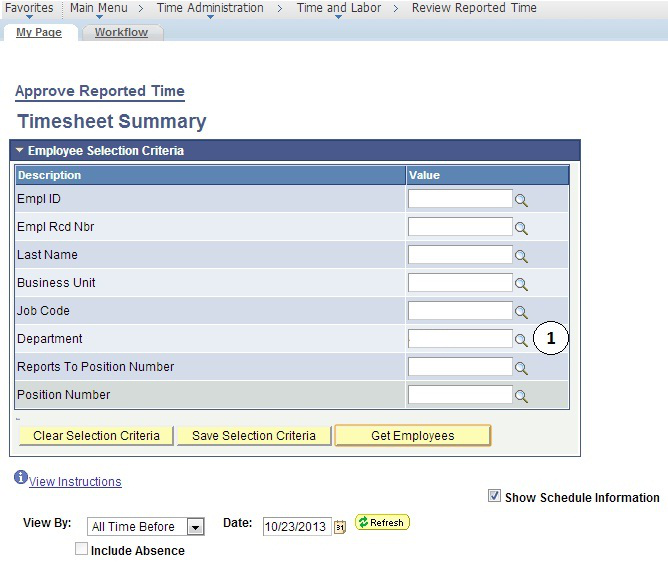
Main Menu > Time Administration > Time and Labor > Review Reported Time
- Enter department number.
APPROVE TIME REPORTED USING USING TIMETRAK (LIBRARY)
This section demonstrates how the timekeeper for Police and Public Safety will approve reportable time of their employees once punch time has been entered by the student employees. The Timekeeper may change Activity and should have previously reviewed the Department Paysheet Report to view total time paid to specific Chartfields.
Main Menu > Time Administration > Time and Labor > Review Reported Time
- Enter department number.
ADD, CHANGE, OR DELETE USING TIMETRAK (LIBRARY)
This section demonstrates how the timekeeper for Police and Public Safety will approve reportable time of their employees once punch time has been entered by the student employees. The Timekeeper may change Activity and should have previously reviewed the Department Paysheet Report to view total time paid to specific Chartfields.
Main Menu > Time Administration > Time and Labor > Review Reported Time
- Enter department number.
DEPARTMENT PAY PERIOD REPORT
The Department Pay Period Report replaces the Department Paysheet Report. This report may be run multiple times per month to monitor which employees have time outstanding that needs to be reviewed and approved. This report will also give work study balances for students under the work study program.
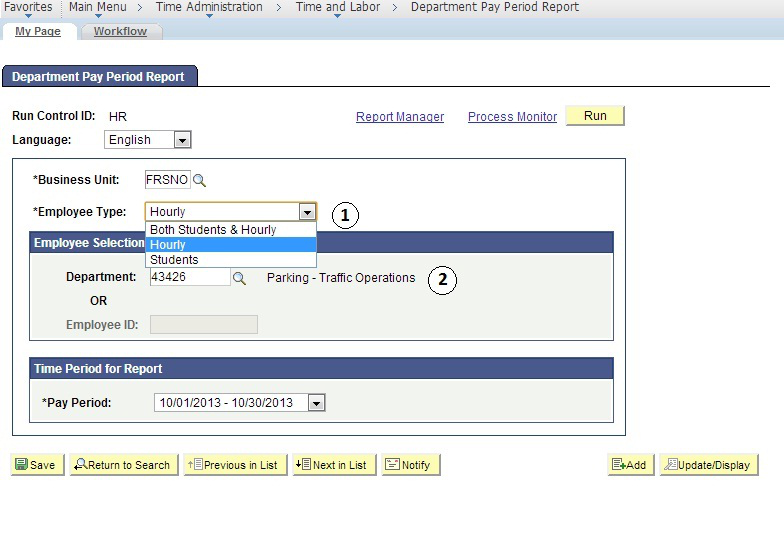
To Print the Department Pay Period Report, use the following path: Time Administration > Time and Labor > Department Pay Period Report
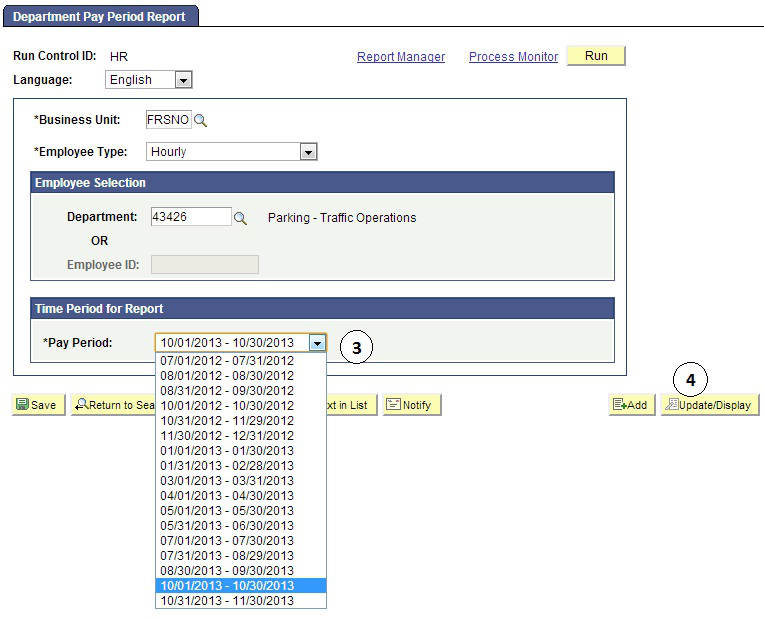
- You may sort the report by staff, hourly and student employees
- Enter Department Number
- Enter the Pay Period you would like to view.
- Update display
The Department Pay Period Report is shown below. The example shows the report split in half due to space limitations
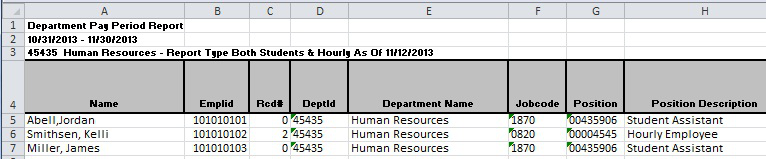

- Reported Needs Approved: Shows Employees Reported Time
Reported Approved: Shows Time already approved by Time Keeper - Payable Needs Approval: Time waiting for MPP/Chair approval
Payable Approved: Time already approved by MPP/Chair - Rate: Hourly rate of pay
- Estimated Gross: Amount of check before taxes
- Reports to: Reports to Manager
- Distribution Information: Chartfield being charged
- Remaining Work Study $: Amount of work study award remaining (if any).
This HTML version was generated with AI assistance and may contain errors or omissions. The original approved PDF remains the official document of record. An alternative accessible format is available upon request from the document creator in accordance with Title II of the ADA.