Monitor, Edit & Approve Student Time – AG OPS Timekeeper
Overview
This business process guide provides department Timekeepers and Managers step-by-step instruction on use of MyFRESNOSTATE to view, edit, and approve student employee time.
Student employees are to enter their time worked at the end of each business day. As department Timekeeper, you must approve student assistant time regularly (daily or weekly) via PeopleSoft Reported Time. You will also be responsible for updating and/or changing chartfields, updating and/or changing “reports to”, and running the monthly Department Paysheet report to verify hours paid by specific chartfields.
APPROVE TIME (Timekeeper)
This section shows how to enter time worked.
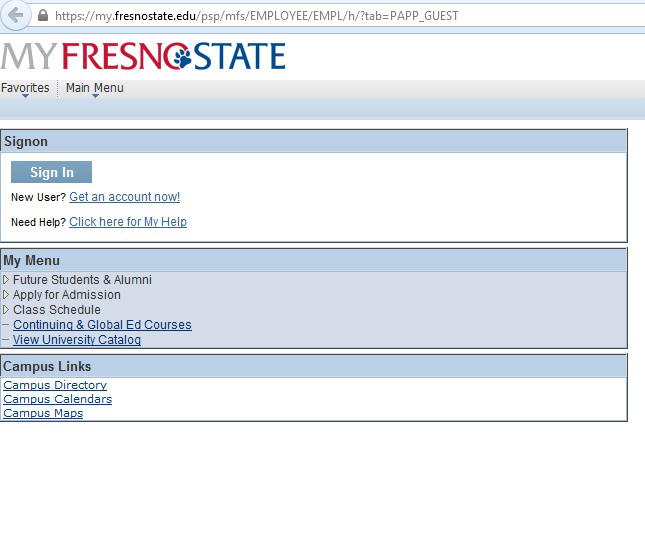
The myFRESNOSTATE homepage displays.
- Go to MyFRESNOSTATE (http://my.fresnostate.edu/).
- Click the MyFRESNO STATE SIGN IN button.
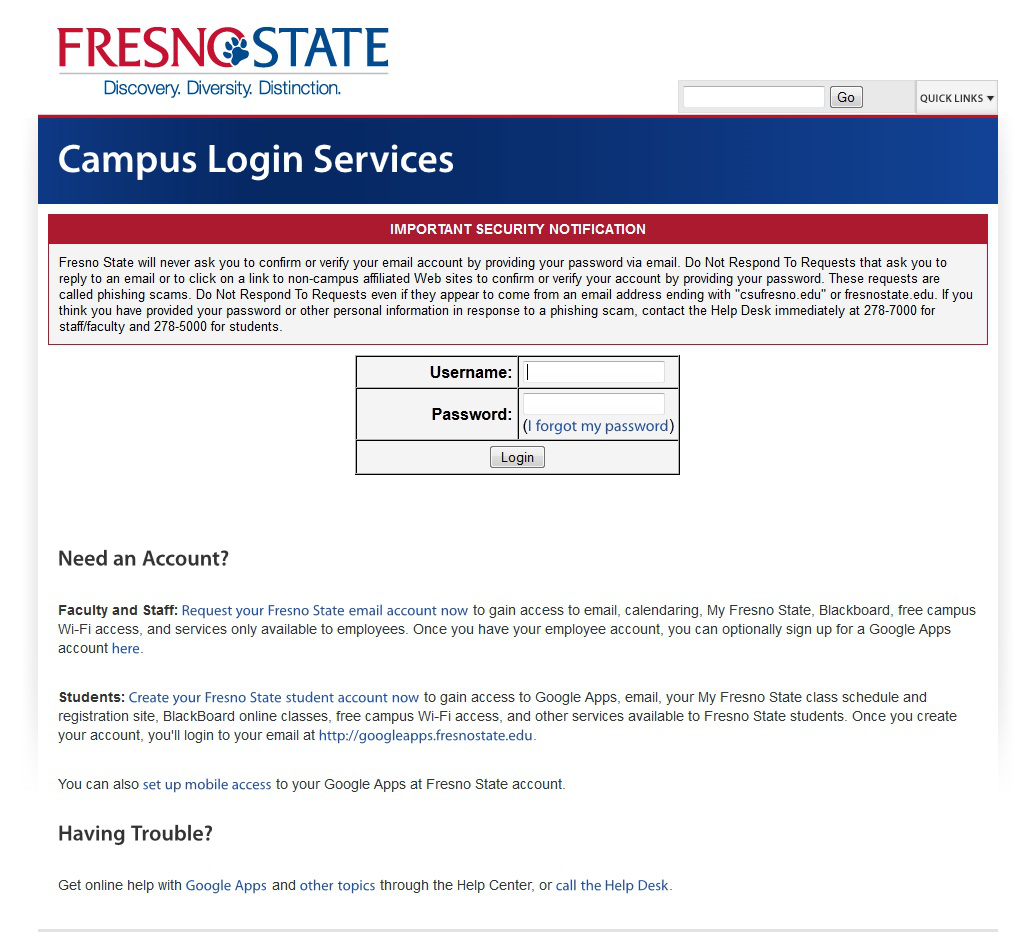
The Oracle PeopleSoft Enterprise Sign In page displays.
- Enter your Fresno State ID and Password.
- Click the “Sign In” button.
Note: If you have difficulty logging in, contact the Help Desk at 278-5000
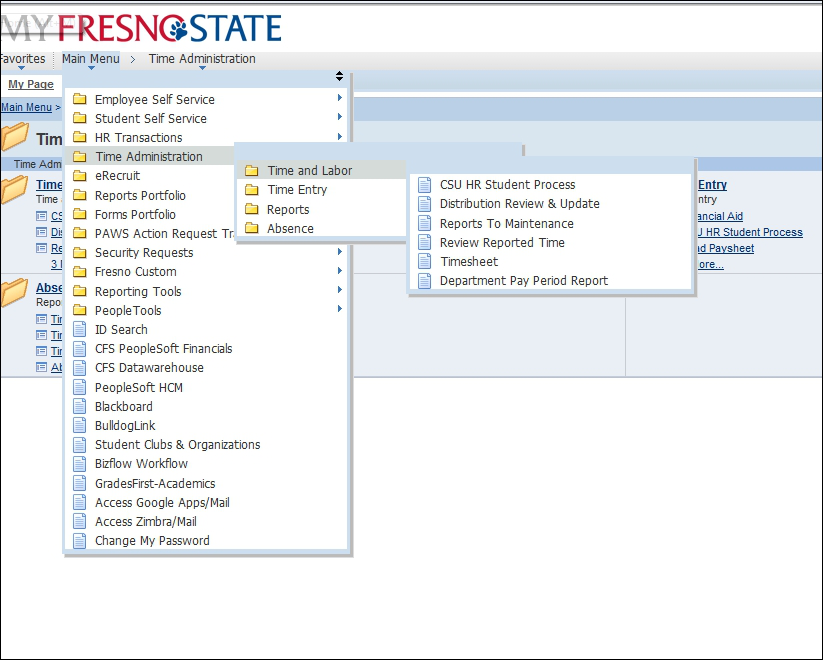
The Main Menu displays.
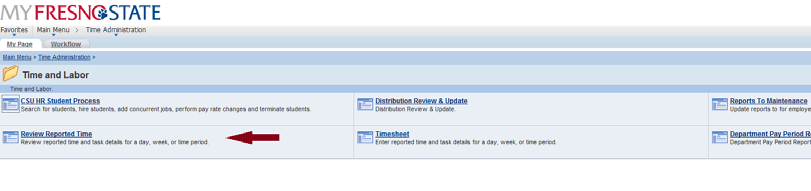
- From the Main Menu, - click Time Administration > Time and Labor > Review Reported Time.
The Timekeeper Review Reported Time will show.
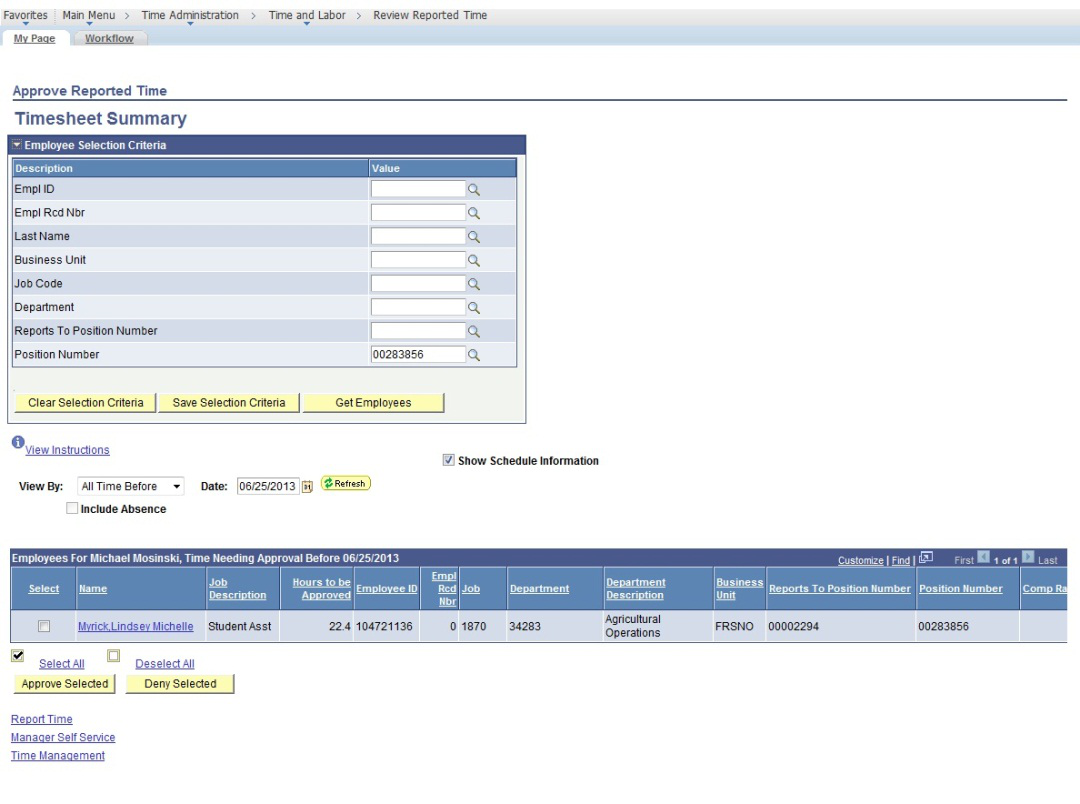
The Timesheet Summary page will display.
- Your student employees will default to you by position number. The students working under your enterprise for the time period will display.
Note: If your students do not display, please contact Melinda Dresser-Oakes to correct the default for you.
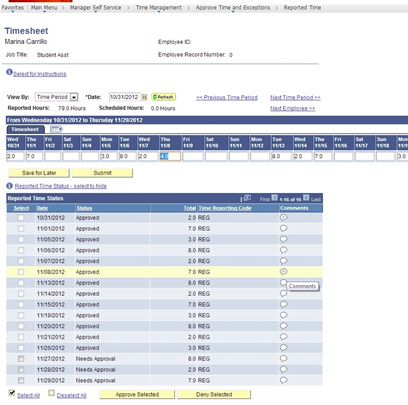
If a detailed review of individual(s) student employee timesheet is necessary, then click on the individual’s name, and the following will appear:
- You may approve or deny submitted time by day (see arrows).
Note: Comments may be made for specific transactions (either by student or by Timekeeper). If comments are made, the comment “bubble” on the right will look like this:
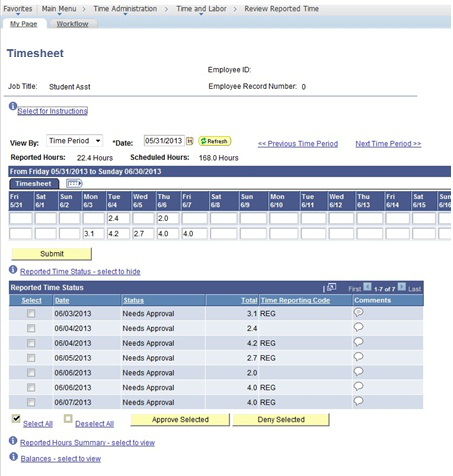

NOTE: This example shows the timesheet view to the far right. (View has been split)

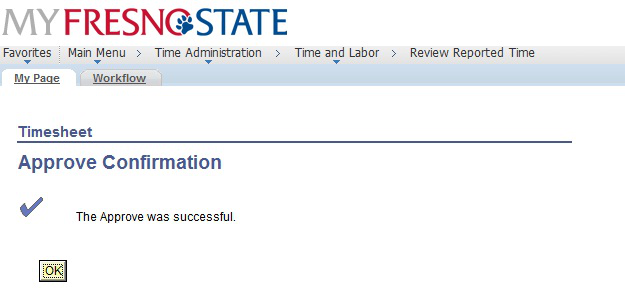
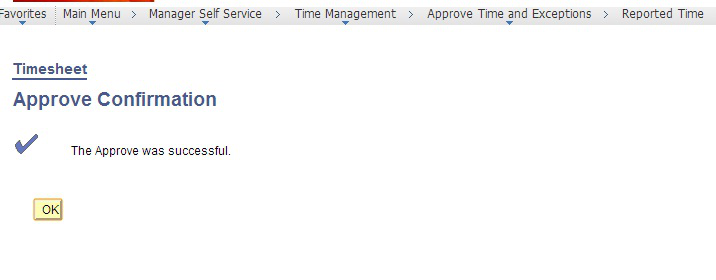
- Once time is approved, you will receive the following confirmation message.
ADD, DELETE, OR CHANGE TIME
This section demonstrates how to add, delete, or change the time of your employees after they have submitted their hours. Your student employees do not have access to correct their time entry mistakes after they submit their hours. All corrected time will be available for approval immediately. Note: Students will not be allowed to enter over 8 hours worked per day.
Navigate to Timesheet
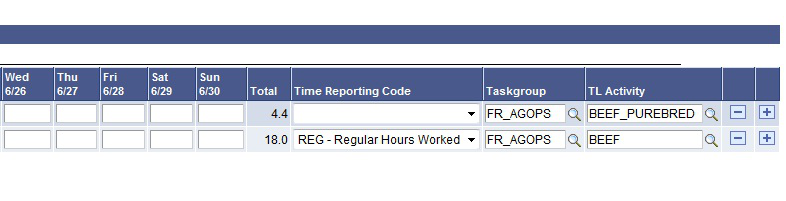
- Search for and select the employee that needs time correction. Enter the corrected total hours worked that day. Click on the “comments bubble” and add comments regarding the change.
- Select REG - Regular Hours Worked from the Time Reporting Code dropdown menu.
- Click the “Approve Selected” button.
Note: Hours reported for 11/27, 11/28, and 11/29 need approval.
Click “Approve Selected”
- Once you have approved changes, you will receive a confirmation notice.
Department Pay Period Report:
The Department Pay Period Report replaces the Department Paysheet Report. This report may be run multiple times per month to monitor which employees have time outstanding that needs to be reviewed and approved. This report will also give work study balances for students under the work study program.
You may sort the report by staff, hourly and student employees
To Print the Department Pay Period Report, use the following path:
Time Administration > Time and Labor > Department Pay Period Report
This HTML version was generated with AI assistance and may contain errors or omissions. The original approved PDF remains the official document of record. An alternative accessible format is available upon request from the document creator in accordance with Title II of the ADA.