
Student Employees New Hire Process Guide — Timekeeper
Overview
This user’s guide provides the department Timekeeper step-by-step instruction on how the student new hire will complete the Online Form I-9 as well as other new hire paperwork required. Federal law mandates that all new employees must complete Section 1 of Form I-9 prior to or on his/her first day of work. New employees are required to submit to the Human Resources Department original documents verifying his/her identity within 3 days of hire.
Instructions for completing the Form I-9, as well as which documents are acceptable for identification at: http://www.uscis.gov/files/form/i-9.pdf.
HIRING A STUDENT
Student is offered position. The student MUST be hired in PeopleSoft proactively. The department hires the student using the CSU Student process page.
Example of New Student Hire:
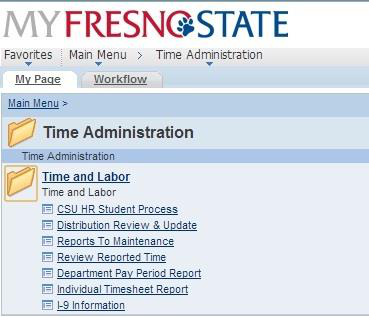
Main Menu > Time Administration > Time and Labor > CSU HR Student Process
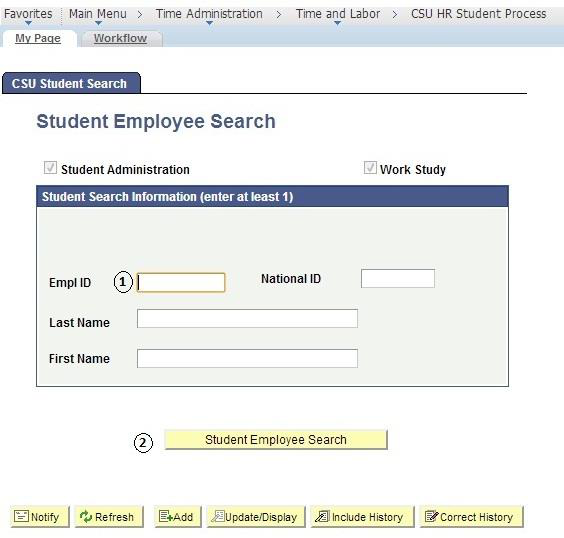
- Enter the Students ID number.
- Click “Student Employee Search”.
ADD STUDENT JOB (New Employee)
If student has NEVER been employed, enter a NEW record for them.
If the student has previously been employed, select the first INACTIVE record to rehire student. (REH/REH) whether it is a record from your department or not.
Student WILL NOT be allowed to work until all hiring paperwork, including Form I-9, is complete.
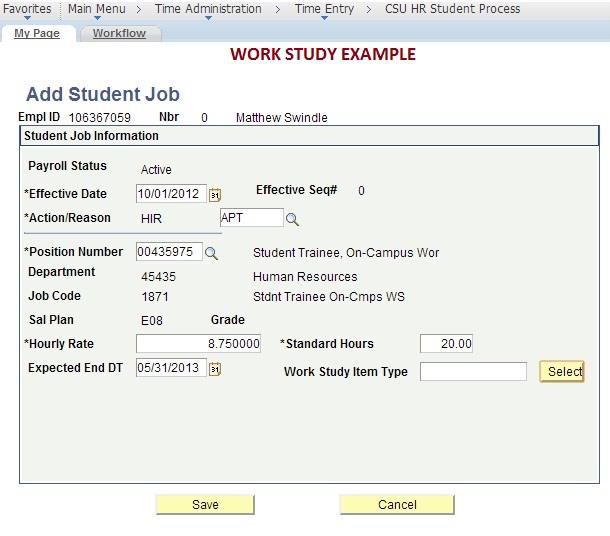
- Enter the Effective Date (FIRST DAY OF ACTUAL WORK).
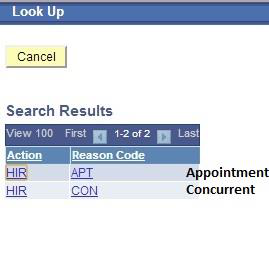
- Action will be HIR for “Hire. Reason will be PT for “Appoint or CON for “Concurrent”, (Student has other ACTIVE student assistant position).
- Position number. Click on magnifying glass, pull down tab for “Department”, enter your department number. A list of job codes will appear. Be sure to select correct job code for your department.
Job Code. *See list page next page. The Job Code will populate from the Position Number you selected in Step #3.
- Hourly Rate. Enter Student’s hourly rate of pay.
- Standard Hours. Should be 20 hours (Semester) or 40 (Summer).
- Expected End Date. Use last day of academic year.
Click “Save”.
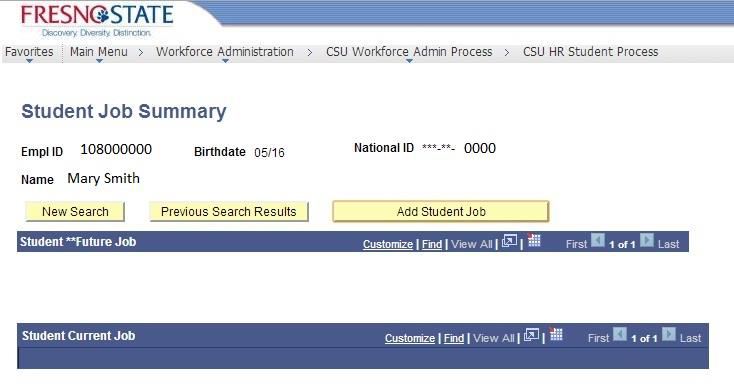
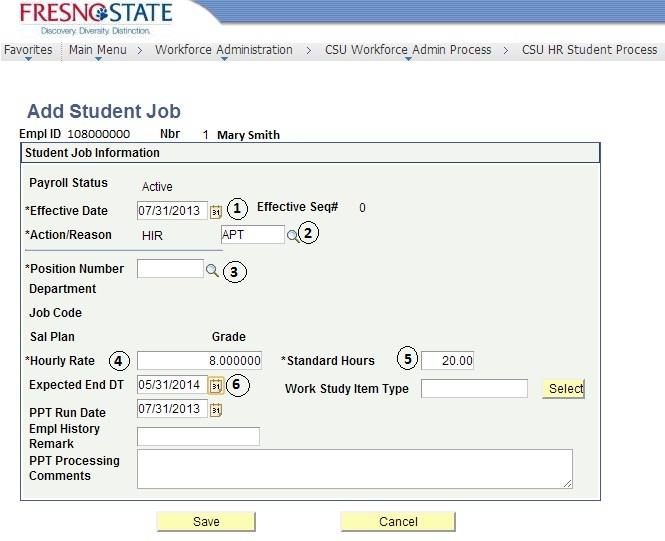
NOTE: Work Study student in last example.
Must enter “Work Study Item Type”.
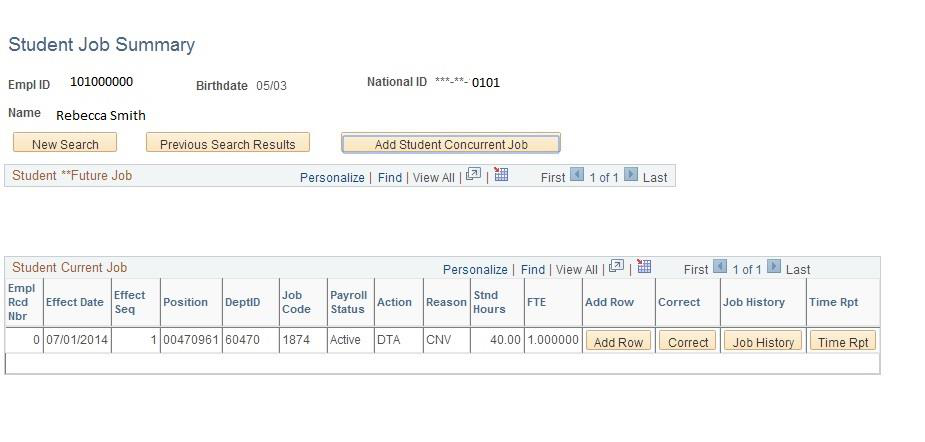
ADD STUDENT JOB (Previous Employee with No Break in Service)
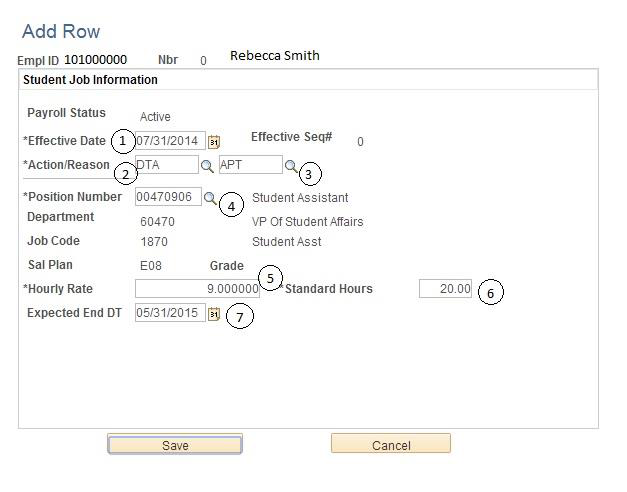
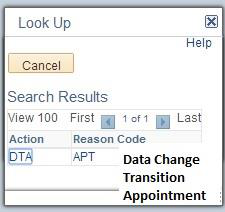
If the student is currently employed, and is changing job codes (1870 to 1874 or 1874 to 1870), select the ACTIVE record for your department. Use codes (DTA/APT) to update the student’s job code during transitions from Spring to Summer or Summer to Fall.
- Enter the Effective Date as the FIRST DAY OF THE PAY PERIOD.
- Action will be DTA for “Data”.
- Reason will be APT for “Renew Appointment”.
- Position number. Click on magnifying glass, pull down tab for “Department”, enter your department number. A list of job codes will appear. Be sure to select correct job code for your department.
Job Code. *See list page next page. The Job Code will populate from the Position Number selected in Step #3.
- Hourly Rate. Enter Student’s hourly rate of pay.
- Standard Hours. Should be 20 hours (Semester) or 40 (Summer).
- Expected End Date. Use the LAST day of the pay period
Click “Save”.
ADD STUDENT JOB (Previous Employee with Break in Service)
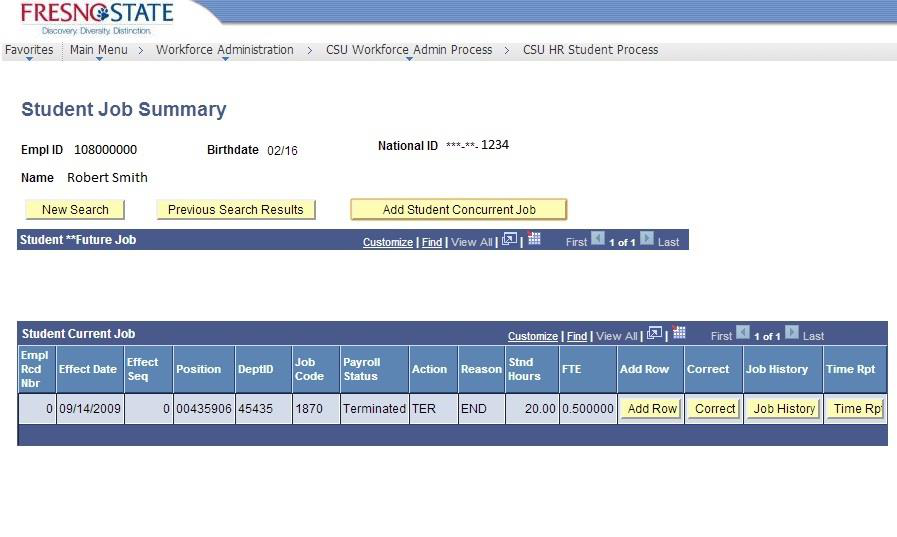
If the student has previously been employed, select the first INACTIVE record to rehire student. (REH/REH) whether it is a record from your department or not.
Student WILL NOT be allowed to work until all hiring paperwork, including Form I-9, is complete.
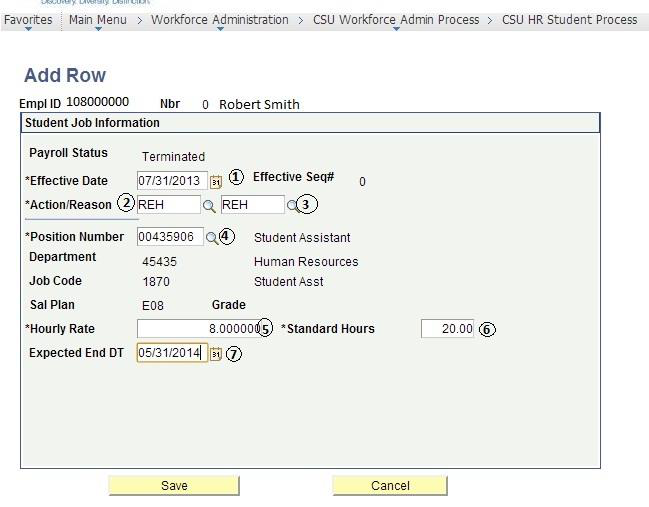
- Enter the Effective Date (First day of work).
- Action will be REH for “Rehire”.
- Reason will be REH for “Rehire”.
- Position number. Click on magnifying glass, pull down tab for “Department”, enter your department number. A list of job codes will appear. Be sure to select correct job code for your department.
Job Code. *See list page next page. The Job Code will populate from the Position Number selected in Step #3.
- Hourly Rate. Enter Student’s hourly rate of pay.
- Standard Hours. Should be 20 hours (Semester) or 40 (Summer).
- Expected End Date. Use last day of academic year.
Click “Save”.
ADD STUDENT JOB (WORK STUDY)
NOTE: Must enter “Work Study Item Type”.
STUDENT HIRE ACTION/REASON CODES
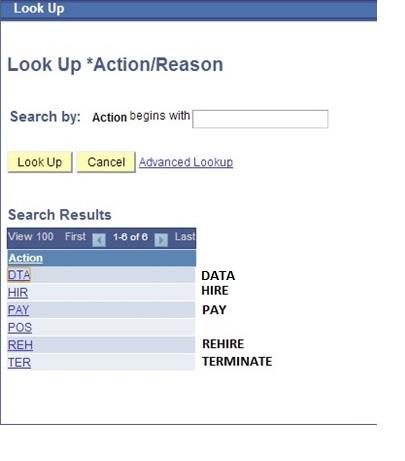
Displayed are ACTION CODES used for Student Employees.
The Action Codes should be used as follows:
DTA = DATA Change
Used to transition existing appointment from 1870 to 1874 OR 1874 to 1870 job code
HIR = HIRE a NEW employee
No existing employment record or adding an additional employment record
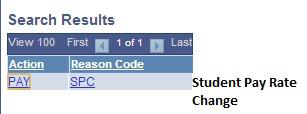
PAY = Change PAY Rate
Used to give student employee a pay increase.
REH = REHIRE
Used to rehire employee from a record that shows Terminated.
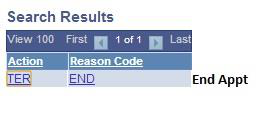
TER = TERMINATE
Used to terminate student’s employment.
Displayed are REASON CODES used for Student Employees:
APT = APPOINTMENT
Used for transitioning existing employees to a new job code or appointing new employees
CON = CONCURRENT
Used for employee with 2 or more ACTIVE records
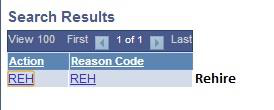
REH = REHIRE
Used for rehiring previous employees
SPC = STUDENT PAY RATE CHANGE
Used to increase student pay
END = END APPOINTMENT
Used to terminate employment record
TYPES OF STUDENT EMPLOYMENT
Displayed is a list of Job Codes for Student Employees.
TYPES OF STUDENT EMPLOYMENT
Campus Employment (CE)
Class Code 1870 & Class Code 1868 (Non-resident Alien)
- The Campus Employment Program is a university-funded program that enables undergraduate and graduate students to work part-time, on-campus jobs regardless of financial need. To qualify for CE, students must be enrolled in a degree-granting program, carry the required amount of units, be eligible to work in the United States, and be in good judicial standing.
Federal Work-Study (FWS)
Class Code 1871(Off-Campus) & Class Code 1872 (On-Campus)
- The Federal Work-Study program is a government-sponsored program that enables students to work part-time to help meet the cost of their education. Jobs may be located on or off campus. In order to be hired through this program, FWS recipients must have financial need as determined by the Financial Aid Office.
Bridge Student Assistant (BSA)
Class Code 1874
- Bridge Student Assistants are students not enrolled in summer session and are employed, working more than 20 hours per week during the months of June and July.
ONLINE FORM I-9 PROCESS
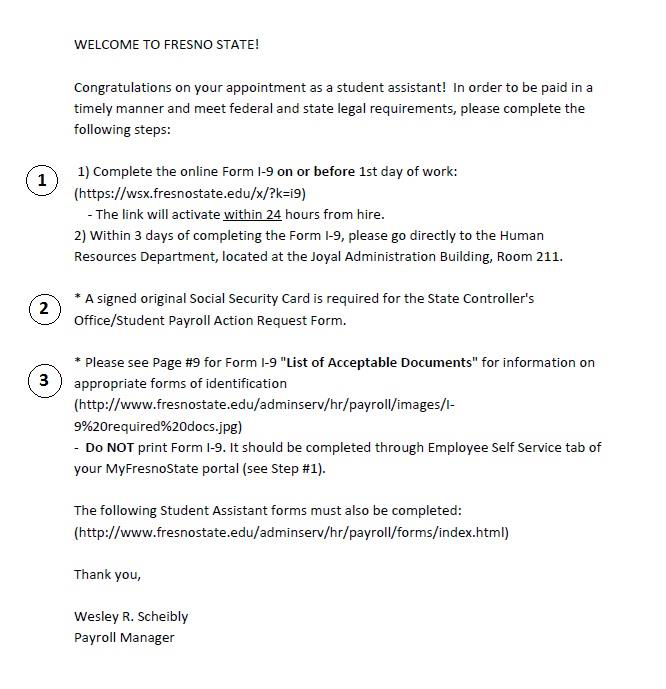
Once you “Save” from the Add Student Job screen, an email will be sent to the student’s Fresno State email. The email contains links for the student to follow to complete their Online Form I-9, as well as other new hire paperwork. The student will have access to their online Form I-9 after batch processing, which occurs twice daily. They will also have access to the online Form I-9 through their Employee Self Service Tab.
The email shown displays what the student employee will receive.
- The email shown contains links for the student to follow.
- The student employee must provide ORIGINAL DOCUMENTS to verify his/her identity and/or employment eligibility.
- The student employee must also provide his/her ORIGINAL SOCIAL SECURITY CARD in order the State Controller’s office to pay him/her.
NOTE: Students WILL NOT be allowed to work or enter time worked until their hiring paperwork, including Form I-9, is complete.
We cannot accept copies, faxes, or laminated documents. Any document requiring a signature must be signed.
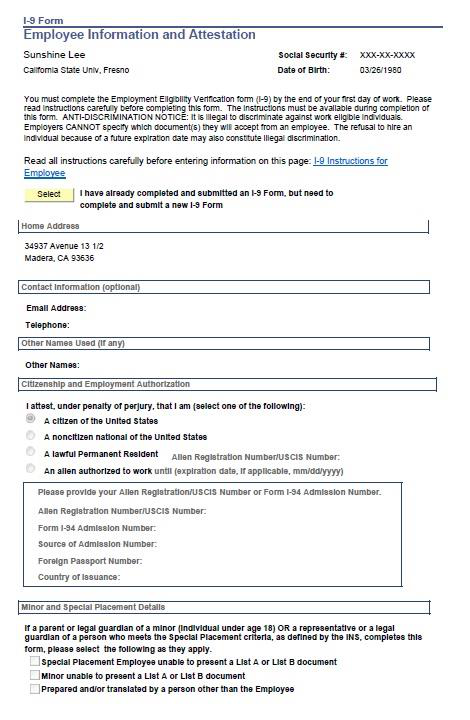
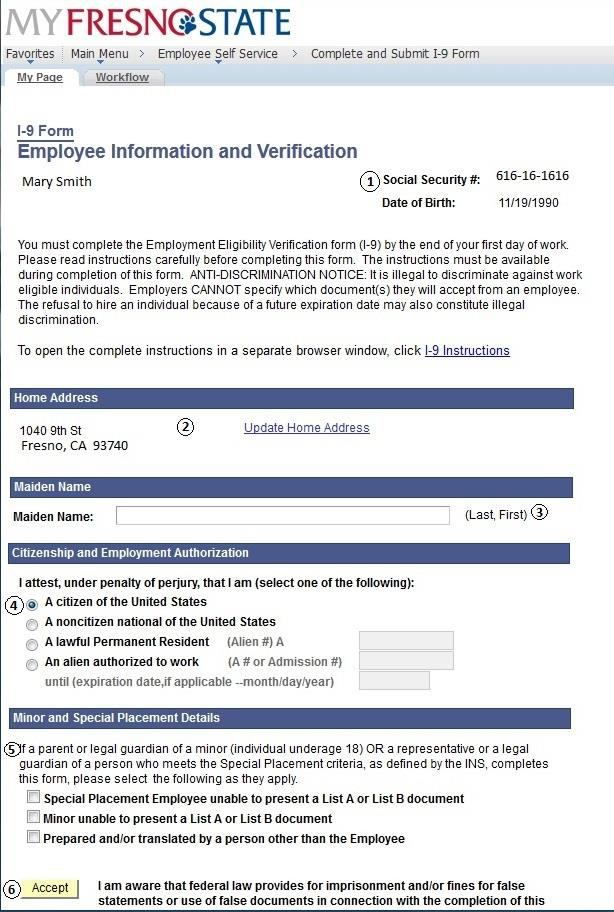
The link to the online Form I-9 will display the following:
- Social Security Home
- Address: If student’s home address is not correct, the student must go back to Employee Self Service and update address before completing the Form I-9.
- Maiden Name: If student has a Maiden Name, she must enter it here. (Last name PRIOR to marriage).
- Citizenship & Employment Authorization: Check the appropriate response. NOTE: If Student is a lawful Permanent Resident or an alien authorized to work, he/she must enter his/her identification number in the box provided to the right.
- DO NOT USE, EXCEPT: If student is a minor WITHOUT identification and/or Special Placement and DOES NOT have the required documentation for section 1, he/she will fill out this section.
- Once the form is complete, student will read the Disclaimer, and click “Accept”. This will submit the Form I-9 to the Human Resources Department.
Note: If student has difficulty logging in, contact Human Resources at 559-278-2032.
CHANGE REPORTS TO
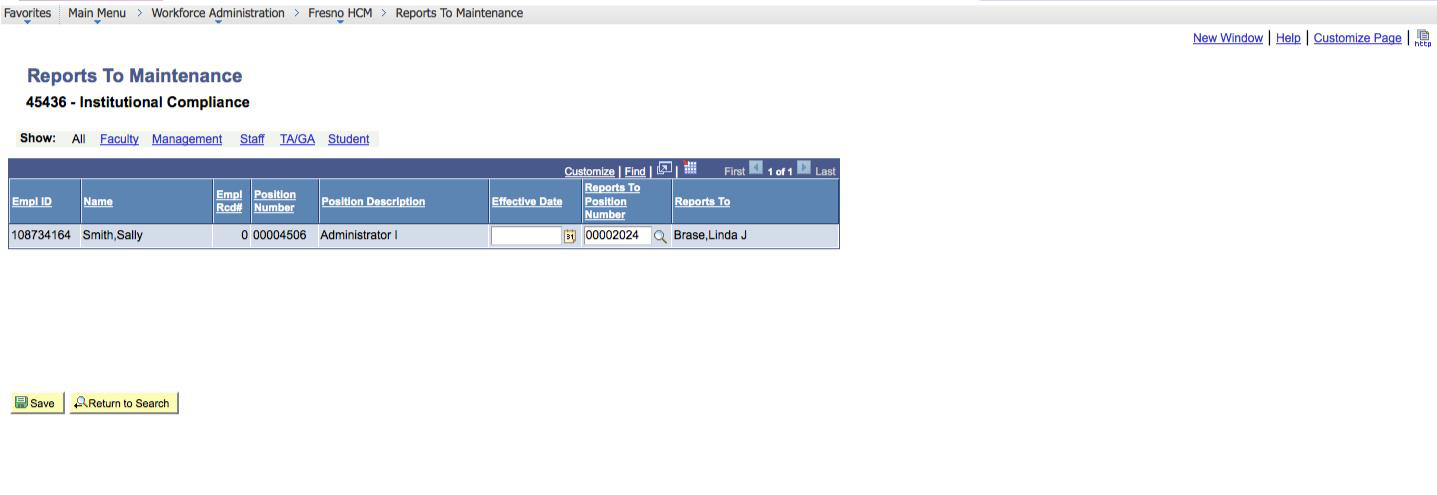
When entering the student new hire into PeopleSoft, the “Reports To” manager will automatically default to one Department Chair or MPP per department. The “Reports to” may be changed to the specific MPP or Department Chair supervising the student for final approval of time. This is manually entered by the department timekeeper, as displayed below.
Main Menu > Time > Reports to Maintenance.
- Search by Department Number.
- Find Employee you wish to change “Reports To” for.
- Enter the “Effective Date”.
- Search for the “Reports To Position Number” using the magnifying glass icon in the row of the employee you wish to make the change for.
- Search by Last Name or department. When you locate the new “Reports To”, click on their name.
- Click “Save”.
NOTE: HR will review and process accordingly. The update will be made to either Position management and job data (if 1 incumbent) or job data only for multiple incumbents.
CHANGE CHARTFIELDS
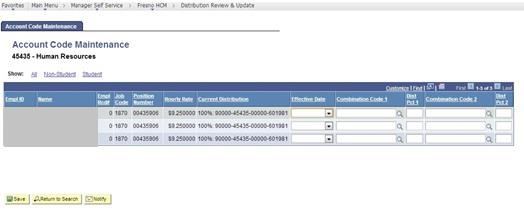
When entering the student new hire into PeopleSoft, the Chartfield will default by job code. The Chartifield will default to the last used Chartfield each pay period. Should the Chartfield need to be changed, or split funding need to be added, the Timekeeper may manually change the Chartfield as outlined below.
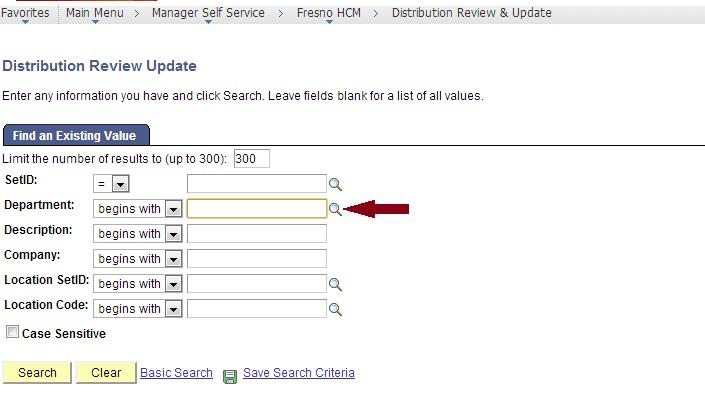
Main Menu > Time Administration > Time and Labor> Distribution Review and Update
- Search by department number.
- The Account Code Maintenance screen will display. (Example 1-Full Screen, Example 2-View of fields to change.
- Enter effective date of change. Enter Chartfield code in “Combination Code 1” field. If you are splitting funding, you may enter 2nd Chartfield code in “Combination Code 2” field, and charge to Chartfields by percentages.
- Click “Save”.
This HTML version was generated with AI assistance and may contain errors or omissions. The original approved PDF remains the official document of record. An alternative accessible format is available upon request from the document creator in accordance with Title II of the ADA.