Instructions for Running the Projected Vacation Forfeitures Report
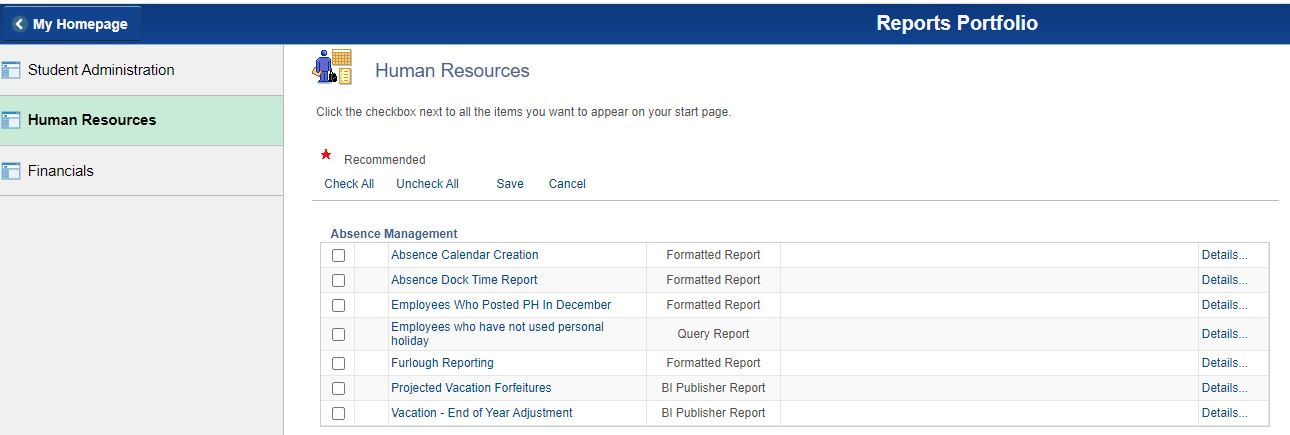
This report is available to each timekeeper and manager. Select Reports Portfolio from the Homepage. Then go to Human Resources → Absence Management → Projected Vacation Forfeitures.
You will select the department you want to run the report for. If you have several departments that report to you, select the department highest in the hierarchy. For example, if you are running it for your college, you would select the Department ID number for the Dean. All other departments roll‐up to the dean’s department number, and those department will be included in the report. In this instance you would also want to make sure that that the answer to the question “Include All Child Departments” is Yes. This will include all departments that roll up to the selected department in the report.
However, if you just want to run the report for only the individuals who report directly to the Dean of the college, enter the Department ID for the college, and answer the “Include All Child Departments?” with a No.
If you have no other departments that roll‐up to your department, you can leave the default answer to the child department question as it is. Click “Apply”

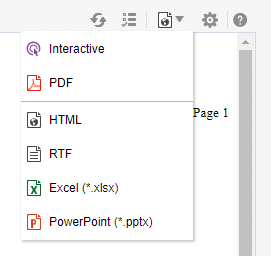
The report will load to the screen. To export the report in either PDF, HTML, RTF, Excel, or PowerPoint, click the page icon and select the desired format.
This HTML version was generated with AI assistance and may contain errors or omissions. The original approved PDF remains the official document of record. An alternative accessible format is available upon request from the document creator in accordance with Title II of the ADA.