Manager Approval Process
To access the system to approve time for employees who report to you:
- Log on to the My Fresno State Portal
- Click on Manager Self Service from the menu on the left side of your screen
- Click on Time Management
- Click on Approve Reported Absences
1.1.1 Using the “Approve Reported Absences” and “Approve Time and Reported Absences” Pages
The “Approve Reported Absences” and “Approve Time and Reported Absences” have the same overall functionality for Absence approval and the “Approve Time and Reported Absences” page can also be used to approve Time and Labor entries.
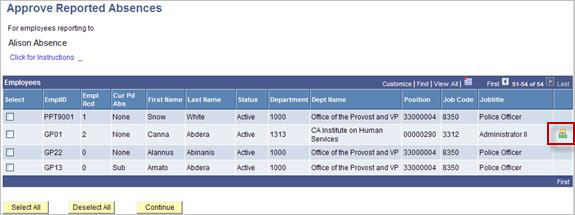
- Click on the “Select” box next to an employee name to select the employee(s) or click on the “Select All” button to select all employees in the list.
- Click on the “Direct Reports” icon
 to drill down to employees reporting to that Manager. This is the same “Drill Down”
functionality that is available on the “Manager Absence Entry Page”
- Click the “Continue” button to display the list of employee Absence entries awaiting approval.
- The “Approve Reported Absences Page” or “Approve Time and Reported Absences” is displayed with Absences awaiting approval.
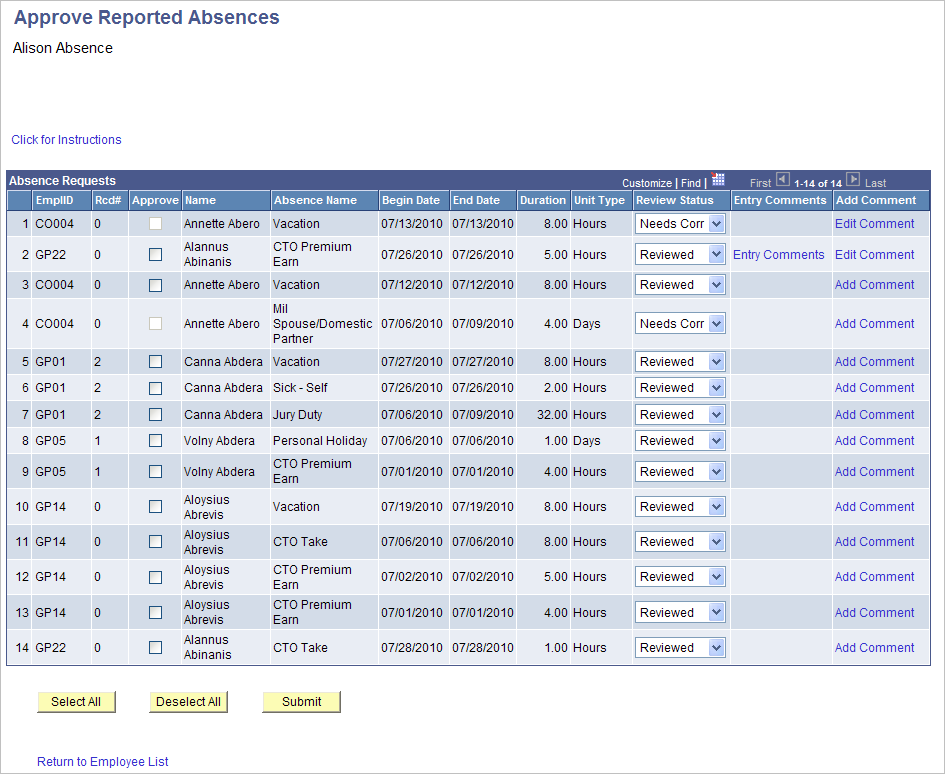
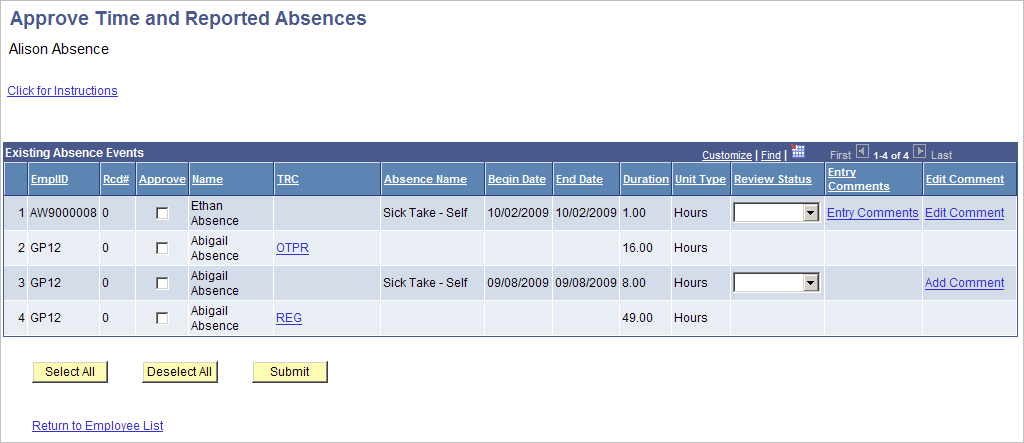
- The Manager validates the entries and employee comments, updates any statuses to “Needs Corrections” and enters comments as applicable, then clicks on the “Select All” button to select all Absences for approval.
Note that any Absences in a status of “Needs Approval” are not included with the “Select All”.
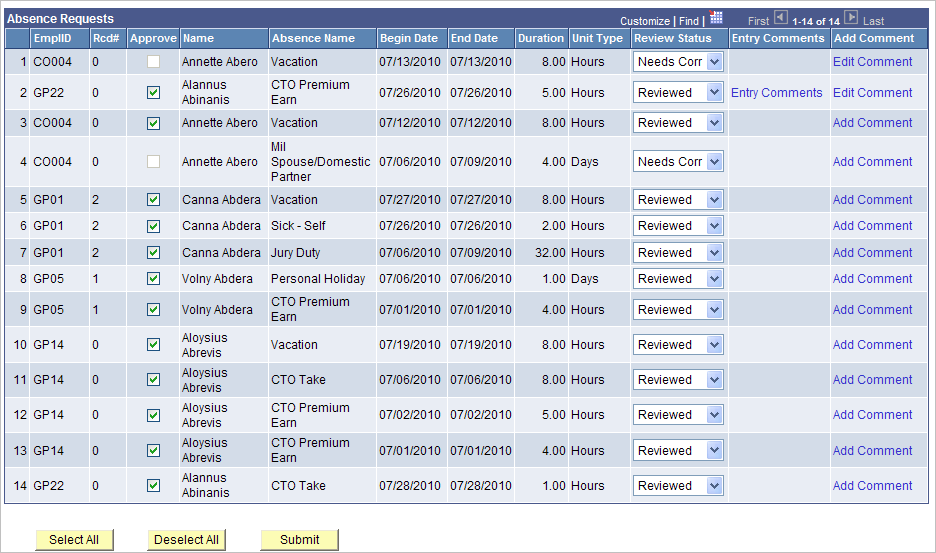
- Click on the “Submit” button to update the status of all selected Absences to “Approved”. The confirmation includes a count of the number of Absences which have been approved.
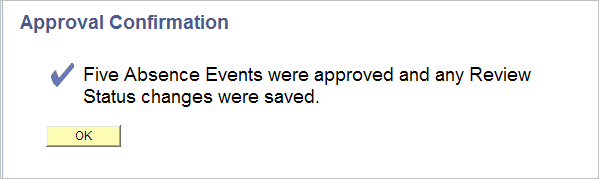
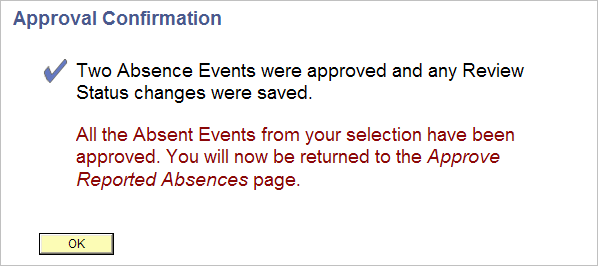
- If there are additional Absences awaiting approval, the Manager is returned to the approval page. If all of the Absences awaiting approval have been approved, the confirmation page indicates that all Absences have been approved and Manager is returned to the employee list page.
This HTML version was generated with AI assistance and may contain errors or omissions. The original approved PDF remains the official document of record. An alternative accessible format is available upon request from the document creator in accordance with Title II of the ADA.