Job Aid

- Register
- Log In
- Look at Earnings Statement
- Look at W2
- Calendar
- Look at Personal Data
- Change Password
- Change Email
- Change User Name
- Leave Balances
- More Assistance
Register
- Go to https://connect.sco.ca.gov/ and click Register to begin the registration process. You will need your social security
number, date of birth, and information from a recent State of California earnings
statement (also known as a pay stub).
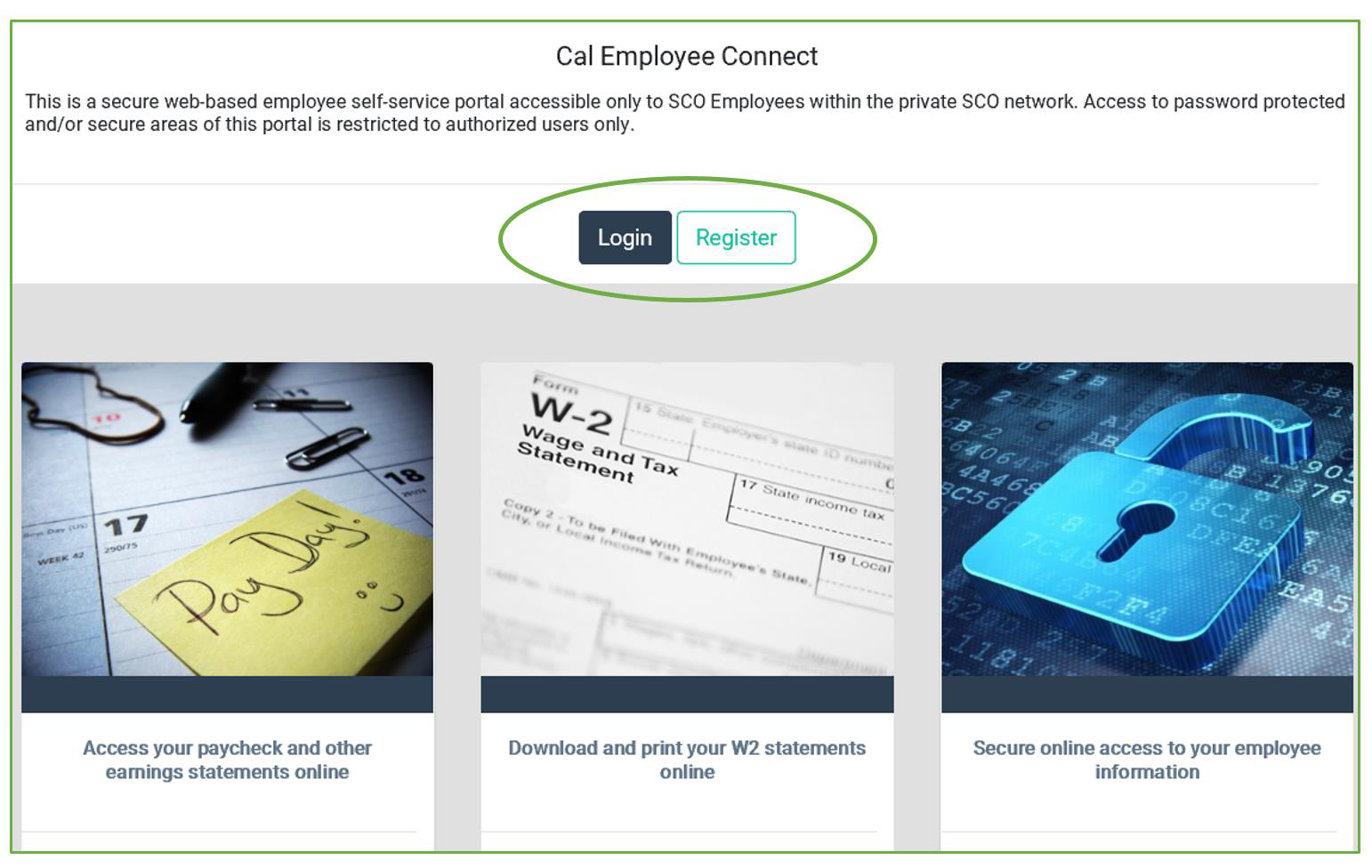
- Read Getting Started then click Continue.
- Read User Agreement then click Accept.
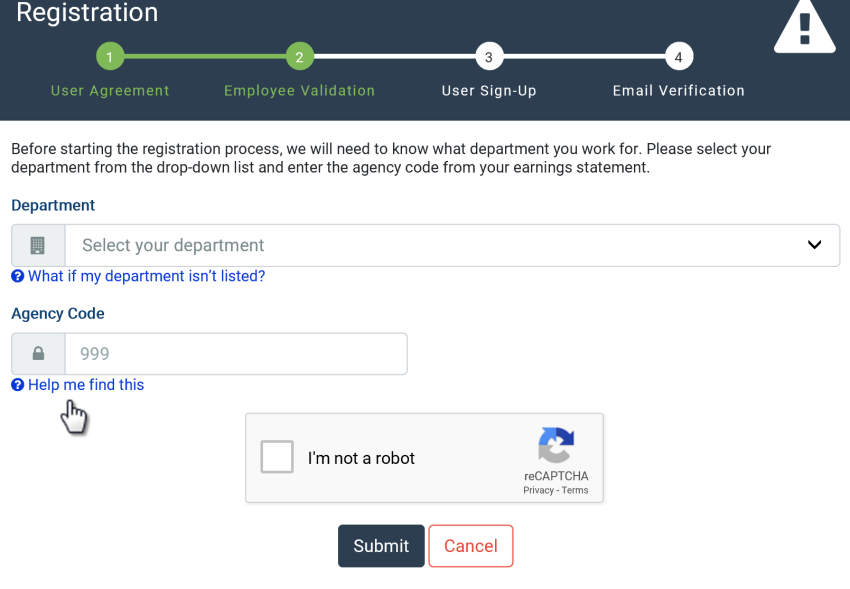
- Enter your Department Name and Agency Code. (To find your agency code, click “Help
me find this.”)
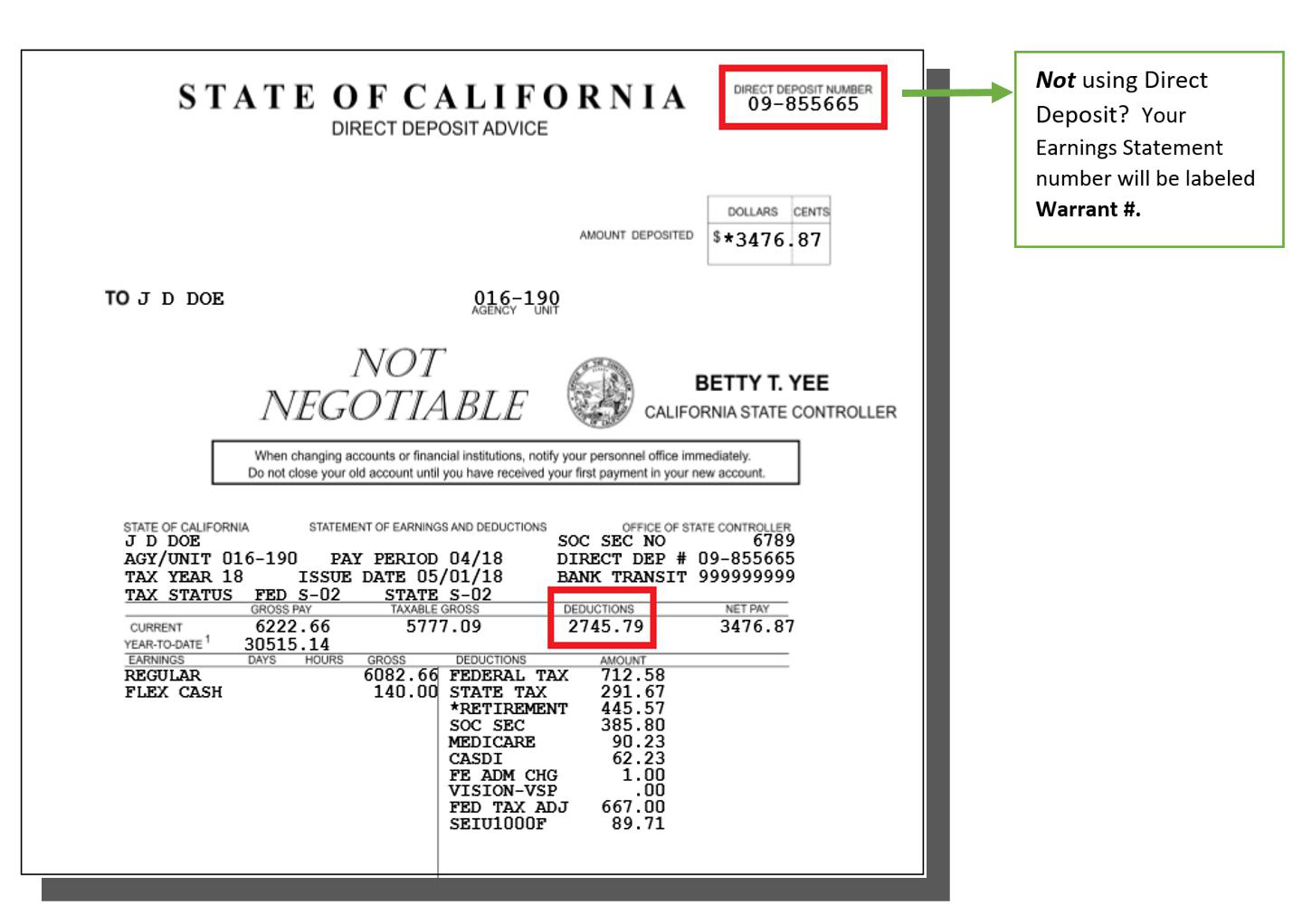
- Fill in the information requested then click Submit. If you are not sure where to
find the information on your earnings statement, click on “Help me find this.”
- Create login details by entering your email address and your preferred username with no spaces. Create a password, which must be at least eight characters including at least one special character and at least one uppercase letter and one lowercase letter.
- Verify your email address then click Submit.
- You will receive an email with a unique code that is valid for 30 minutes from the time the email was sent. Enter the code in the Email Verification Code box.
- You will receive an email with your user ID. This email confirms your registration is complete and you may log into Cal Employee Connect.
Log In
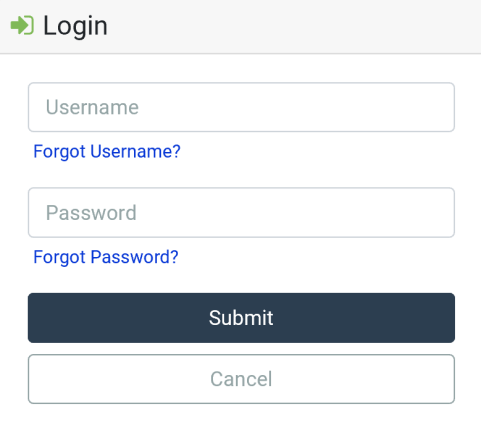
- Go to https://connect.sco.ca.gov and click Login.
- Enter your username and password, then click Submit.
Look at Earnings Statement
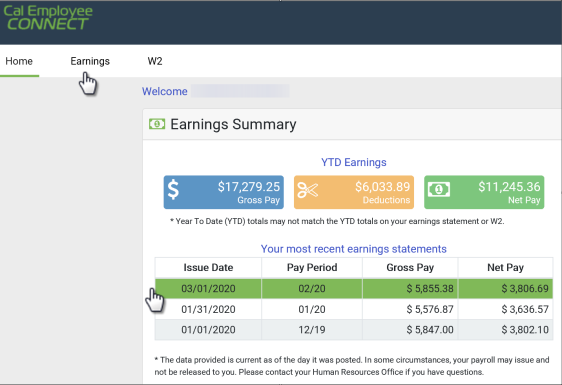
- There are two ways to get to earnings statements.
- In the Earnings Summary, click an earnings statement.
- At the employee dashboard on the top of the screen, click Earnings.
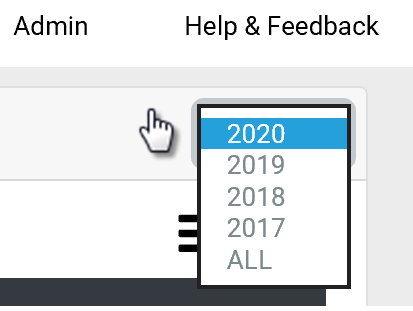
- To view an earnings statement from a different year, click the dropdown field on the
right side of the earnings statement table.
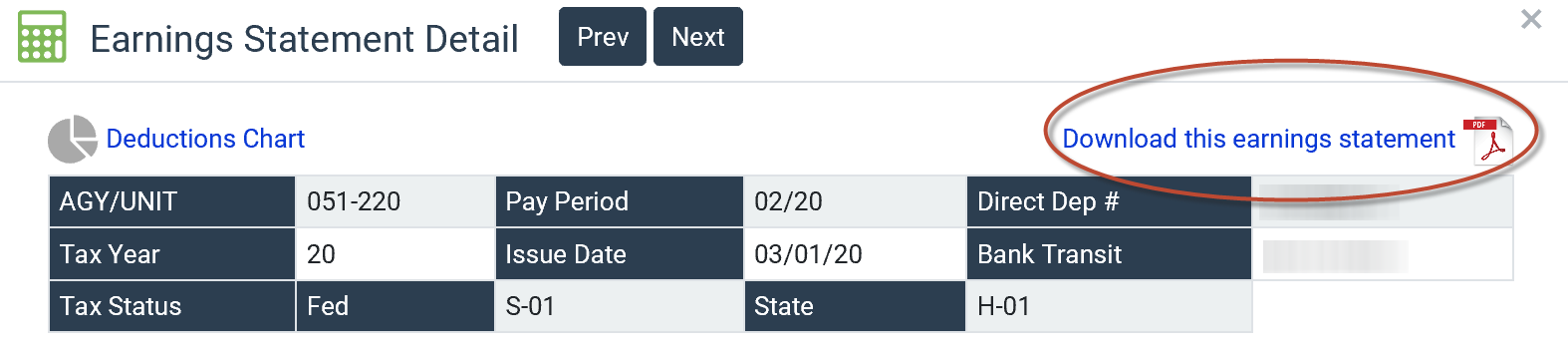
- To get more details on a particular statement, double-click on the desired row.
- To download a PDF, click View/Download this Earnings Statement, then select the download
button and save to your computer. (You will only have the option to download your
earnings statement if you are enrolled in direct deposit.)
Look at W2
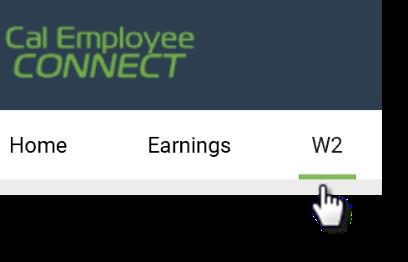
- At the employee dashboard on the top of the screen, click W2.
- Click a row to view your W2 for that tax year.
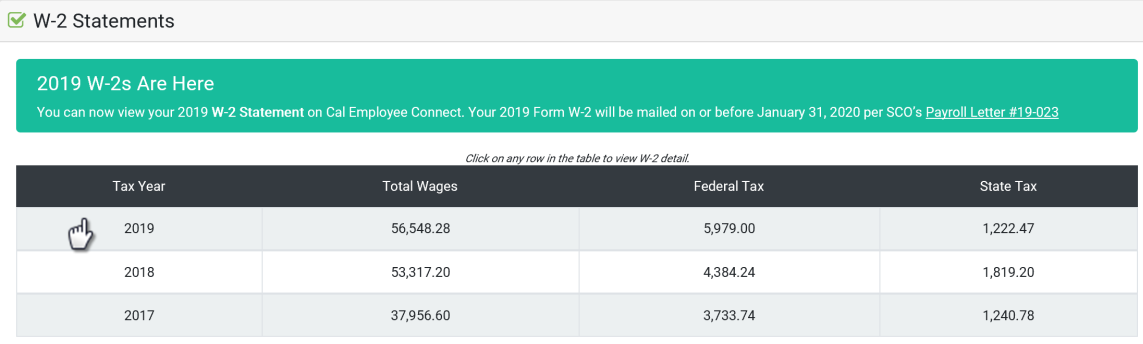
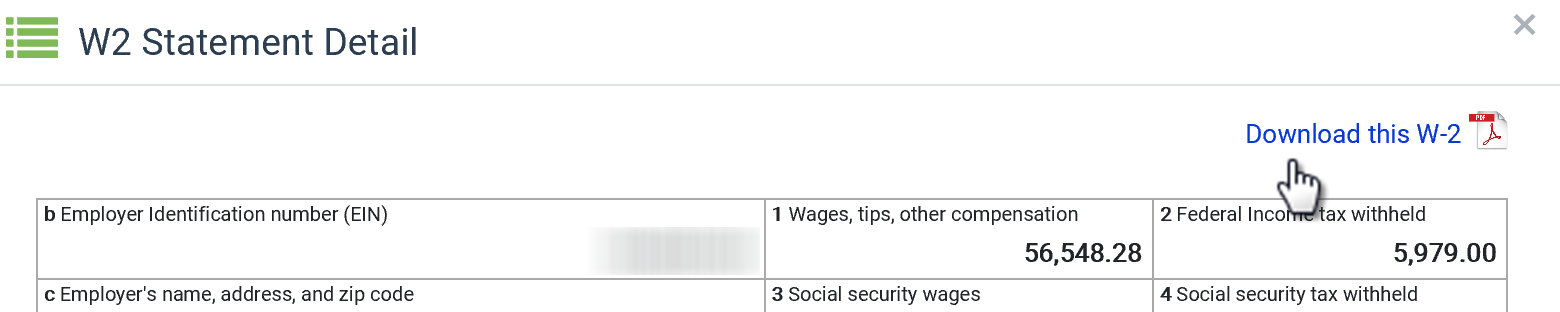
- To download a PDF, click View/Download this W2.
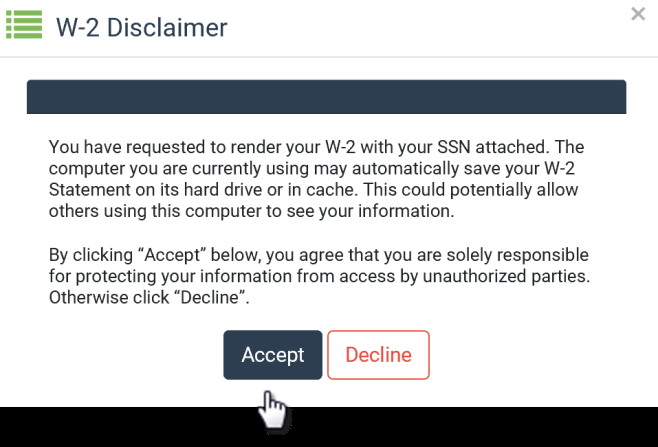
- Accept the Disclaimer.
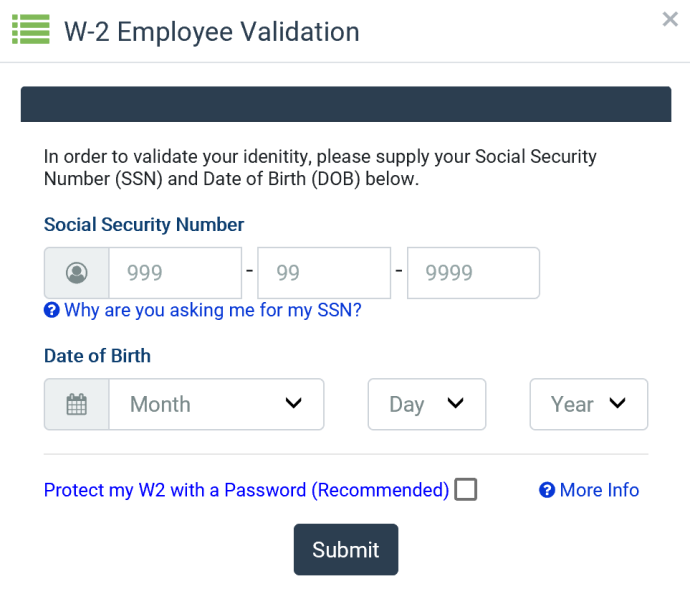
- Verify your identity using your social security number and date of birth.
- Optional: Encrypt your W2.
- Click Protect my W2 with a Password.
- Create a password following the prompts, then click Submit.
- Accept the Disclaimer.
Calendar
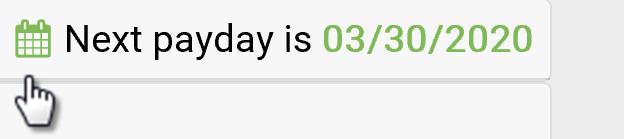
To view pay dates, state holidays, and more, click the calendar at the top of the home screen.
Personal Data
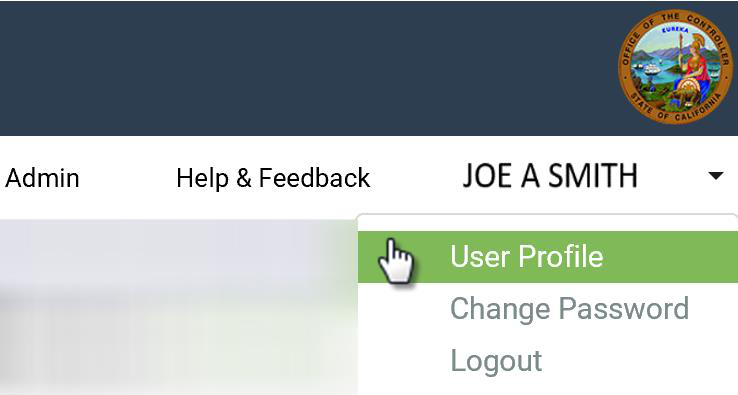
To view personal data, click your name at the top right side of the screen then click User Profile.
Change Password
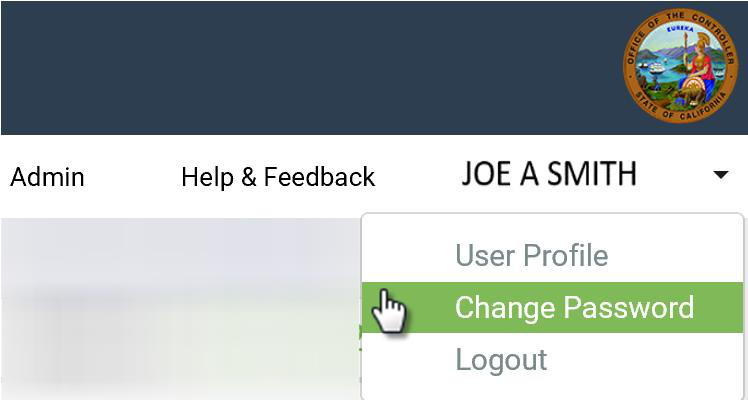
- To change your password, click your name at the top right side of the screen then click Change Password.
- Enter your current password.
- Enter your new password and click Submit.
Change Email
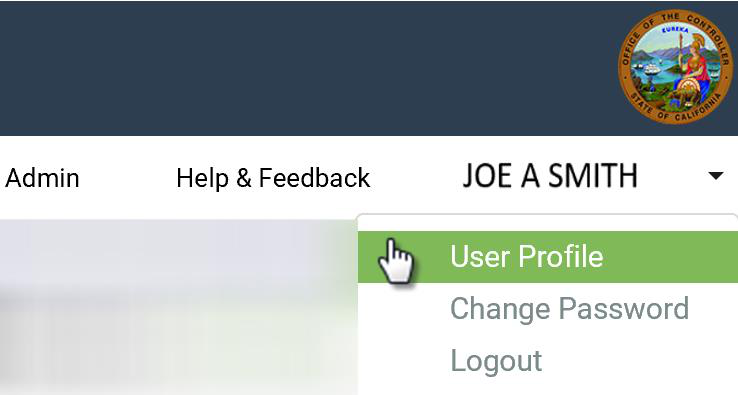
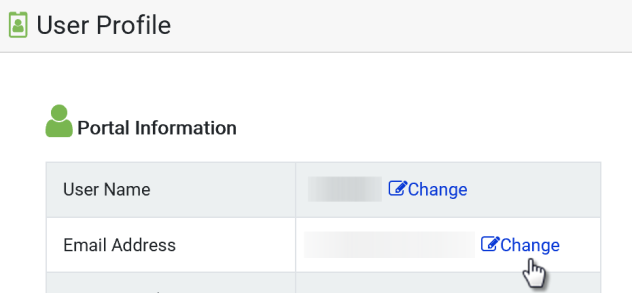
- To change your email address, click your name at the top right side of the screen
then click User Profile.
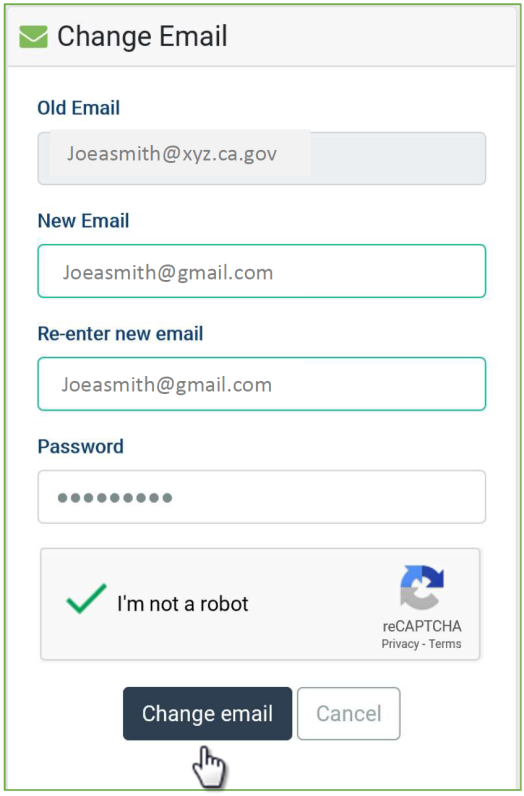
- Click the change tool and enter your new email.
- Enter your password. (This might already be filled in.)
- Click “I’m not a robot” and click Change Email.
- You will receive a validation email with a security notice indicating you are making a change to your Cal Employee Connect account. Enter the validation code and click Submit. (The code will expire after 30 minutes. If you need your code sent again, click Resend.)
- A confirmation notice will appear at the bottom of your User Profile.
Change User Name
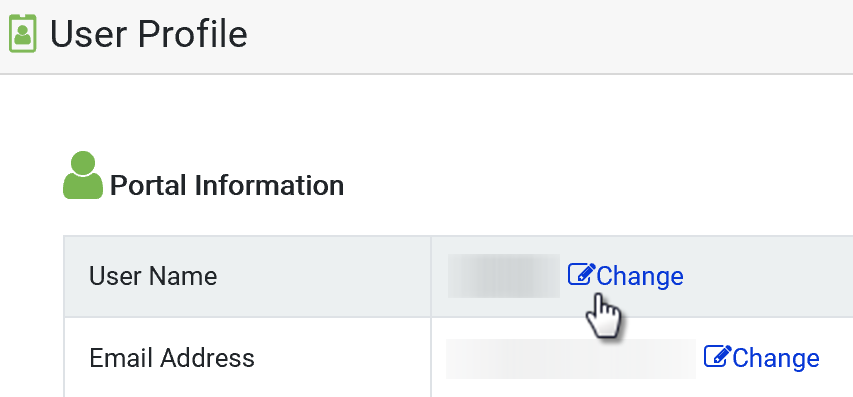
- Click your name at the top right side of the screen then click User Profile.
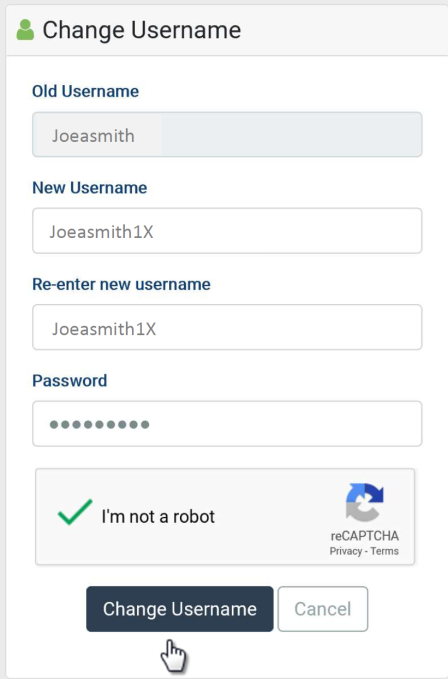
- Click the change tool and enter your new user name.
- Enter your password. (This might already be filled in.)
- Click “I’m not a robot” and click Change Username.
- You will receive a validation email with a security notice indicating you are making a change to your Cal Employee Connect account. Enter the validation code and click Submit. (The code will expire after 30 minutes. If you need your code sent again, click Resend.)
- A confirmation notice will appear at the bottom of your User Profile.
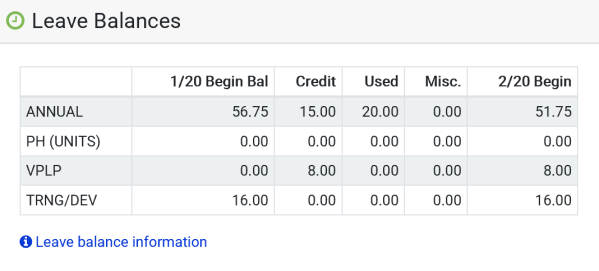
Leave Balances
To view your leave balances, look at the table on the right side of the home screen. Balances will be one month in arrears, consistent with what is on your most recent earnings statement.
Need More Assistance?
Click Help & Feedback on the top right side of the screen or email connecthelp@sco.ca.gov.
This HTML version was generated with AI assistance and may contain errors or omissions. The original approved PDF remains the official document of record. An alternative accessible format is available upon request from the document creator in accordance with Title II of the ADA.