Monthly Processing Instructions - Monthly Reconciliation of Procurement Card Transactions
Log into “My Fresno State”
On My Homepage – click on the CFS Peoplesoft Financials Tile
Then Click on the Purchasing Tile
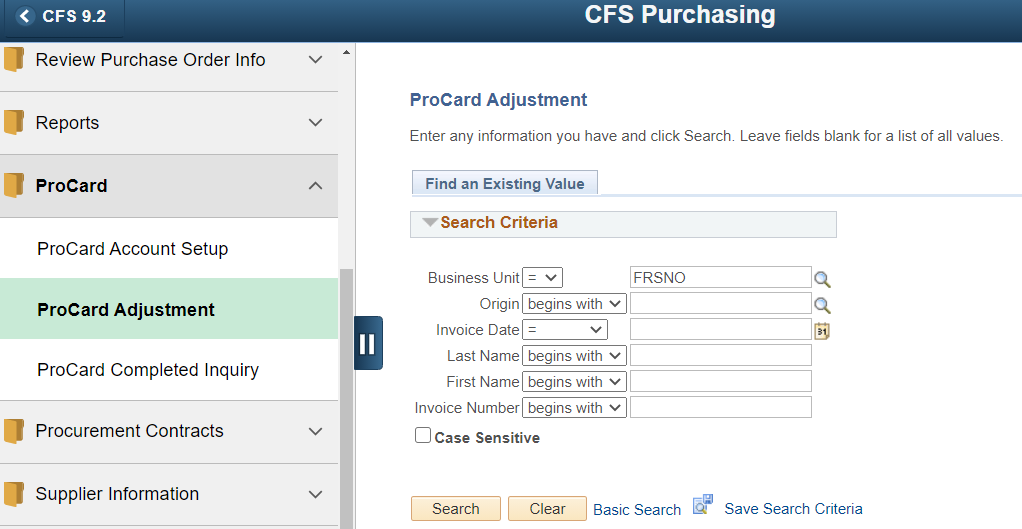
Click on the Procard Adjustment that is on the left side of your screen
- Select Business Unit or either FRSNO (default) or FRATH (for athletics)
- Enter Cardholder’s last name
- Click on “Search”
Monthly Reconciliation of Procurement Card Transactions (Cont’d)
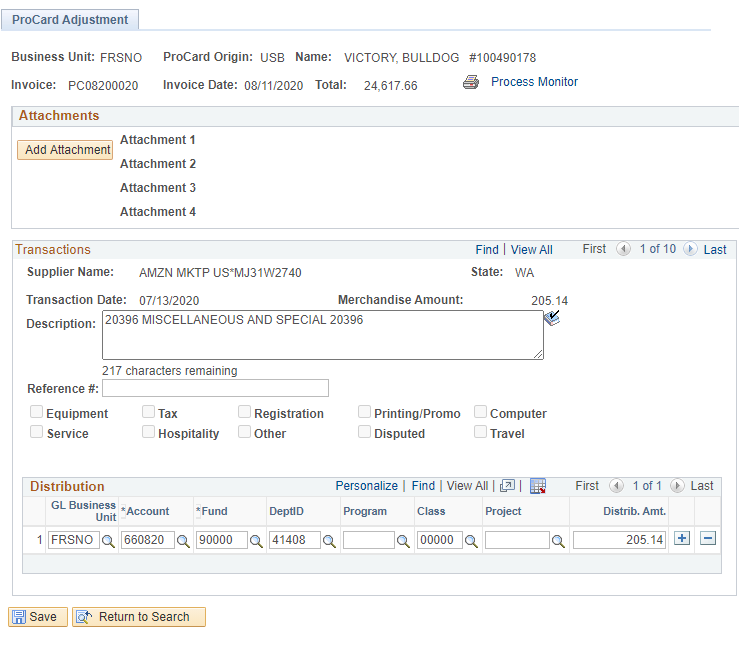
- Invoice#: System generated. The first two characters are PC, the next four characters are MMYY (the month and year of the billing statement), and the last 4 are sequential numbers.
- Invoice Date: The billing statement date
- Description: Default description based upon vendor’s MCC (merchant category code).
- Distribution: These fields are automatically populated with cardholder’s default chartfield string.
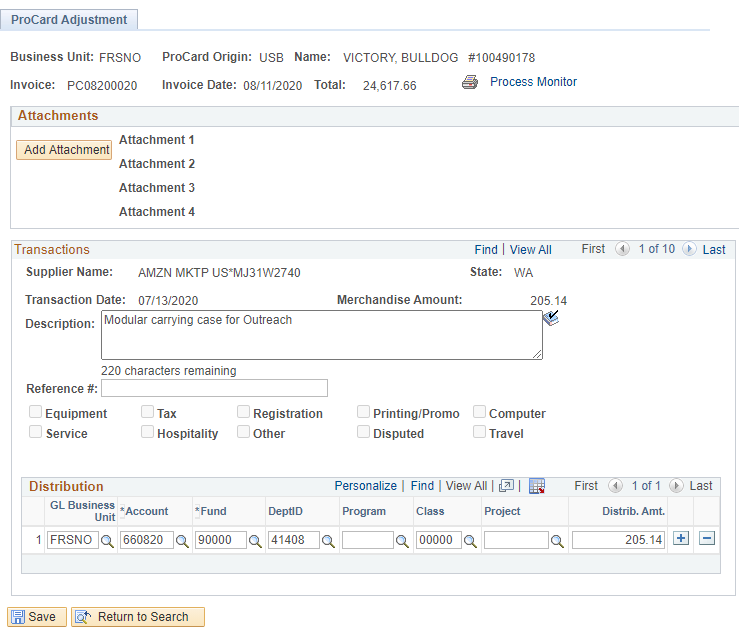
- Description: Delete default description and enter a brief description of the item purchased and it’s business purpose.
- Distribution: If required, change chartfields here. Click on magnifying glass to view additional chartfield selection.
- To see the next transaction, click on the icon button. To see all charges for the billing cycle select “View All”

If you are adjusting multiple transactions please remember to click on

At the bottom of the transaction page so that your changes are retained.
Split Distributions
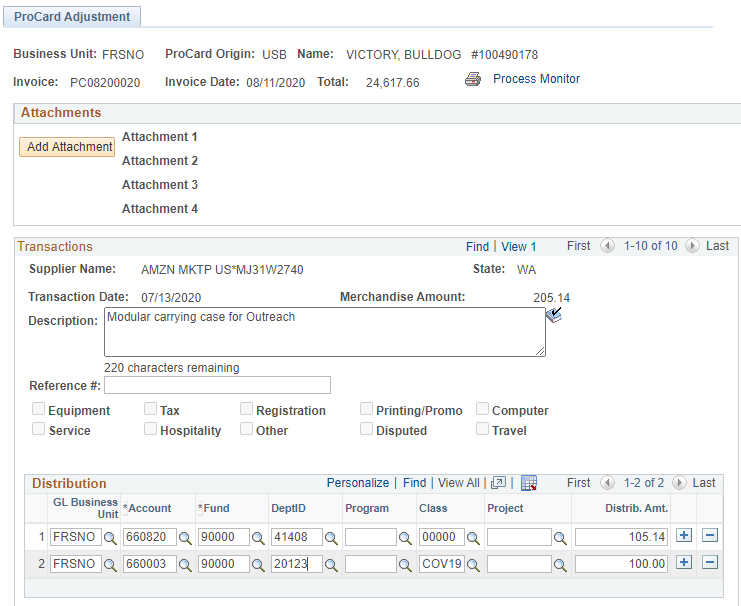
To split the distribution on a transaction, click on “View All” on the Distribution line, then click on the “+” at the end of the chartstring row to insert a new distribution row. Add the chartfields for the second distribution. You may split a transaction up to 9 lines.
When you are finished, select “Save”.

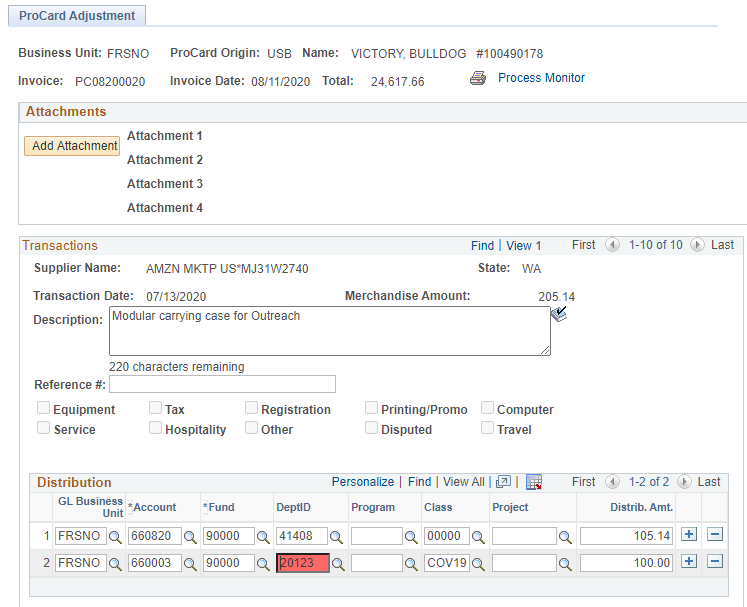
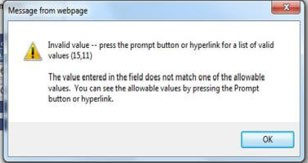
When you click on “Save” the PeopleSoft system automatically checks for the following:
- The total Distribution Amount must equal the Merchandise Amount.
- The transaction must have valid chartfield combinations. The PeopleSoft system will permit you to save the transaction until the distribution amounts and chartfields are valid.
Printing Procurement Card Statements
When you are finished making adjustments to your procurement card transactions, you will need to print your ProCard Statement.
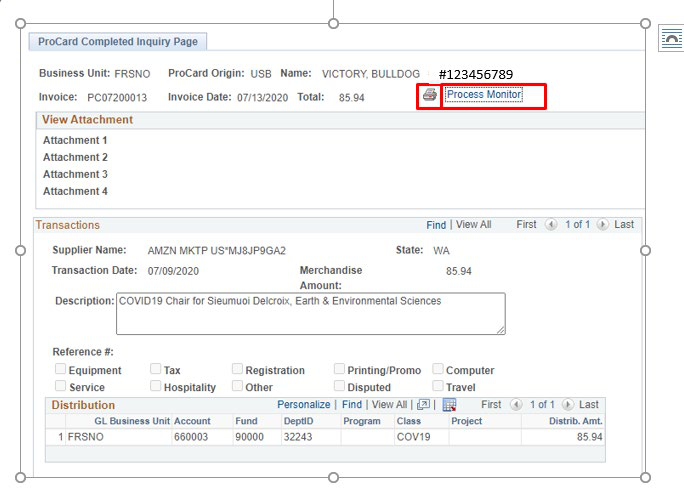
The ProCard Statement may be printed from the ProCard Adjustment panel or the ProCard Completed Inquiry panel.
To print the statement first click on the printer icon on the upper right corner of the ProCard Adjustment panel, then click on “Process Monitor” located next to the printer icon.
Printing Procurement Card Statements (Cont’d)
Click on the yellow refresh button until the Run Status changes to “Success” and the Distribution Status is “Posted”.
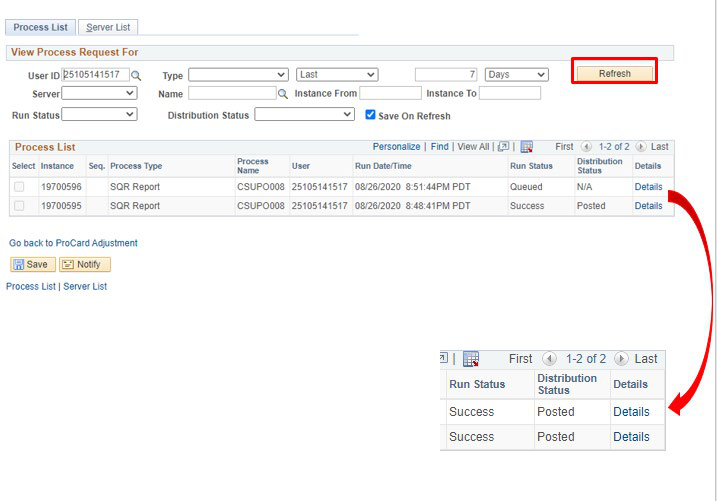
Click on the Details Link
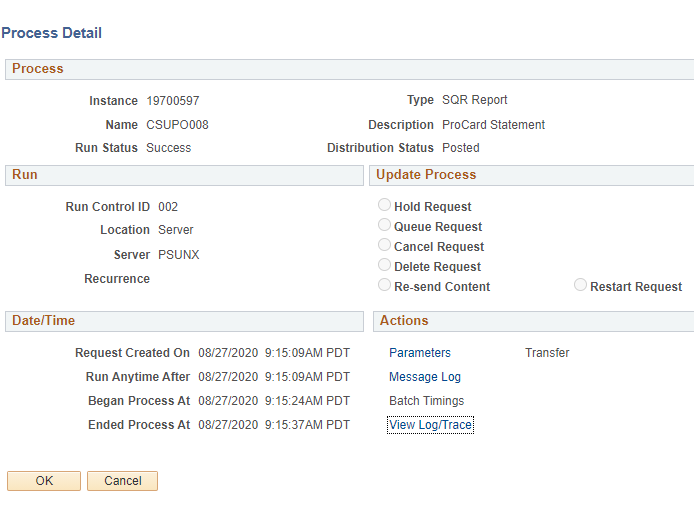
Click on the View Log/Trace link
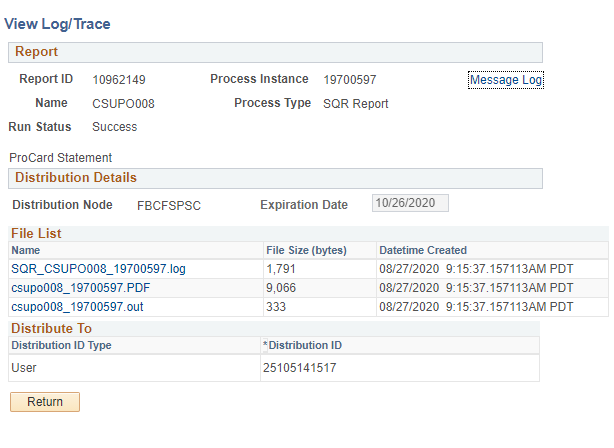
Click on the PDF Link
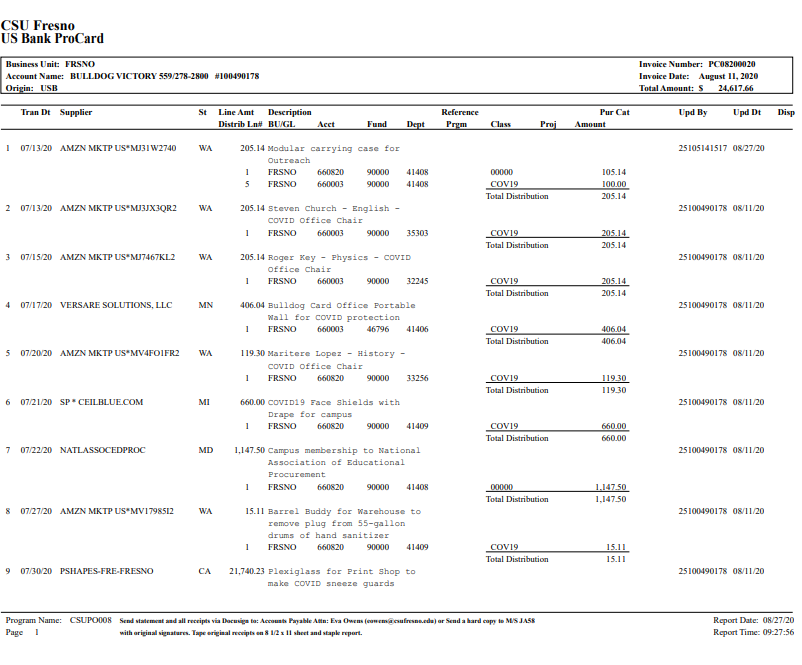
Print the ProCard Statement
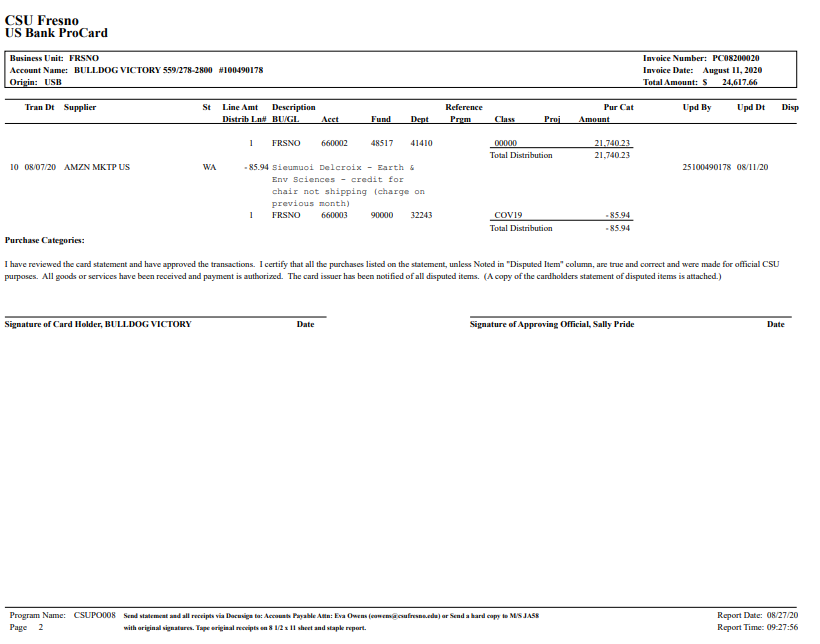
Sample ProCard Statement
Monthly Processing Guidelines
Both the Cardholder and Approving Official must sign the ProCard Statement.
- If your Approving Official is unavailable to review and approve your purchases you are responsible for contacting your designated Alternate Approver to review and approve your purchases.
- If your paperwork is late any three times in a 12-month period, your card maybe temporarily suspended or the limits reduced. If your paperwork submissions to Accounts Payable continue to be late, your Procurement Credit Card maybe revoked.
- Please number the receipts/invoices to correspond with the line number on your ProCard Statement.
- Individual receipts/invoices smaller than 4 ¼” x 5 ½” should be taped to an 8 ½” x 11” sheet of paper to ensure they are not lost in transit.
- Email copy of the ProCard Statement with signatures and attached receipts to: Eva Owens at eowens@mail.fresnostate.edu. Send as attachment through email or through Adobe.
- When: By the 5th business day following the cycle end (@ 4th day of the month).
- Keep a copy of your US Bank ProCard Statement, and invoices/receipts for a minimum of 90 days (preferably 1 year).
This HTML version was generated with AI assistance and may contain errors or omissions. The original approved PDF remains the official document of record. An alternative accessible format is available upon request from the document creator in accordance with Title II of the ADA.