FSA Submitter User Guide
How to Login to OnBase Web Client
Go to the OnBase Web Client link https://imaging.fresnostate.edu/
NOTE: Make sure the browser pop-up are not blocked.
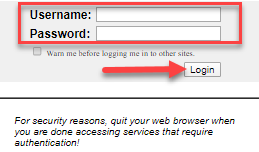
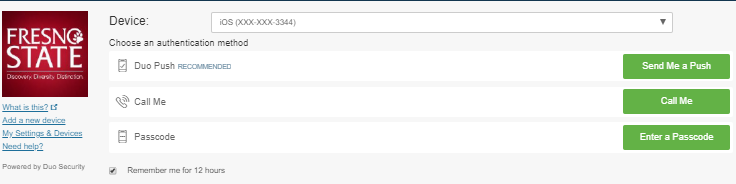
Type your Fresno State username and password, click the Login button. Duo Security authentication will be required if you have not logged into OnBase using the current browser.
How to Submit a New Financial Signature Approval (FSA) form
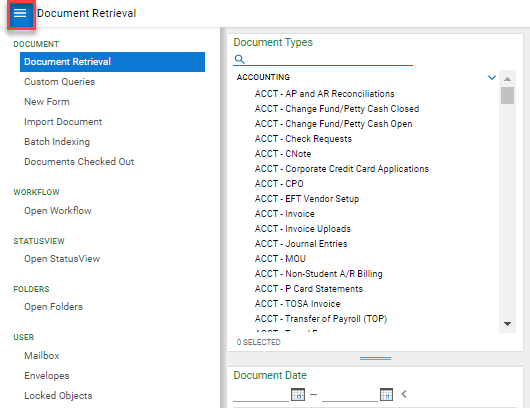
Go to Home page, click on the dropdown menu button at the top navigation bar.
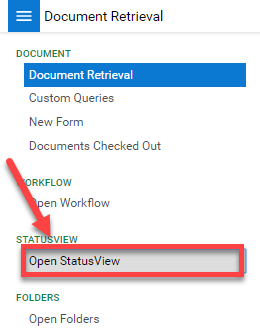
A side panel will expand. Click Open Status View.
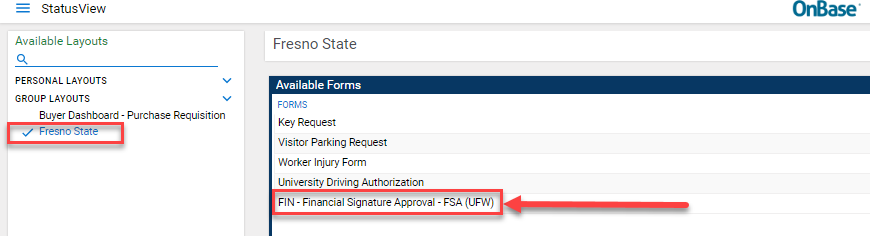
A new window will display, under the Group Layouts the default will be to Fresno State status view. A side window will display and under Available Forms double click on the FIN – Financial Signature Approval – FSA (UFW).
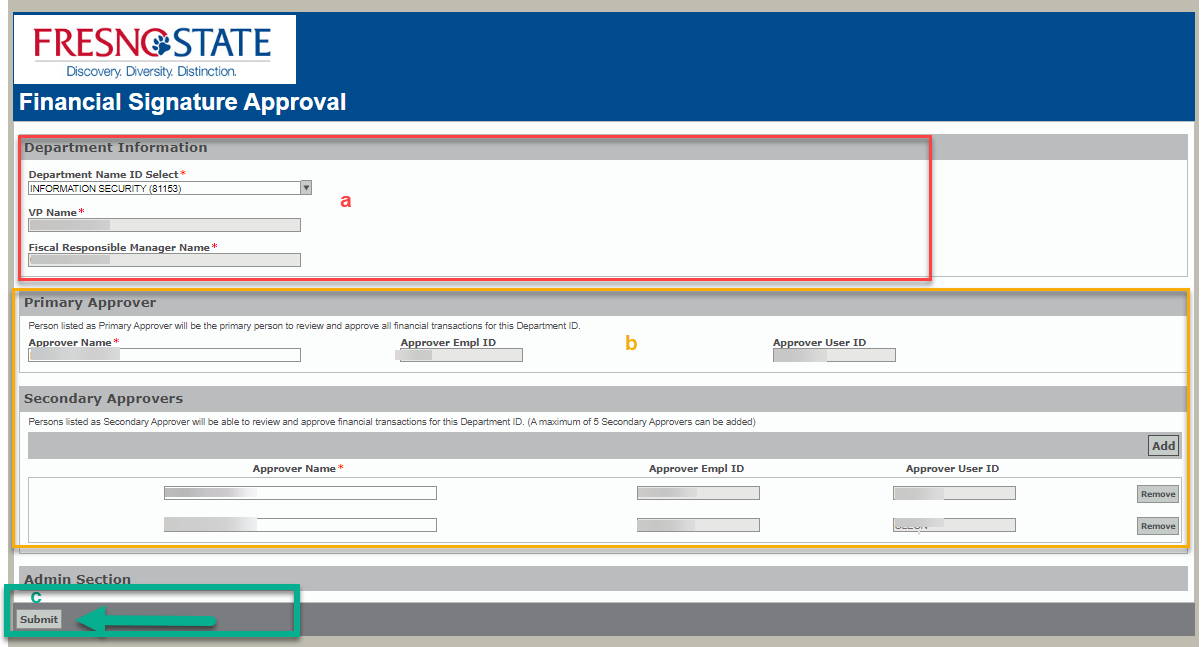
A new window will display the FIN – Financial Signature Approval – FSA (UFW) form. Enter the required information listed below to submit the form:
- Department Information
- Department Name ID Select – This field will allow you to type the department id or name or use the drop down arrow to see list of department ids/names.
- VP Name – This field will auto-populate based on the Department Name ID Select.
- Fiscal Responsible Manager Name – This field will auto-populate based on the Department Name ID Select.
- Primary Approver and Secondary Approvers Section
- Approver Name – This field will auto-populate based the current primary/secondary approver.
- You can select the new approver in this field
- There can only be one primary approver
- There can be up to a maximum for 5 secondary approvers that can be added.
- Approver Empl ID – This field will auto-populate based approver name
- Approver User ID – This field will auto-populate based approver name
- Approver Name – This field will auto-populate based the current primary/secondary approver.
- Click on the “Submit” button.
This HTML version was generated with AI assistance and may contain errors or omissions. The original approved PDF remains the official document of record. An alternative accessible format is available upon request from the document creator in accordance with Title II of the ADA.