Upload Invoice Through Supplier Portal
QUICK REFERENCE GUIDE
Learn how to upload an invoice through the CSUBUY Supplier Portal.
Supplier Portal: https://solutions.sciquest.com/apps/Router/SupplierLogin?CustOrg=CalStateUniv
UPLOAD AN INVOICE
- Navigate to Orders > Sales Orders And Shipments > Search for Sales Orders.
- Select the Sales Order (PO) you want to invoice.
- Open the Create… drop-down menu and select Invoice.
- Select Add Invoice Image to upload an Invoice PDF.
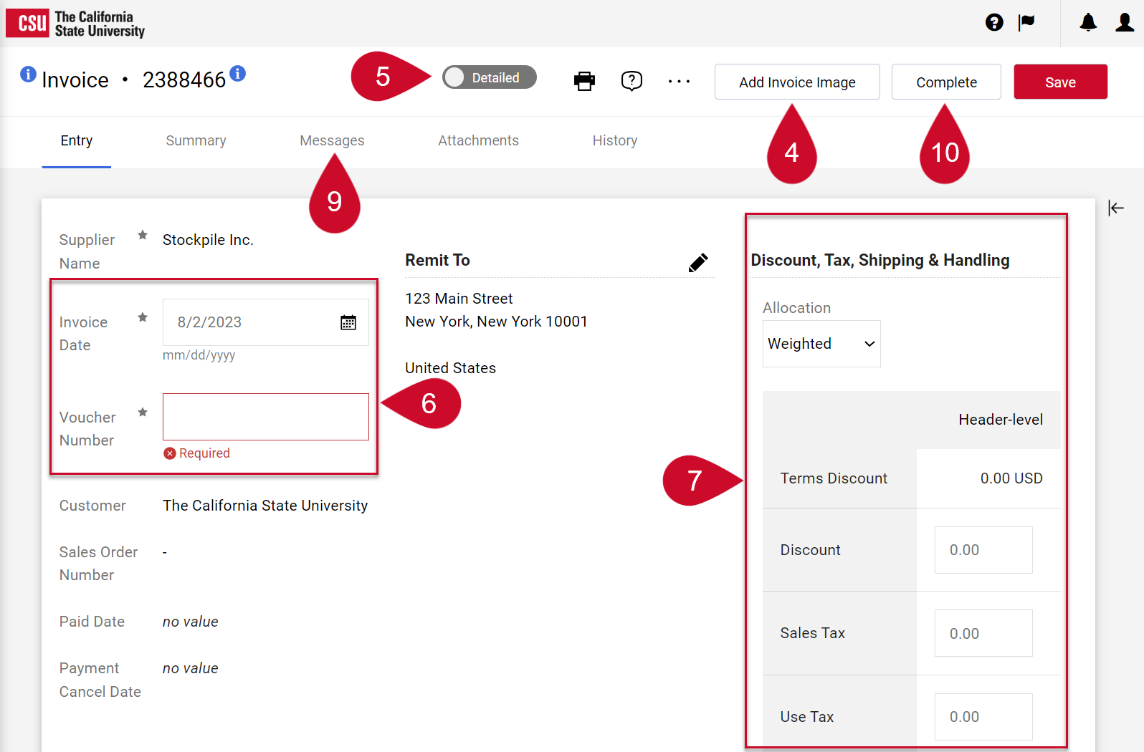
- Switch to Detailed to add taxes and or shipping charges.
- Enter the Voucher Number and Invoice Date.
- Enter applicable tax, shipping, and handling in these fields.
- Modify each line to indicate the amount or quantity to be billed on the current invoice.
- CSUBUY contacts can send messages within the invoice. The Messages tab displays messages for each invoice. Select the plus symbol to reply or send messages.
- Select Complete.
This HTML version was generated with AI assistance and may contain errors or omissions. The original approved PDF remains the official document of record. An alternative accessible format is available upon request from the document creator in accordance with Title II of the ADA.