Search for a Requisition
QUICK REFERENCE GUIDE
Learn how to search for a requisition and identify its status.
LOCATE A REQUISITION
- Navigate to Orders > Search > Requisitions.
- Filters can be applied to the Search Requisitions page in multiple ways.
- Use Quick Filters to narrow down the search results. Select the Show/Hide Side Panel icon to open and close the Quick Filters panel.
- Use Add Filter for additional filters. Select Pin Filters to make the filters you added default.

- Select the Configure Columns icon to open the Configure Column Display pop-up window.
- Select or deselect columns to customize what data the search results display.
- To manage the column display order, select and drag the columns up or down.
- Select Pin Columns as my defaults to save this column configuration for all future searches.
- Select Apply.
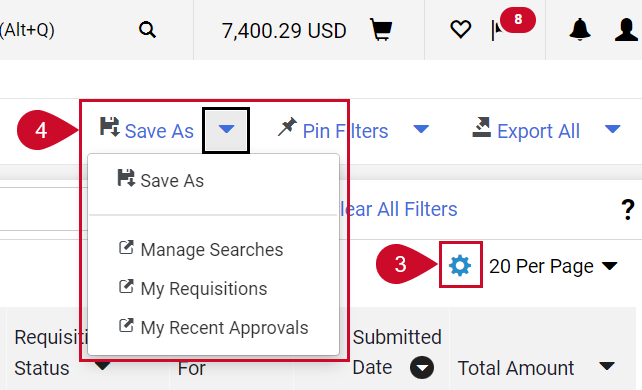
- Select the Save As icon at the top of the page to save your search as a favorite. Additional options are available from the drop-down menu.
VIEW THE REQUISITION STATUS
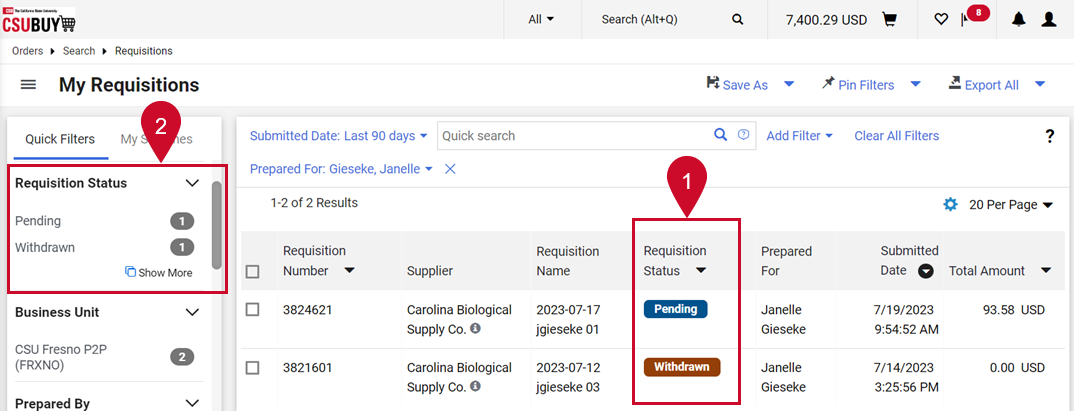
- The Requisition Status column shows the status: Completed, Pending, Withdrawn, or Rejected.
- Select the Requisition Status menu or the Requisition Status section in the Quick Filters panel to sort results by status.
- Select and open a requisition.
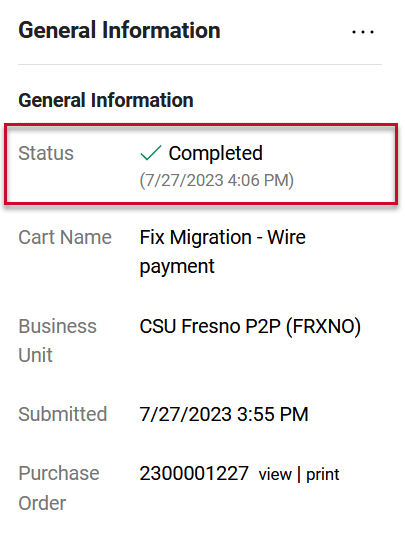
- The General Information section includes the Status of the requisition and additional information.
This HTML version was generated with AI assistance and may contain errors or omissions. The original approved PDF remains the official document of record. An alternative accessible format is available upon request from the document creator in accordance with Title II of the ADA.