Purchase Order Change Request
QUICK REFERENCE GUIDE
Learn how to create a purchase order change request.
CREATE A PURCHASE ORDER CHANGE REQUEST
Follow the steps below to create a purchase order change request:
- Navigate to Orders > Search > Purchase Orders.
- Open the purchase order you want to update.
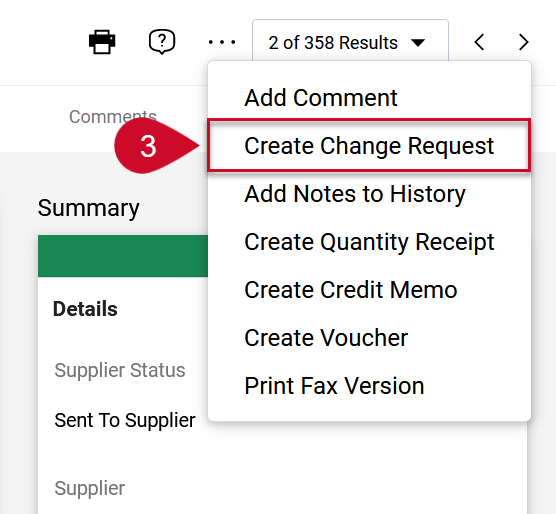
- Select the Document Actions drop-down menu and select Create Change Request.
- Select or enter the emails of the individuals you would like to notify.
- Enter the reason for the change request.
- Upload or link to a supporting document if needed.
- Select Create Change Request.
- Select the Edit tab to make updates to the order and select Save.
- Select Submit Request.
Note: Once the change request is approved, it will merge with the current PO and be sent to the supplier and CFS if applicable.
Change Request Status
- Select the History tab in a purchase order where there has been a change request made.
- Expand the Summary panel to check whether the change request was sent to CFS and completed.
This HTML version was generated with AI assistance and may contain errors or omissions. The original approved PDF remains the official document of record. An alternative accessible format is available upon request from the document creator in accordance with Title II of the ADA.