How to Shop
QUICK REFERENCE GUIDE
Learn how to create a cart and checkout.
ADD ITEMS TO YOUR CART WITH SEARCH OR PUNCHOUT
Shop Widget
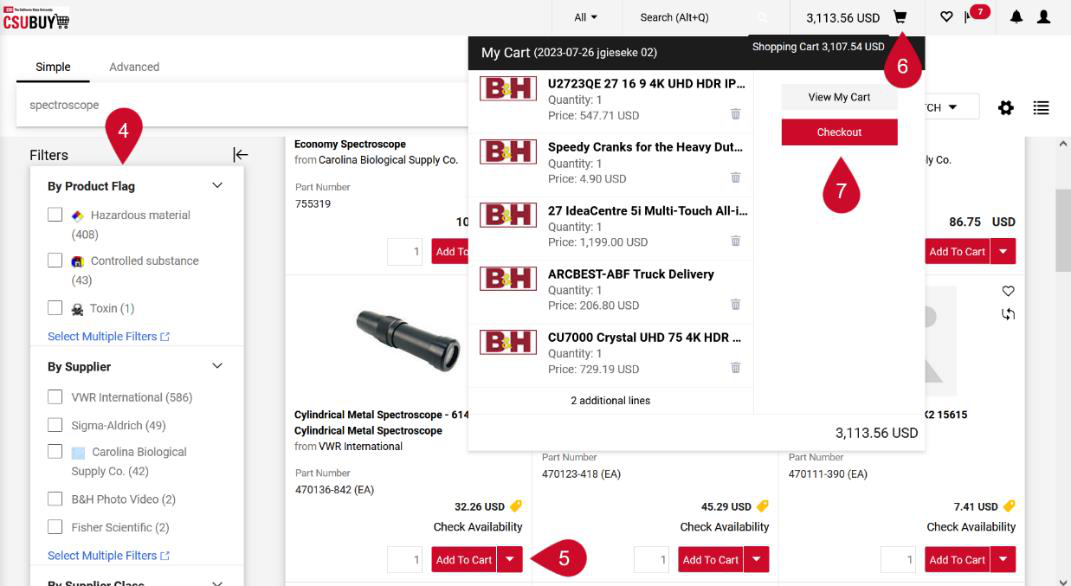
- From the Shopping Home Page, in the Shop widget select the Go to and Browse shortcut links to quickly navigate to forms or favorites.
- In the search field enter keywords to locate items to purchase. Select the Advanced tab for a more specific search.
- Select Search or the magnifying glass icon to view your search results.

- From the search results page narrow your search by applying filters.
- Select Add To Cart under the items you want to purchase.
- Select the cart icon to view your cart or Checkout.
- Select Checkout.
QUICK REFERENCE GUIDE
CSU Form Requests
- From the Shopping Home Page, navigate to CSU Form Requests in the Showcases section.
- Select the form you want to use to request an item or supplier that is not part of the CSUBUY catalog to be added.
- The request form opens. Enter the details in the form.
- Select Submit.
PunchOut Catalog Shopping
- Navigate to the Shopping Home Page.
- In the Showcases section, select the Punchout Catalog to shop from Suppliers. The Punchout Catalog will load in the same window as CSUBUY.
- Search for the items that are needed and then select Add To Cart.
- Once all items are in your cart, select View Cart.
- Enter the shipping information including your zip code and choose the shipping method.
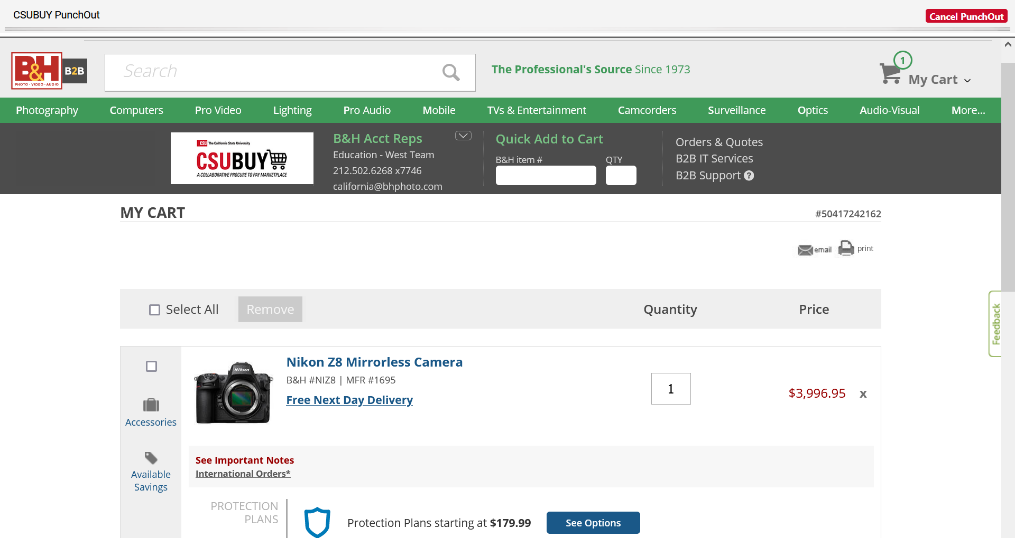
- Select Punchout. This will return you to your CSUBUY cart with the items you selected. You are now
ready to checkout in CSUBUY.
Note: At any time, you may select Cancel PunchOut to cancel your search and return to CSUBUY.
CHECKOUT
- Navigate to the cart containing the items you would like to submit for checkout.
- Enter or edit any missing information required to submit the order.
- To remove any items that are not needed select the three dots next to the line item to open the drop-down menu. Select Remove.
- Select Proceed to Checkout. Your order will now begin the approval workflow steps as a requisition to be reviewed and submitted.
This HTML version was generated with AI assistance and may contain errors or omissions. The original approved PDF remains the official document of record. An alternative accessible format is available upon request from the document creator in accordance with Title II of the ADA.