Basic and Advanced Searching
QUICK REFERENCE GUIDE
Learn how to use various search options in CSUBUY.
BASIC SEARCH
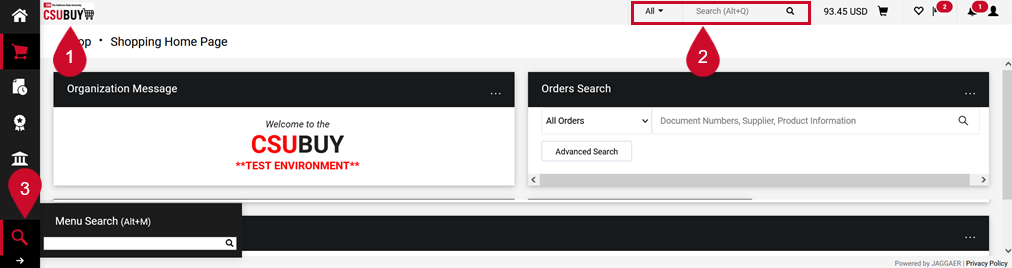
- Navigate to the CSUBUY Home Page.
- Use the Search bar at the top of the page to search for a Purchase Order, Requisition, Voucher, Receipt, Change Order, or Supplier. To filter your search to a specific module, open the All drop-down menu next to the search box.
- Alternatively, search the menu by opening the Menu Search by selecting the magnifying glass icon to search specific pages on CSUBUY like My Purchase Orders, View Carts, or Create New Receipts.
- Enter search criteria and select a result to navigate to its source page.
ADVANCED SEARCH
- Navigate to the CSUBUY Home Page.
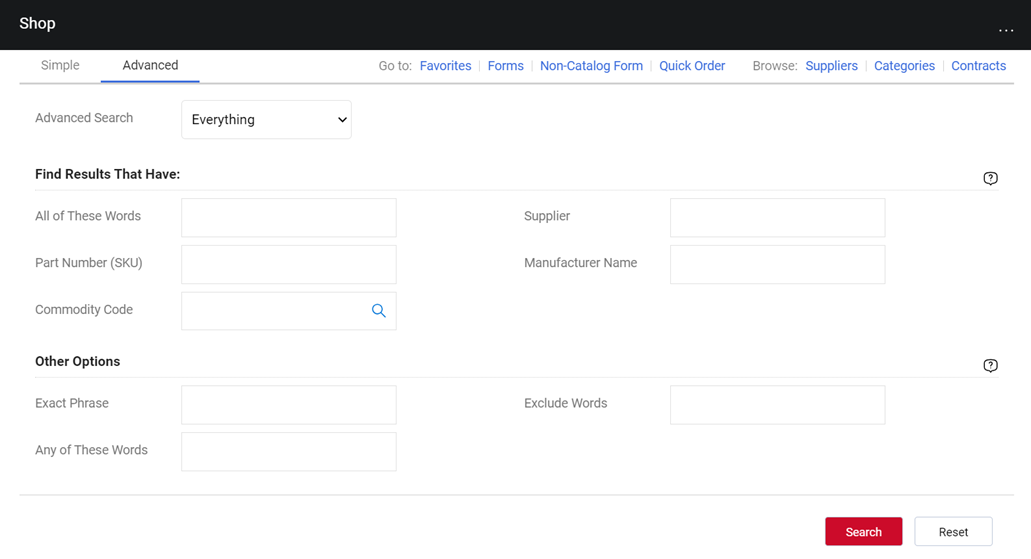
- Under the Shop section, select the Advanced tab for a more specific search.
- Enter your search criteria.
- Select Search.
- Select a search result to navigate to its source page.
This HTML version was generated with AI assistance and may contain errors or omissions. The original approved PDF remains the official document of record. An alternative accessible format is available upon request from the document creator in accordance with Title II of the ADA.