
Add a New Line to Change Request
A new “Add to Draft Change Request” action allows users to add a line item to a change requests, with the exception of punch out items.
IMPACTED USER GROUPS:
- Shoppers (PO Owner)
- Requesters (PO Owner)
- Buyers
- Accounts Payable
Note: For Shoppers & Requesters, only a PO owner can create a change request. Others can only create a change request comment.
Purchase Order
Open the Purchase Order you would like to change, scroll down on the PO and make note the Supplier and also the Form type (the P2P ordering Form that was utilized).
From the Menu option, select “Create Change Request”. In the “Change Request Reason” field, type a brief description of the reason for the Change Request (example: add line 3 for a keyboard at $50). Then click on the “Create Change Request” button. Don’t do anything else to it yet, just keep it as a draft. Remember the Change Request number for future step. See below.
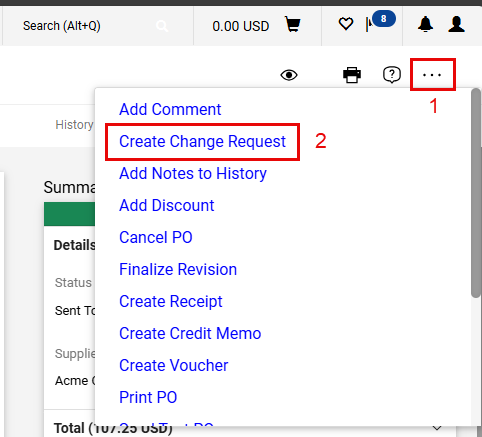
Please Note: The user must have at least one change request in Draft status to add a new line to it.
Shopping Home Page
Go to CSUBUY’s “Shopping Home Page”
Create a new Form Request (same form type and same supplier as the PO you are changing). Go through the questions on the Form, but don’t add it to a cart. Use the complete, go to the “Review and Submit” section of the Form Request, click on the drop down for “Add and go to Cart”, and select “Add to Draft Change Request”. See below.
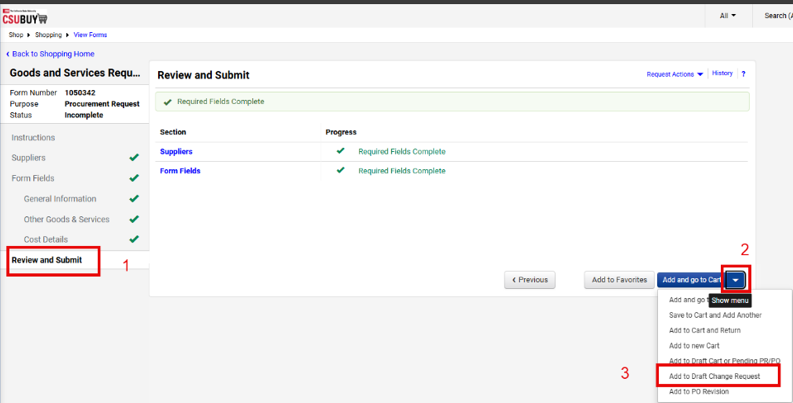
Form Request
Selecting the action will open the “Add to Draft Change Request” overlay. A list of change requests in Draft status that are owned by the logged-in user, with the same supplier as the item(s) to be added is displayed. Select a change request (select the Change Request that you created in Step 1) and click “Add to Change Request”. An error message is displayed if there are no suitable change requests.
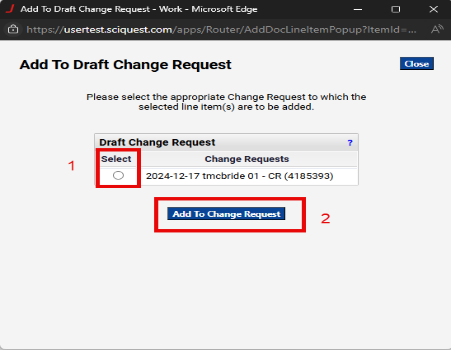
The Item is added to the Draft Change Request.
Please Note: An item can only be added to draft change requests that are owned by the logged-in user and that have the same Supplier and Fulfillment Center as the item(s) to be added. An error message will be displayed if there are no suitable change requests.
Additionally, the Form Request must align with the Form Request Type of the original Purchase Order (PO), if not, an error message will also be displayed.
Purchase Order
Return to the Purchase Order you initiated the Change Request for and open it.
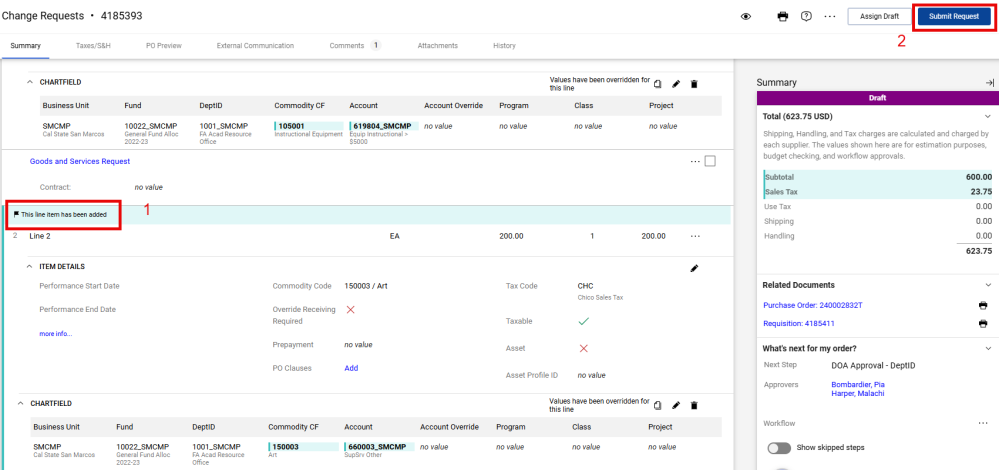
Click on the “Change Requests” tab and open the Change Request. See Below.
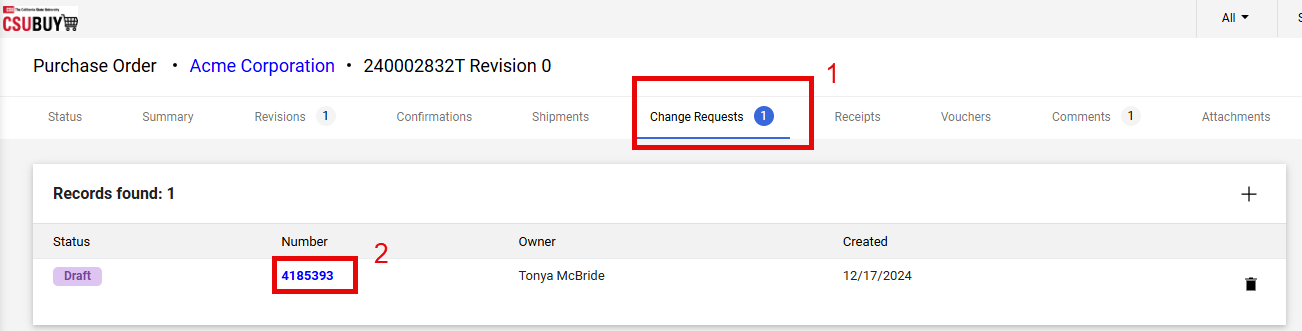
Review the newly added item/line along with its associated details. Once you are done, click “Submit Request”. The Change Request will proceed through the requisition workflow, followed by updates in the PO workflow, and then export to CFS.
Help & Support
Open a Ticket Using ServiceNow.
Rev. 3/2025
This HTML version was generated with AI assistance and may contain errors or omissions. The original approved PDF remains the official document of record. An alternative accessible format is available upon request from the document creator in accordance with Title II of the ADA.