Assign a Substitute Approver
QUICK REFERENCE GUIDE
Learn how to send an order to an additional approver.
SUBSTITUTE AN APPROVER
- Navigate to Orders > Approvals > Assign Substitute Approvers.
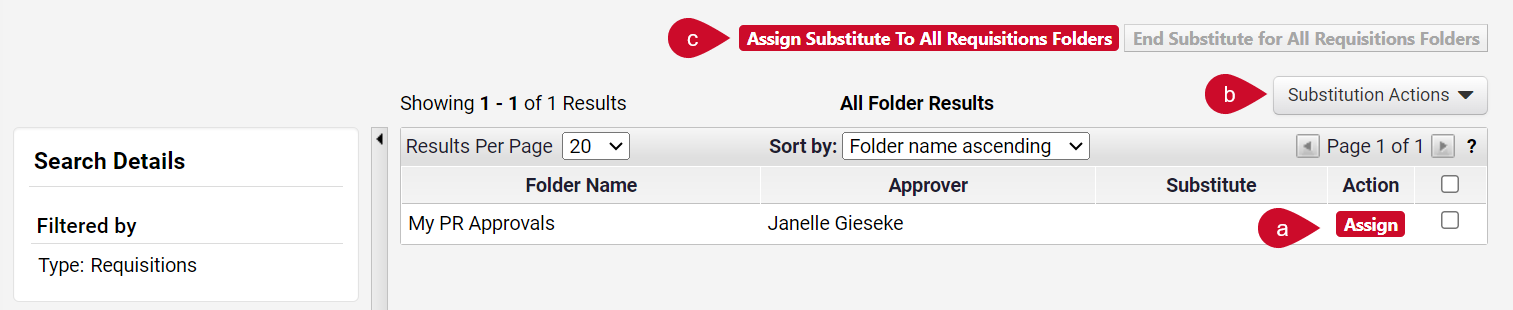
- Choose from the following options to assign approvers.
- For a singular folder select the Assign button.
- For multiple folders, select the checkbox next to the folders, and select Assign Substitute to Selected Folders from the Substitution Actions drop-down menu.
- For all folders for the selected user, select the button Assign Substitute To All Folders.
- From the Assign Substitute module window, type the name of the approver in the Substitute Name field to see a list of users. Select the user you wish to assign.
- Optionally, check the box for Include a Date Range for Substitution to schedule the substitution for a future date. Enter the appropriate start and end dates.
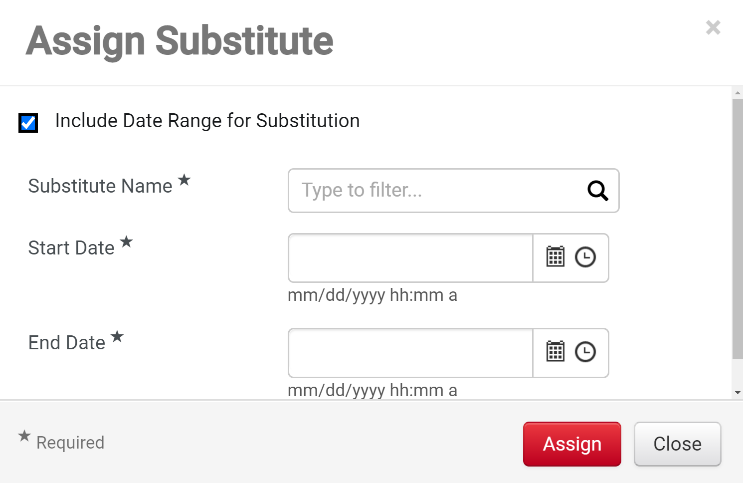
Note: If you do not select a date range, the substitution will have no end date.
- Select the Assign button.
- To end the substitution, complete the following steps:
- For a singular folder select Remove from the Substitution Actions drop-down menu.
- For multiple folders, select the checkbox next to the folders, and select Remove Substitute for Selected Folders from the Substitution Actions drop-down menu.
- For all folders, select End Substitute for All Vouchers Folders.
This HTML version was generated with AI assistance and may contain errors or omissions. The original approved PDF remains the official document of record. An alternative accessible format is available upon request from the document creator in accordance with Title II of the ADA.