Approve, Return, or Reject a Requisition
QUICK REFERENCE GUIDE

Learn how to make various requisition actions.
TAKE ACTION ON A REQUISITION
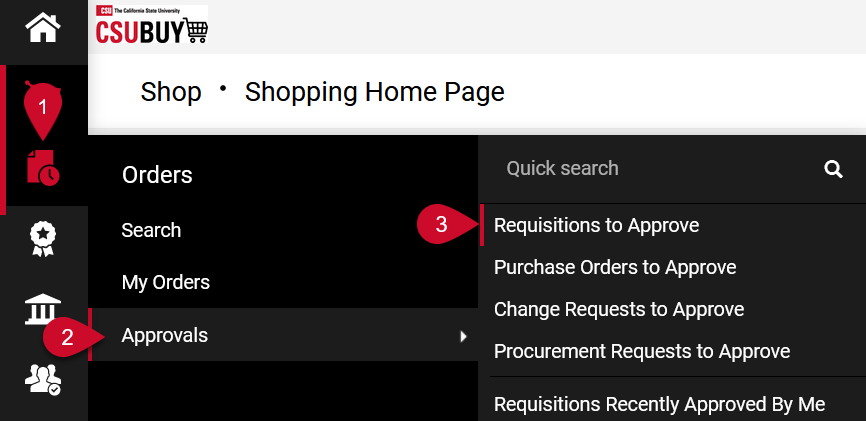
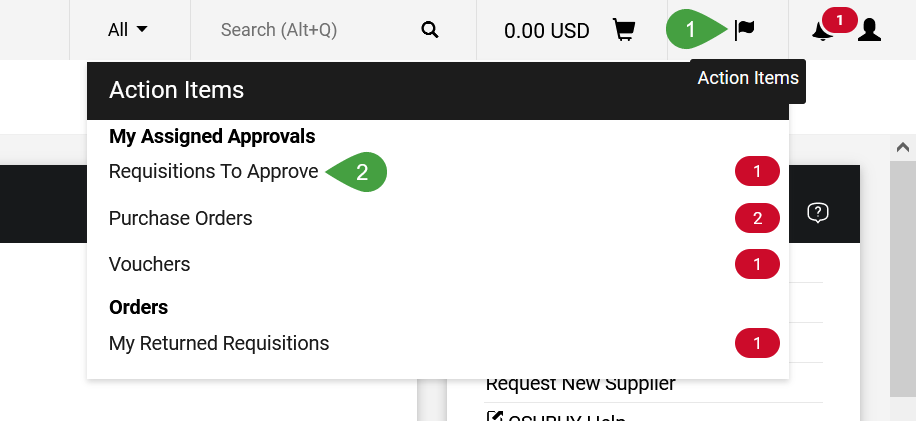
- Navigate to Requisitions to Approve using either of the following methods:
- Orders > Approvals > Requisitions to Approve.
- Select Action Items from the Notification Menu. The Action Items pop-up window will appear. Select Requisitions To Approve.
- Orders > Approvals > Requisitions to Approve.
- Open the requisition.
QUICK REFERENCE GUIDE
- Select the drop-down menu next to Approve/Complete button to take action on the requisition.
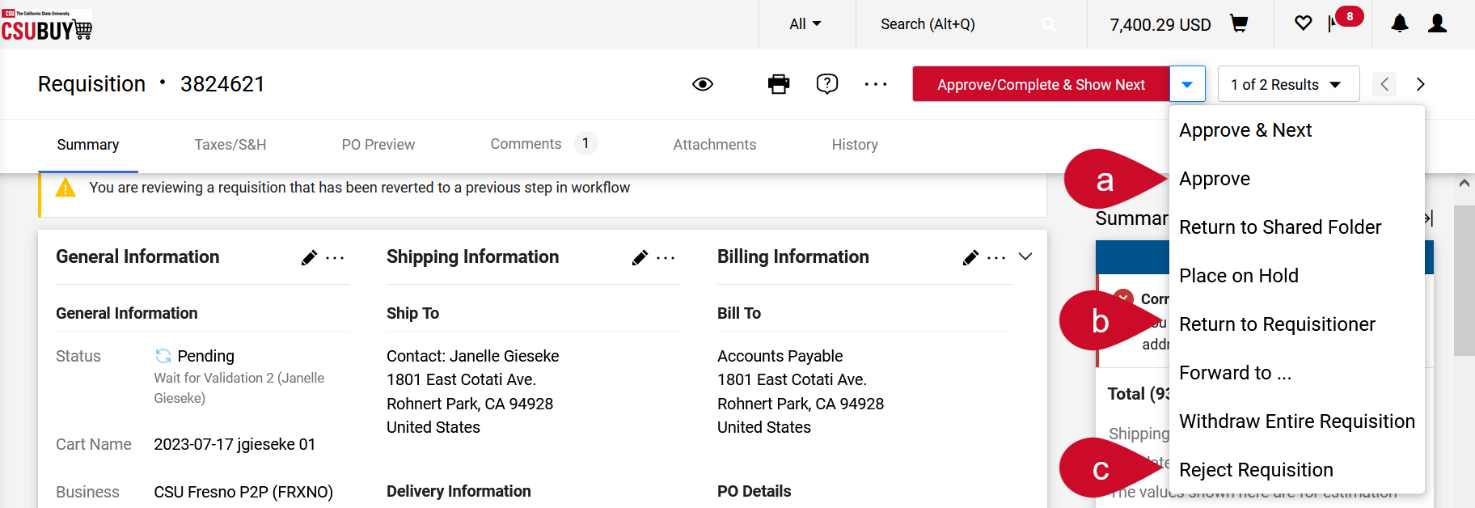
- To approve the requisition, select Approve.
- To return the requisition to the requester, select Return to Requisitioner.
- In the pop-up window, enter the reason for the return and select Save Changes. This note will be available via the Comments or History tab and the requisitioner will be notified.
- The requisitioner can access the requisition from the Draft Carts screen (Shop > My Carts and Orders > View Carts > Draft Carts), where the Type column will indicate that the requisition is returned. From there the cart can be opened, updated, and resubmitted back into the workflow.
- To reject the entire requisition, select Reject Requisition. You can only reject a requisition that has been assigned to you.
Note: This action is not reversible. Only reject a requisition if it should not progress. If more information is required return the requisition and add comments instead. The best practice is to return a requisition for a user to make edits and resubmit.
- Enter the reason for the rejection in the pop-up window.
- Select Reject Requisition to save the comment and reject the requisition.
This HTML version was generated with AI assistance and may contain errors or omissions. The original approved PDF remains the official document of record. An alternative accessible format is available upon request from the document creator in accordance with Title II of the ADA.