Approve Student Time – MPP/Chair
Overview
This business process guide provides department managers /department chairs step-by-step instruction on the use of MyFRESNOSTATE to proxy authority and to approve student and hourly employee time.
Student and hourly employees are to enter their time worked at the end of each business day. As department manager/chair, you must approve student and hourly time by the monthly deadline in order for your student and/or hourly employees to be paid in a timely manner.
Table of Contents
Proxy Approvals 2
Approve Payable Time (MPP/Chair Approval) 3
This section shows how to enter time worked.
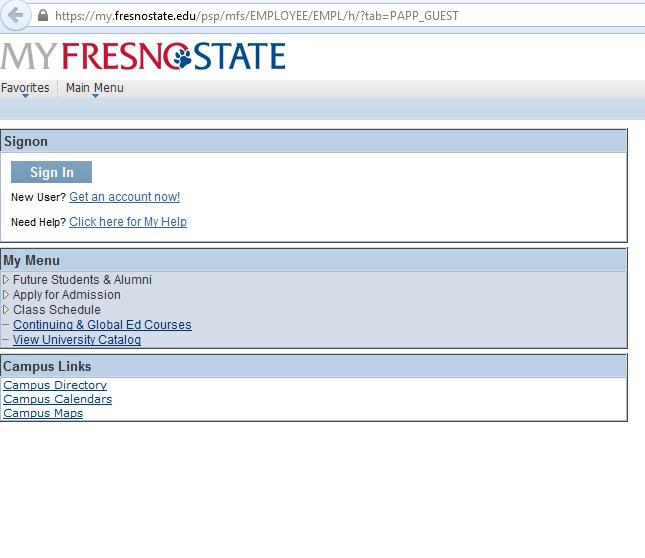
The myFRESNOSTATE homepage displays.
- Go to MyFRESNOSTATE (http://my.fresnostate.edu/).
- Click the MyFRESNO STATE SIGN IN button.
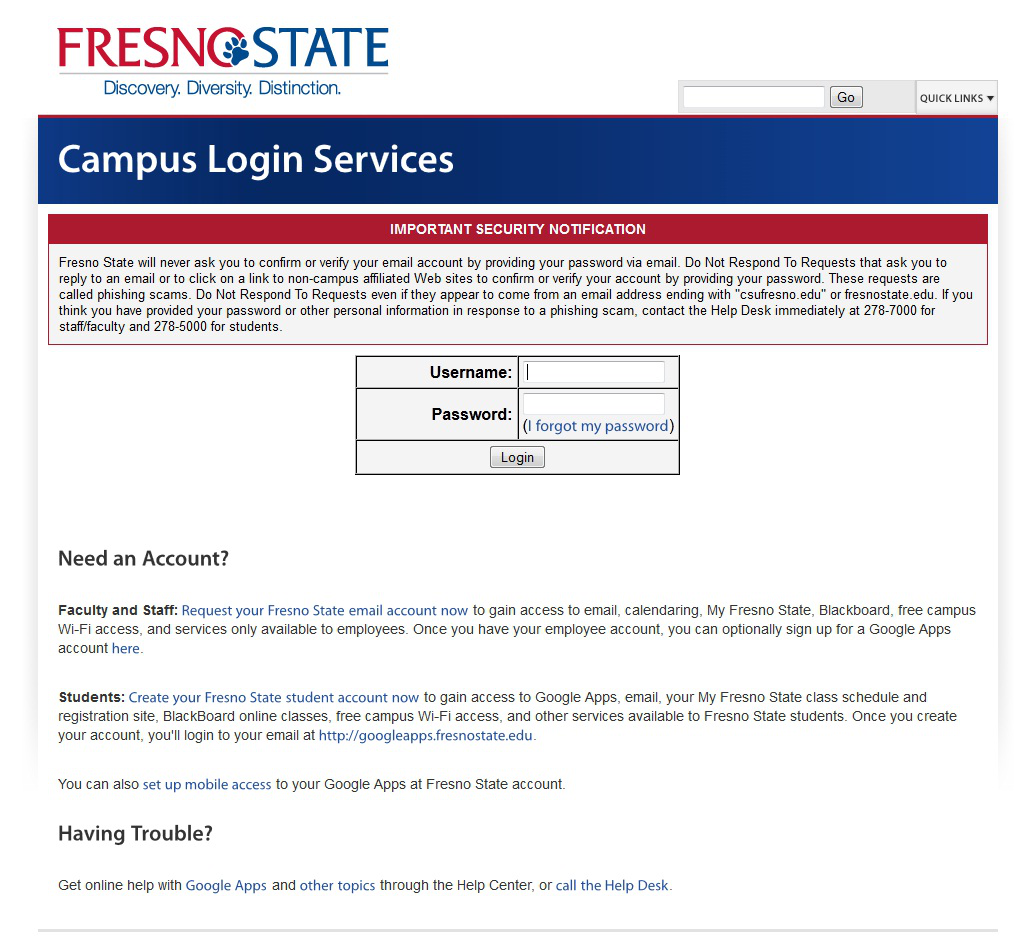
The Oracle PeopleSoft Enterprise Sign In page displays.
- Enter your Fresno State ID and Password.
- Click the “Sign In” button.
Note: If you have difficulty logging in, contact the Help Desk at 278-5000
PROXY AUTHORITY (MPP)
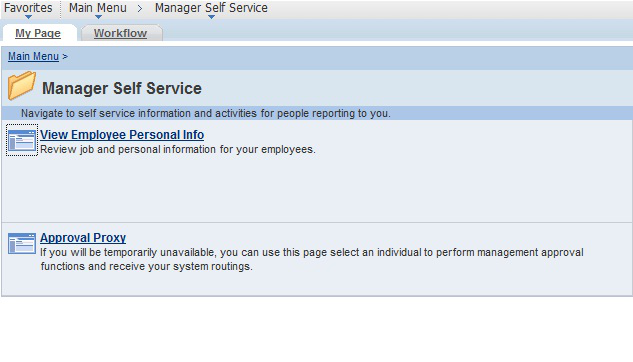
The Main Menu displays.
- From the Main Menu, - click Manager Self Service > Approval Proxy
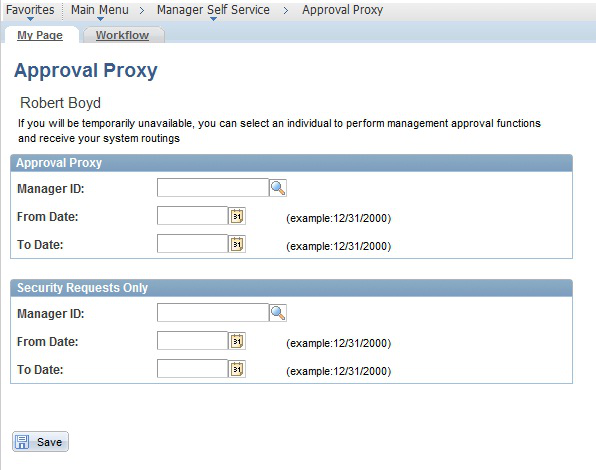
From the Approval Proxy screen, enter the Manager EmplID of the person who will be responsible for approvals during your absence.
Next, enter the From Date and the To Date. This is the time frame that you are authorizing another MPP/Chair to perform management approvals on your behalf.
Click on the “Save” button when complete.
NOTE: You may also edit, add, or delete time entered by students and/or hourly employees. Instructions for this process are in the TimeKeepers Manual located under the Payroll Services > Timekeeping link
APPROVE PAYABLE TIME (MPP/Chair)
This section demonstrates how an MPP will approve payable time of your employees once reported time has been approved by the department timekeeper. The MPP should have previously reviewed the Department Paysheet Report to view total time paid to specific Chartfields.
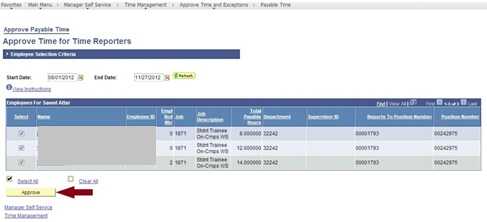
Main Menu > Manager Self Service > Time Management >Payable Time
- Click “Payable Time”.

- Click “Approve”. This will approve all employees reported time.
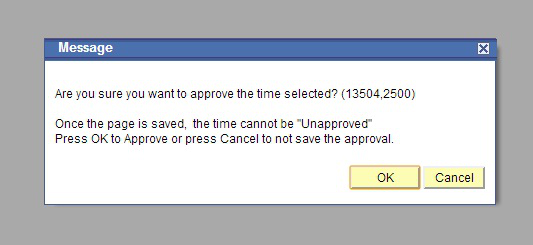
- If correct, click “OK”. You will receive a Confirmation message once this has been completed.
Fresno State Human Resources
User Guide
Updated 10/01/2013
Monitor, Edit, & Approve Student Time
This HTML version was generated with AI assistance and may contain errors or omissions. The original approved PDF remains the official document of record. An alternative accessible format is available upon request from the document creator in accordance with Title II of the ADA.