Employee Self Service Process Guide

Overview
This step-by-step guide will show you how to navigate through the various pieces of employee self-service using the MyFresnoState portal (http://my.fresnostate.edu/). Using the portal makes navigation simple and is recommended for most users. However, you may also use employee self-service in the native PeopleSoft production.
Fresno State Human Resources
User Guide
Updated 12/7/12
Absence Management-Employees
1
Sign in to the MyFresnoState/PeopleSoft
To enter your absences, you must first log in to your MyFresnoState portal.
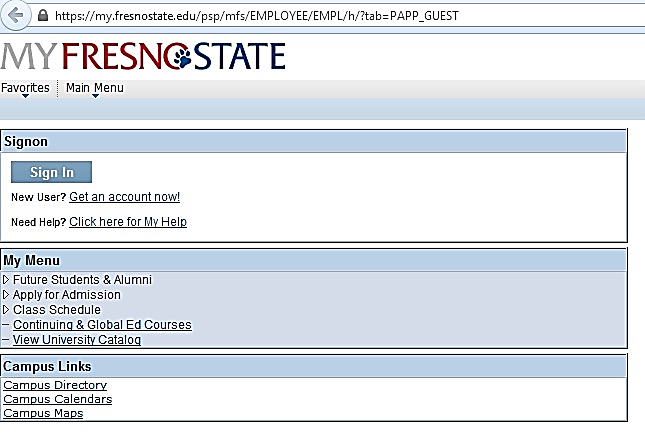
The MyFresnoState homepage displays.
- Go to MyFresnoState (http://my.fresnostate.edu/).
- Click the MyFresnoState “Sign In” button.
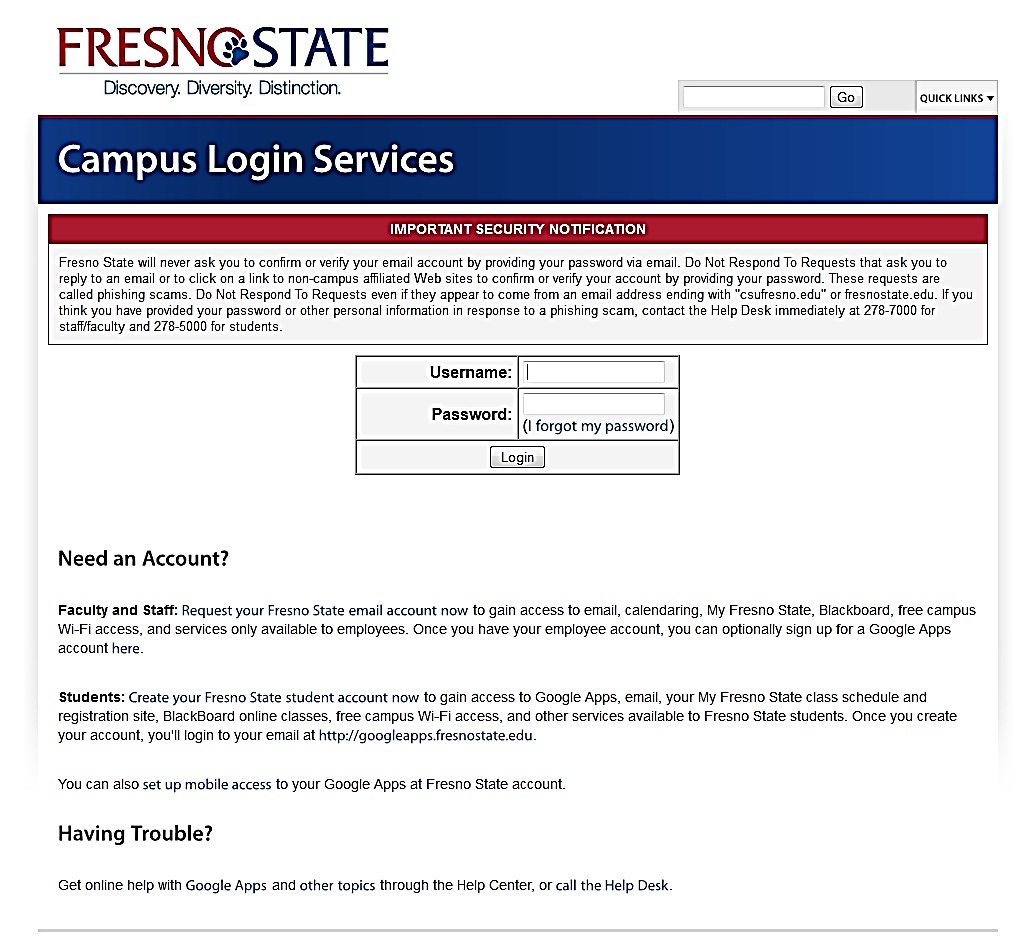
The Oracle PeopleSoft Enterprise Sign In page displays.
- Enter your Fresno State ID and Password.
- Click the “Login” button.
Note: If you have difficulty logging in, contact the Help Desk at 278-5000.
Fresno State Human Resources
User Guide
Updated 12/2/14
Absence Management-Employees
2
View the Personal Information Summary
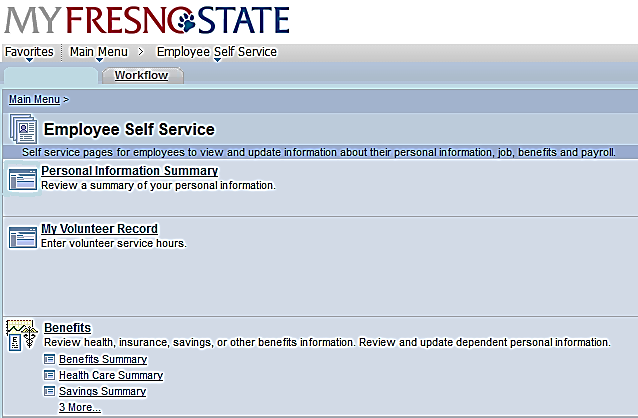
Navigate to your Personal Information Summary
- Click the Personal Information Summary link in the Personal Information section of the employee page.
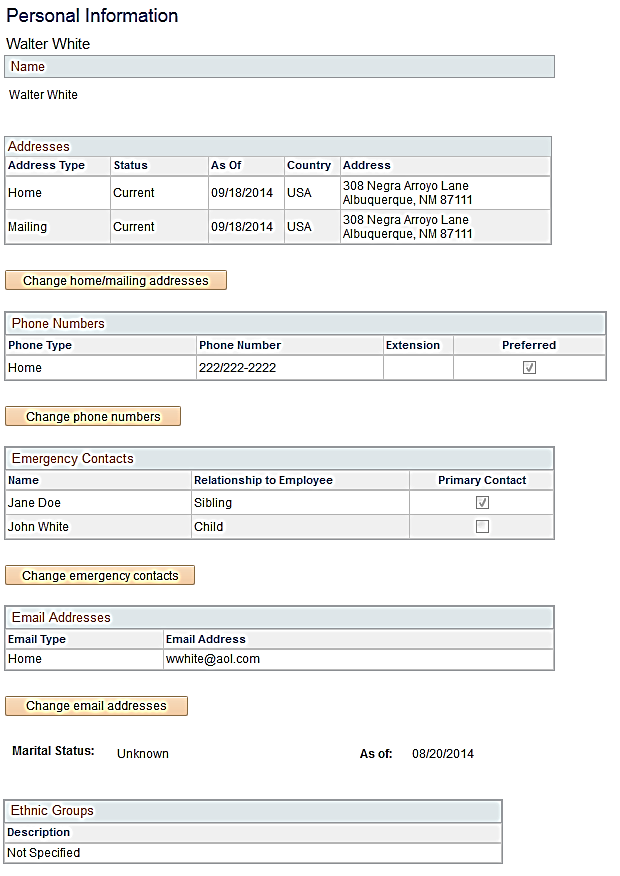
The Personal Information Page displays.
From the page you can view your Name, change your Address, Email, Phone and Emergency Contacts and also view your Marital Status, Gender and Date of Birth.
Use the scroll bar to see additional information on this page.
Now let’s look back at each section individually.
Fresno State Human Resources
User Guide
Updated 12/2/14
Absence Management-Employees
3
Review Your Name
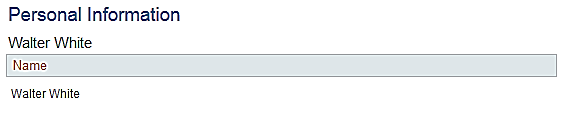
Navigate to the Name section at the top of the summary page.
At this time, only the primary (or legal) name is displayed. You must visit the Academic Personnel or Human Resources Office and provide appropriate documentation to change your primary name.

Fresno State Human Resources
User Guide
Updated 12/2/14
Absence Management-Employees
4
Update Your Address
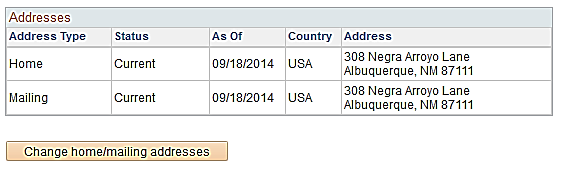
Navigate to the Address section near the top of the summary page.
Only the Home and Mailing addresses can be added/updated.
Please note that the Home address is used for the mailing of your W2 information.
- Click the Change home/mailing addresses button.
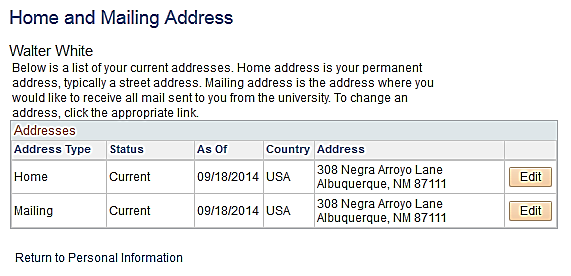
The Addresses page displays.
- Click the Edit button next to an existing address to make a change; click the Add a New address button to add a new address.
Please note, only the Home and Mail address are available for add/update.
The example in this guide shows you how to edit an existing mailing address.
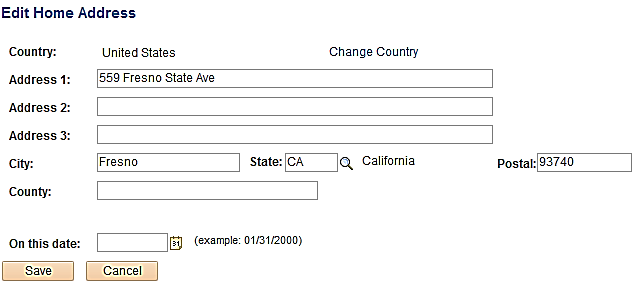
The Edit Address page displays.
- Update the address fields as appropriate.
Please follow the standard address rules shown on the page and enter your address in Mixed Case.
- Do not use commas or periods.
- Use the # sign to indicate an apartment number
- Use mixed case, as opposed to all uppercase or lowercase letters.
- Indicate the date the change takes effect.
- Click Save
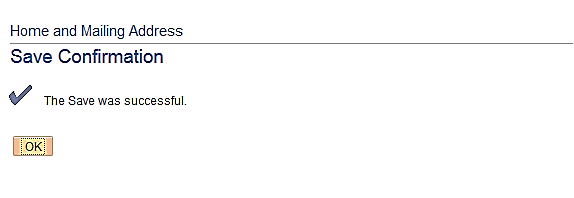
The Save Confirmation page appears indicating the save was successful.
- Click OK.
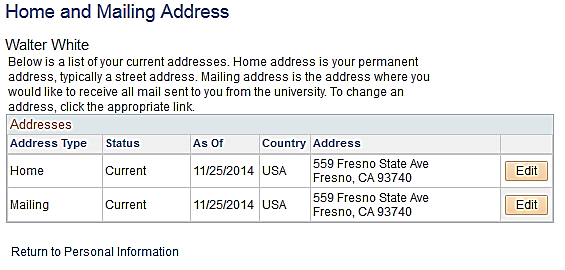
The Address page is displayed with the updated information.
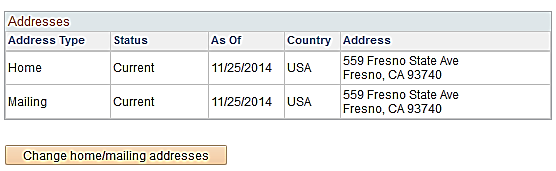
When you return to the Personal Information Summary, the data is updated and indicates the date the update was made.
Fresno State Human Resources
User Guide
Updated 12/2/14
Absence Management-Employees
5–7
Update Your Phone Number.
Navigate to the Phone Numbers section of the summary page.
- Click the Change phone numbers button.
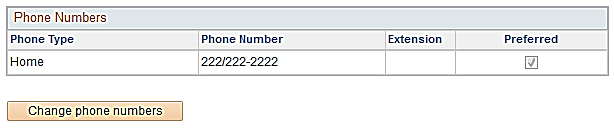
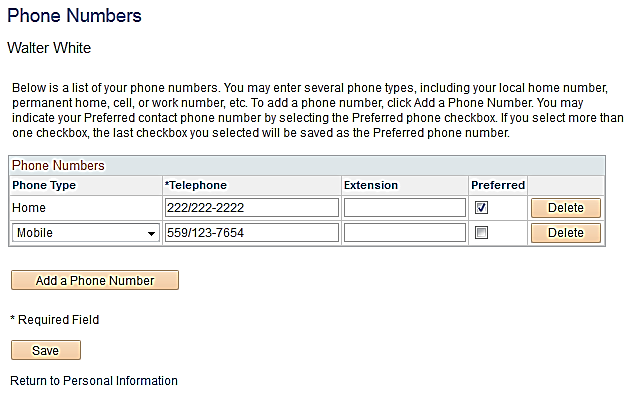
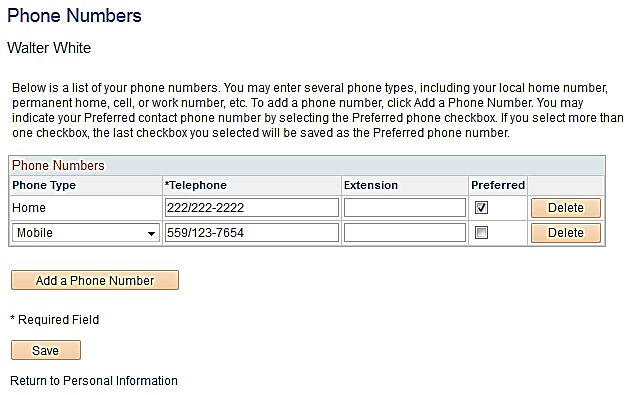
The Phone Numbers page displays.
- Click the Add a Phone Number button to add a new number.
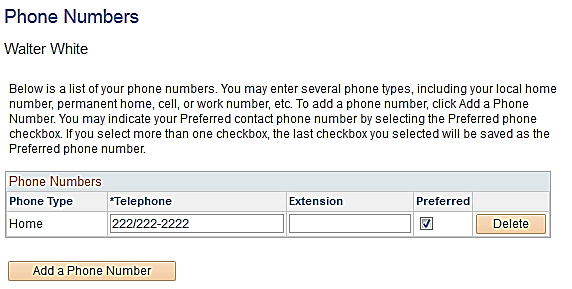
A new row is inserted.
- Click the drop down arrow on the Phone Type box
- Select the type of phone you wish to add.
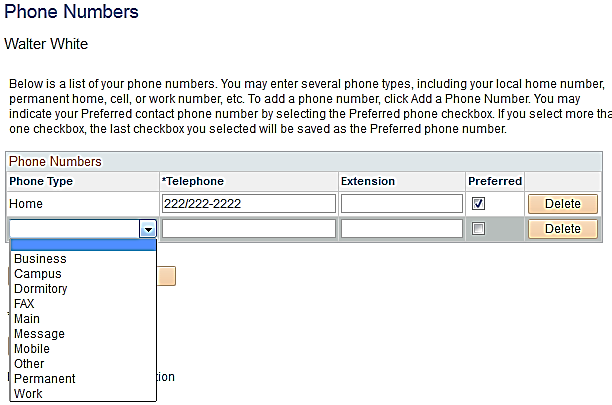
- Enter the Telephone and Ext (if applicable)
- Indicate which phone number is Preferred (only one can be preferred)
- Click Save
You may only have one of each Phone Type and must always select on as preferred.
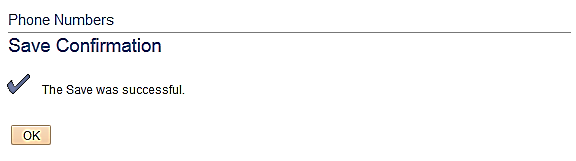
The Save Confirmation page displays indicating the save was successful.
- Click OK
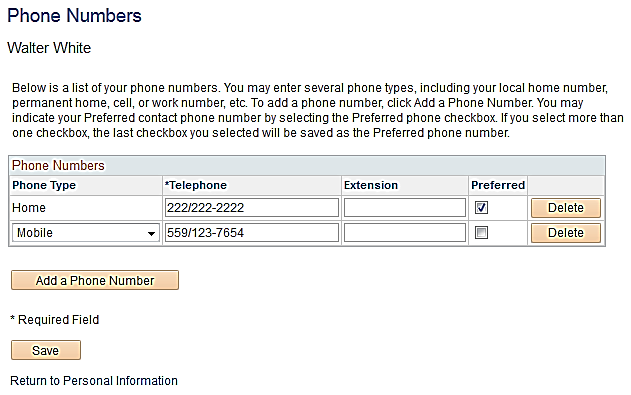
The Phone Numbers page displays.
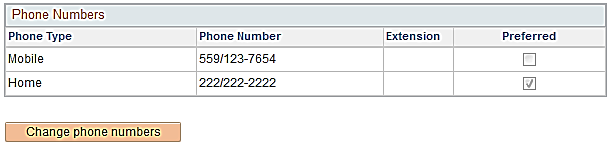
When you return to the Personal Information Summary, all numbers are listed.
Fresno State Human Resources
User Guide
Updated 12/2/14
Absence Management-Employees
8–10
Delete a Phone Number
Navigate to the Phone Numbers section of the summary page.
- Click the Change phone numbers button.
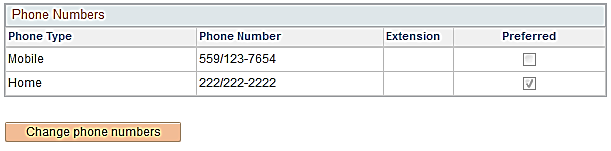
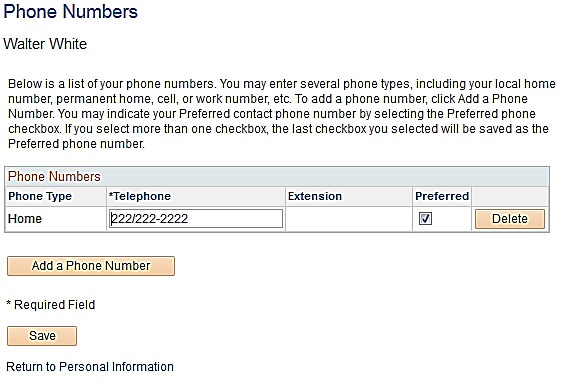
The Phone Numbers page displays.
- Click the Delete button next to the phone number you wish to remove.
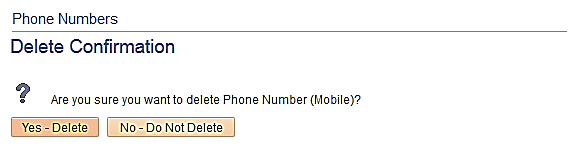
The Delete Confirmation page displays.
- Click Yes - Delete to delete the phone number (Click No – Do Not Delete if you do not wish to delete the number)
- Click Save
Fresno State Human Resources
User Guide
Updated 12/2/14
Absence Management-Employees
11–12
Update Your Emergency Contacts
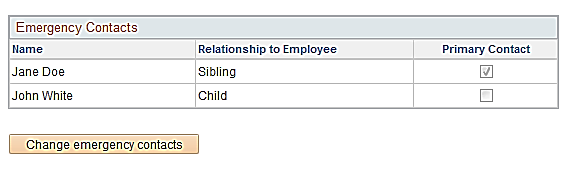
Navigate to the Emergency Contacts section of the summary page.
- Click the Change emergency contacts button.
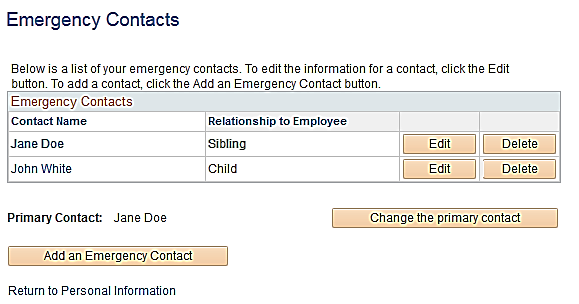
The Emergency Contacts page displays.
- Click the Edit button next to the contact you wish to update.
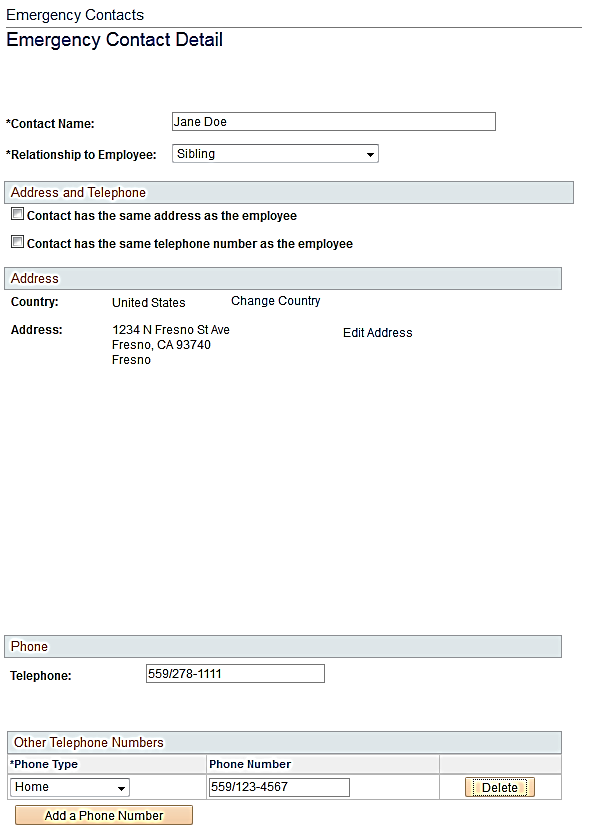
The Emergency Contact Detail page displays.
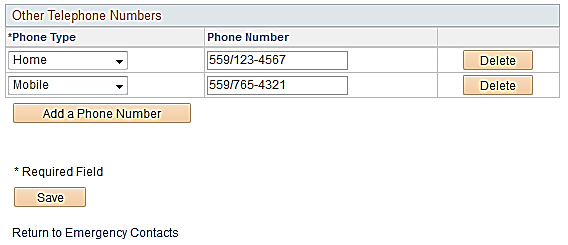
- Make the appropriate update; in this example, we are adding a phone number.
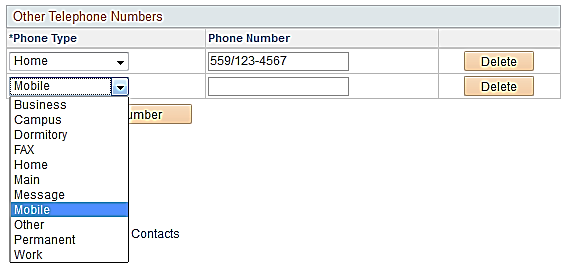
- Click Save when all updates are made.
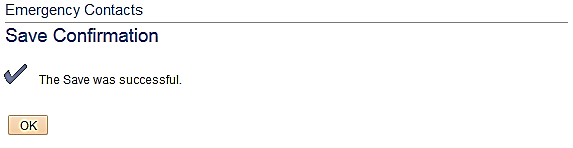
The Save confirmation page displays indicating that your save was successful.
- Click OK
Fresno State Human Resources
User Guide
Updated 12/2/14
Absence Management-Employees
13–15
Add an Emergency Contact
Navigate to the Emergency Contacts section of the summary page.
- Click the Change emergency contacts button.
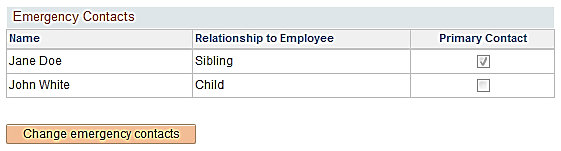
The Emergency Contacts page displays.
- Click the Add an Emergency Contact button.
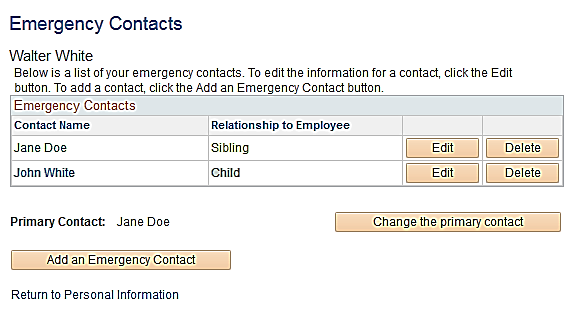
The Emergency Contact Detail page displays.
- Enter the appropriate information for the contact you are adding
Please note: if the contact has the same address and/or phone as you, check the box and the data will populate accordingly.
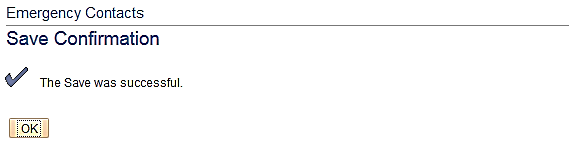
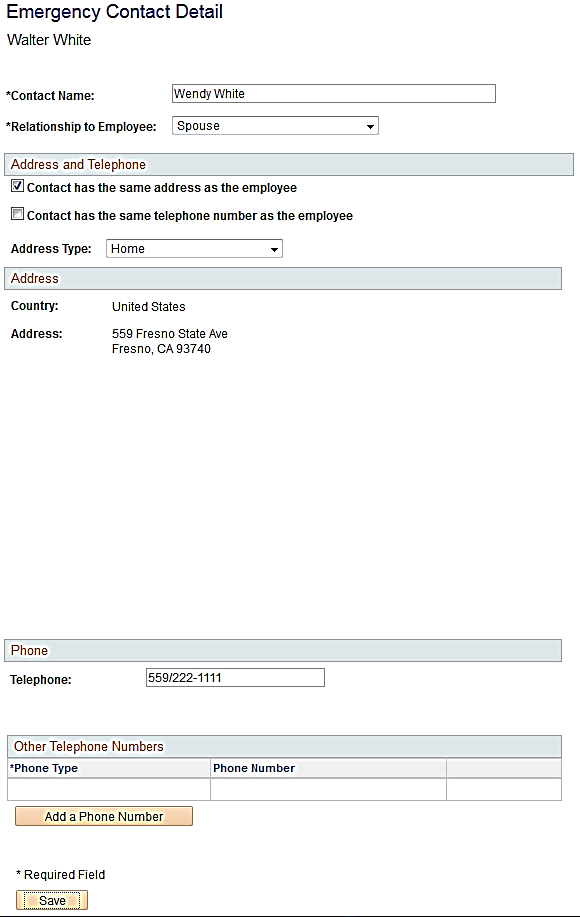
- Click Save when all data has been entered.
The Save Confirmation page displays indicating the save was successful.
- Click OK
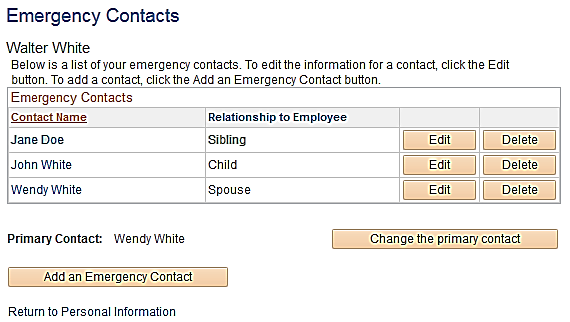
The Emergency Contacts page displays, showing all contacts you have entered.
Fresno State Human Resources
User Guide
Updated 12/2/14
Absence Management-Employees
16–18
Make another Emergency Contact the Primary Contact
Navigate to the Emergency Contacts page.
- Click the Change the Primary Contact button
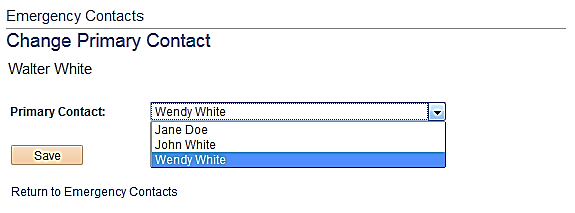
The Change Primary Contact Page displays.
- Click the drop down arrow on the Primary Contact box.
- Select the contact you wish to make primary.
- Click Save.
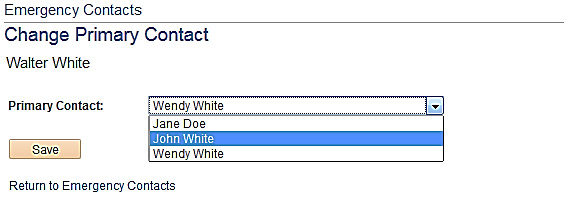
The Save confirmation page displays indicating the save was successful.
- Click OK
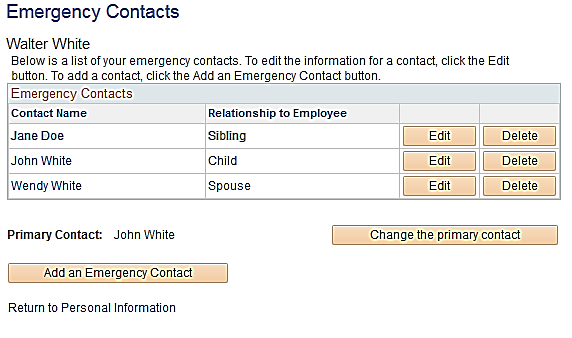
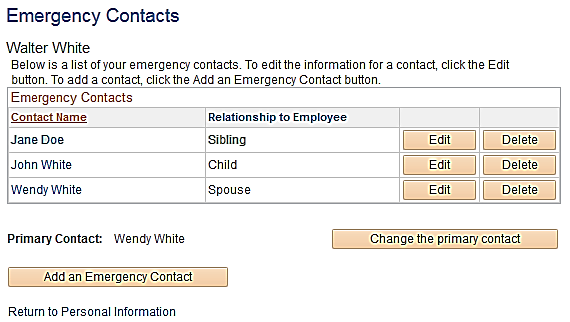
The Emergency Contacts page displays indicating the new Primary Contact.
Fresno State Human Resources
User Guide
Updated 12/2/14
Absence Management-Employees
19–20
View/Add an Email Address
Navigate to the Email Addresses session of the summary page.
- Click the Change email addresses button.
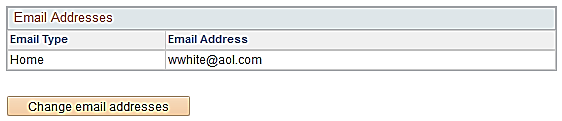
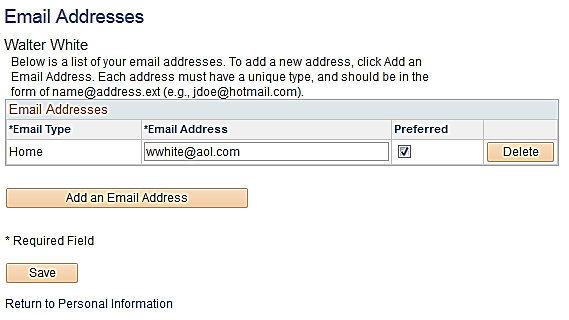
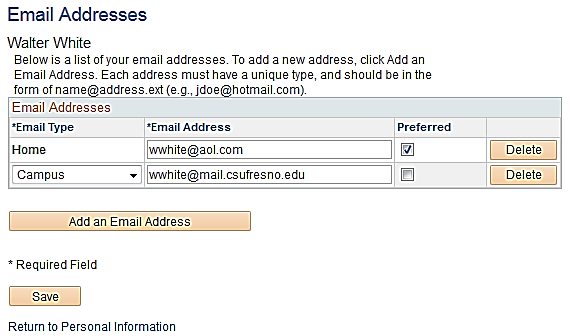
The Email Addresses page displays.
Your CSU Fresno State email address is pushed into the system nightly and is marked as preferred. Another email cannot be marked as preferred.
You may delete the email addresses, but it will reappear the next day after the process is run.
You are not required to add another email address, but you may do so if you’d like.
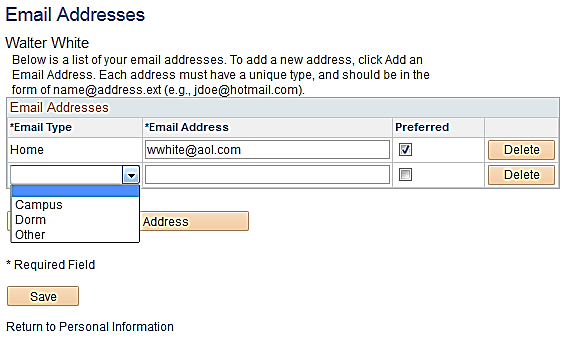
- Click the Add an Email Address button.
- Click the drop down arrow on the Email Type box
- Select the type of email you wish to add.
- Enter the Email Address
- Click Save
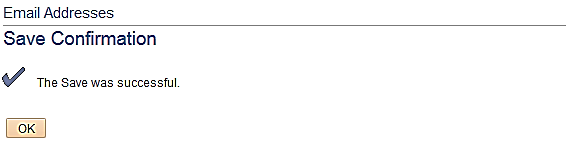
The Save Confirmation page displays.
- Click OK
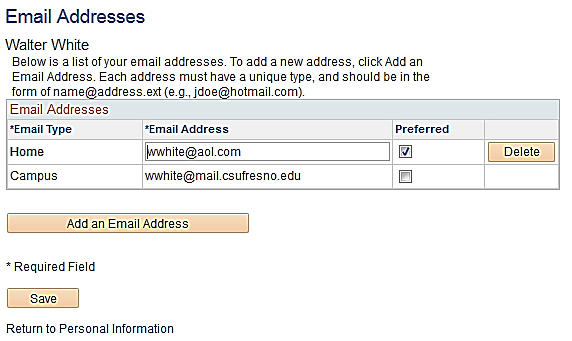
The Email Addresses page displays showing all email addresses you entered.
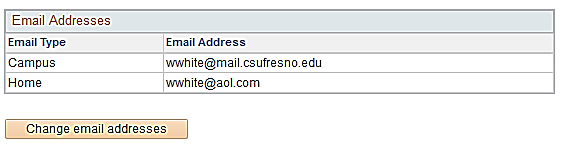
When you return to the Personal Information Summary, both addresses are displayed.
Fresno State Human Resources
User Guide
Updated 12/2/14
Absence Management-Employees
21–23
Delete an Email Address
Navigate to the Email Addresses section of the summary page.
- Click the Change email addresses button.
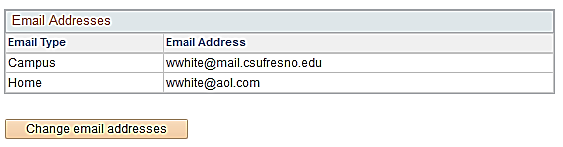
The Email Addresses page displays.
- Click the Delete button next to the email address you wish to remove.
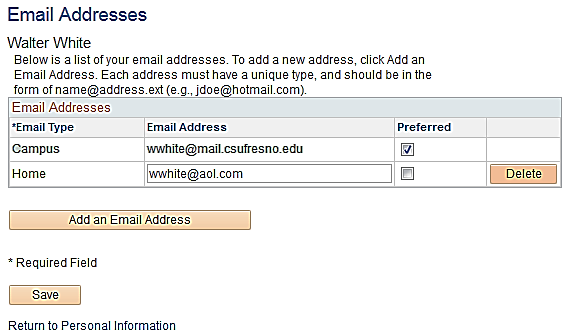
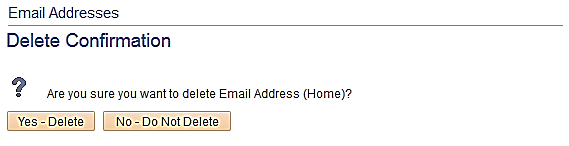
The Delete Confirmation page displays.
- Click Yes – Delete to delete the email address (Click No – Do Not Delete if you do not wish to delete the email address)
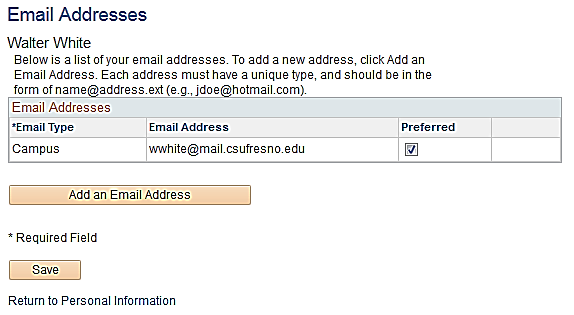
The Email Addresses page displays with only the addresses you did not delete.
- Click Save
Fresno State Human Resources
User Guide
Updated 12/2/14
Absence Management-Employees
24–25
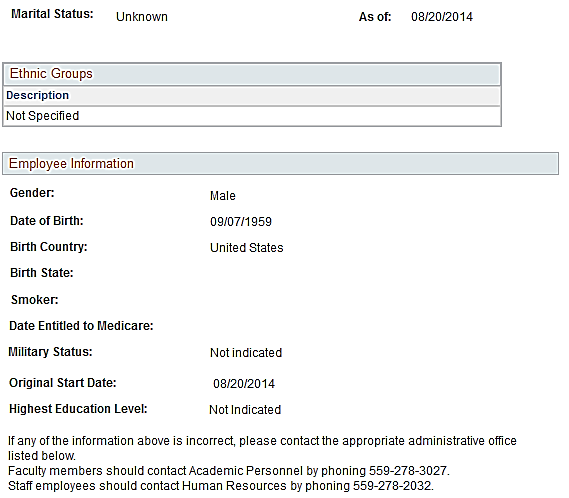
Review Your Marital Status, Gender and Date of Birth
Navigate to the bottom of the summary page.
Information related to your Marital Status, Gender and Date of Birth can only be updated by Human Resources/Payroll. Please review your information and contact Human Resources/Payroll if a change needs to be made.
Fresno State Human Resources
User Guide
Updated 12/2/14
Absence Management-Employees
26
Review Your Benefits
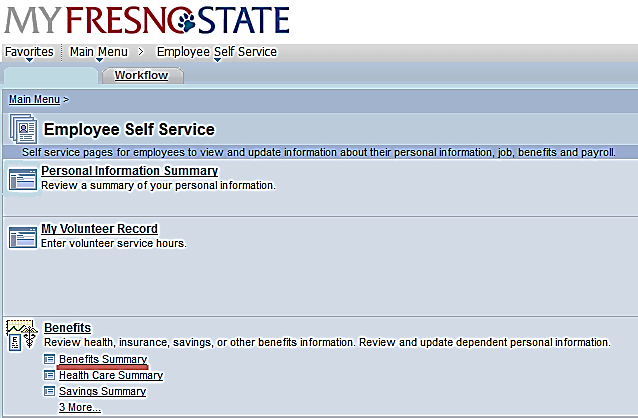
Navigate to the Benefits Summary.
- Click the Benefits Summary link
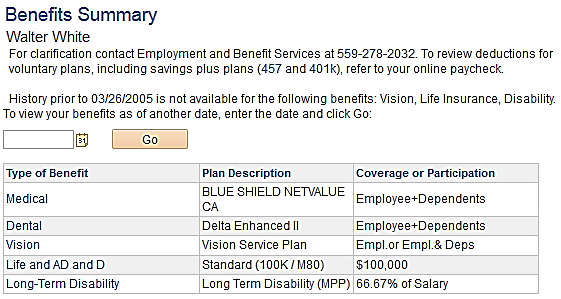
The Benefits Summary page displays.
This page lists all current benefits you are enrolled in. You may view your benefits for another time period by changing the date and clicking the Go button.
- Click the hyperlinked name of the benefit you wish to review (for this guide we will look at Medical)
Please note that there is no additional data to view for Flexible Spending plans. The CSU only tracks the annual pledge amount for this benefit.
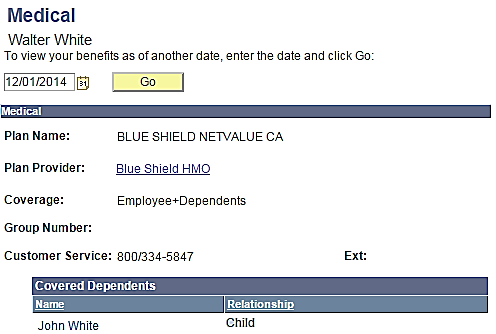
The Medical summary page displays.
This page shows your current coverage for the benefit you selected. You will see your plan name and provider, the type of coverage you have and any dependents you have covered.
- Click the hyperlinked name of the Plan Provider to open a separate window and view their site.
- Click the hyperlinked name of a dependent you wish to review.
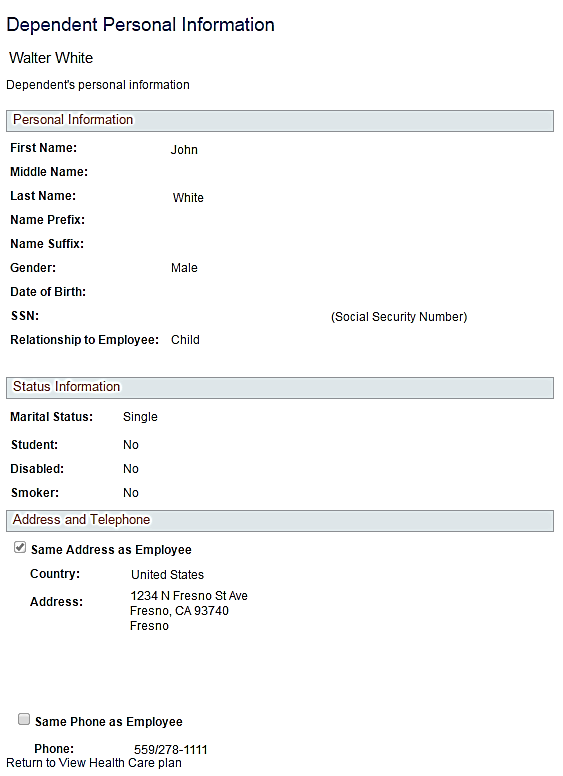
The Dependent/Beneficiary Personal Information page displays.
- Use your scroll bar to view all information on the page.
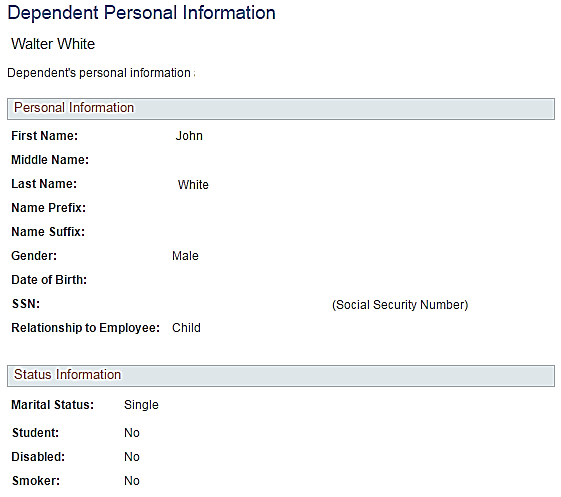
- Click the Return to View Health Care Plan hyperlink.
- Return to the Benefits Summary Page.
Fresno State Human Resources
User Guide
Updated 12/2/14
Absence Management-Employees
27–30
Review Your Dependent Information
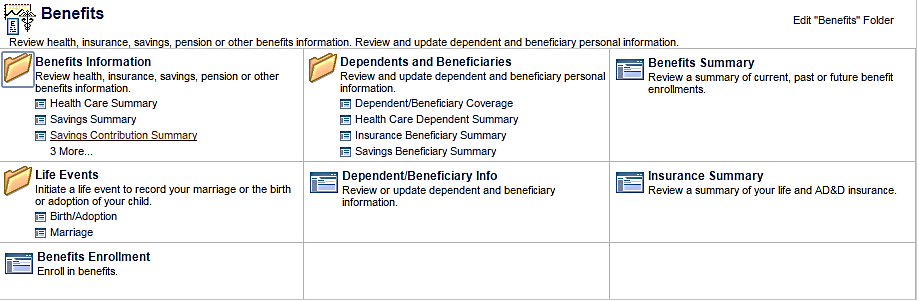
Navigate to Dependent/Beneficiary Info.
- Click the Dependent/Beneficiary Info link
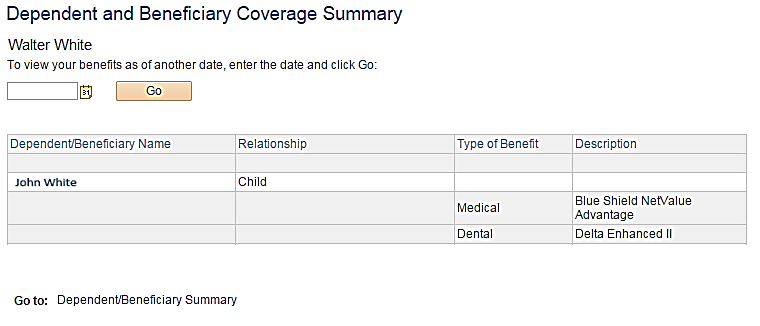
The Dependent and Beneficiary Coverage summary page displays.
- Click the hyperlinked name of a dependent if you wish to review their personal data.
Fresno State Human Resources
User Guide
Updated 12/2/14
Absence Management-Employees
31
Review Your Job & Compensation History
Navigate to Compensation History.
- Click the Compensation History link under the Self Service page.
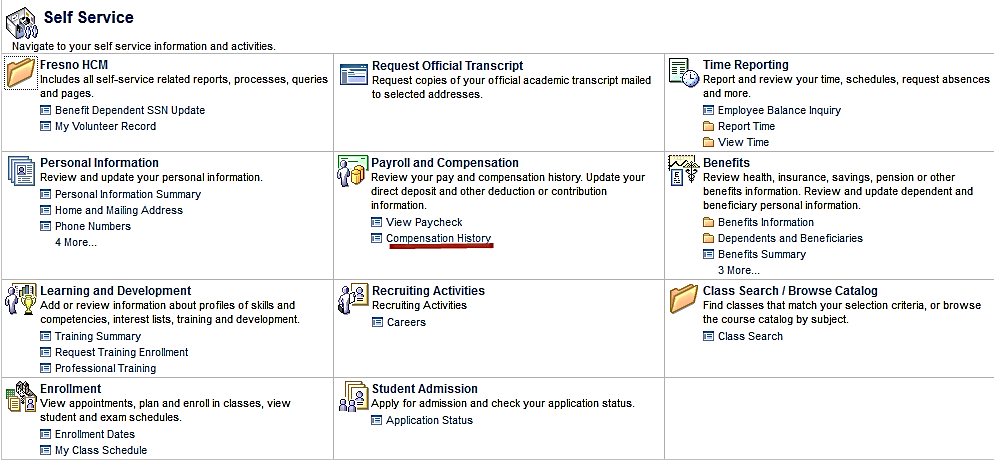
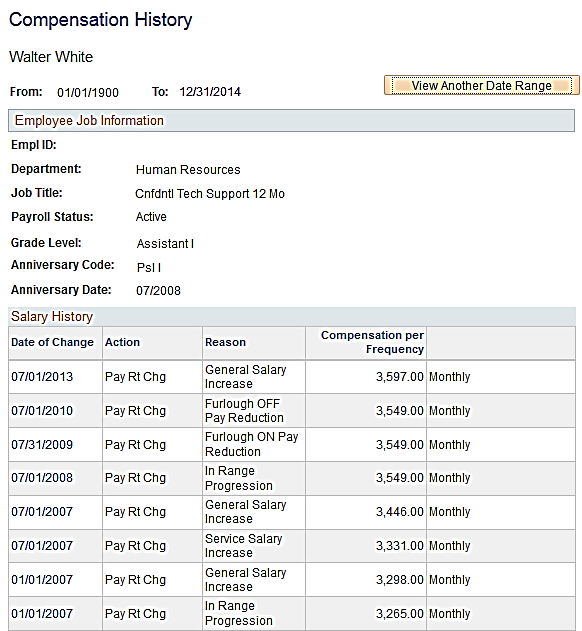
The Job & Compensation History page displays.
This page shows the majority of your job-related changes at CSU Fresno. Most of the data is related to a change in compensation; however, you may see some transactions listed that were not compensation related.
- Click the hyperlinked date of a transaction to see more information.
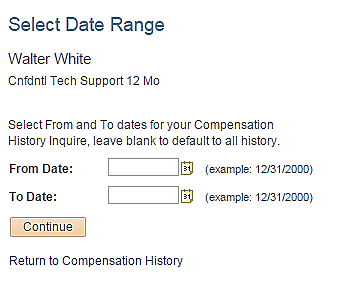
The Select Date Range page displays.
This page shows allows you to select a specific date range for you Compensation History inquiry.
- Click the View Another Date Range button.
- Select/Type the dates in the From Date and To Date boxes you wish to view.
- Click the Continue button.
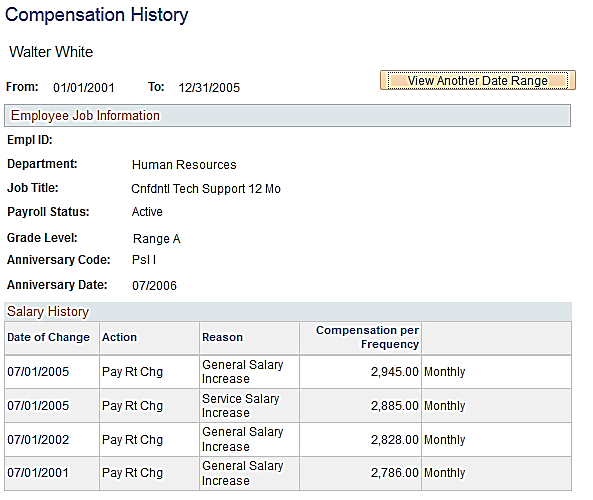
The Compensation History page displays with the new Date Range selected.
Fresno State Human Resources
User Guide
Updated 12/2/14
Absence Management-Employees
32–33
Review Your Paycheck Information
Navigate to Paycheck Data.
- Click the Paycheck Data link
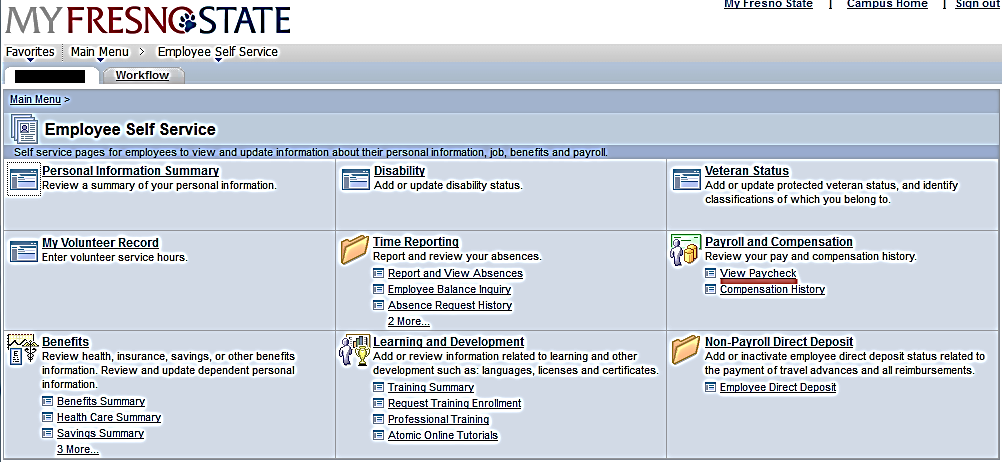
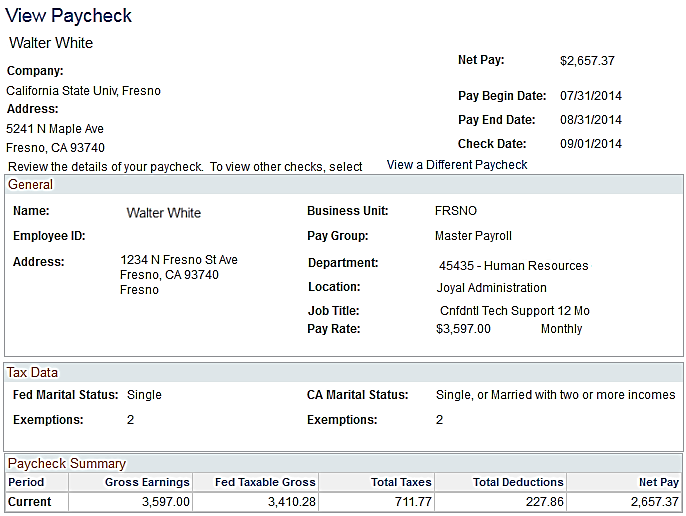
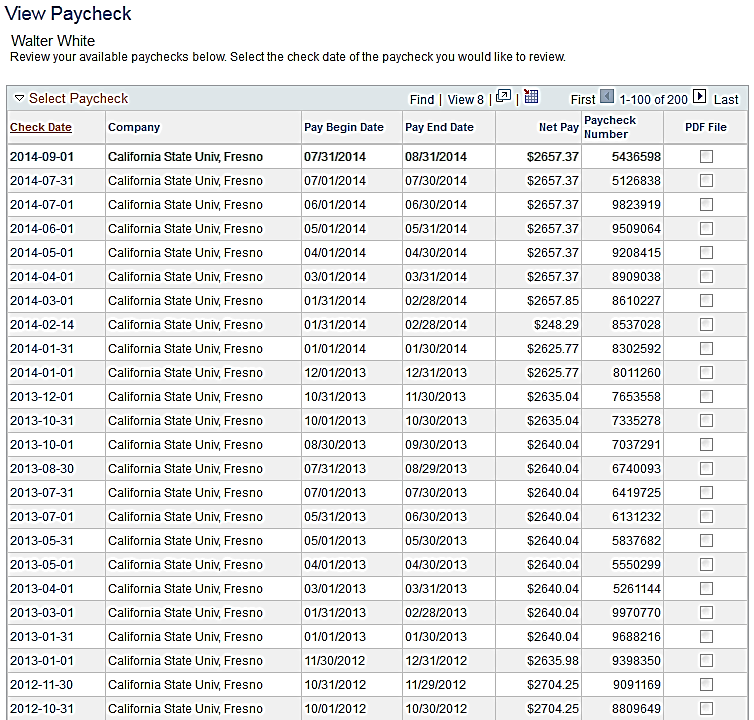
The View Paycheck page displays.
This page displays most of the information you see on your hard copy paystub. Not all pay information is stored in PeopleSoft, so some items you see on you paystub will not be shown here. A few of these are
- W2 Information
- Tax descriptions
- Leave balances
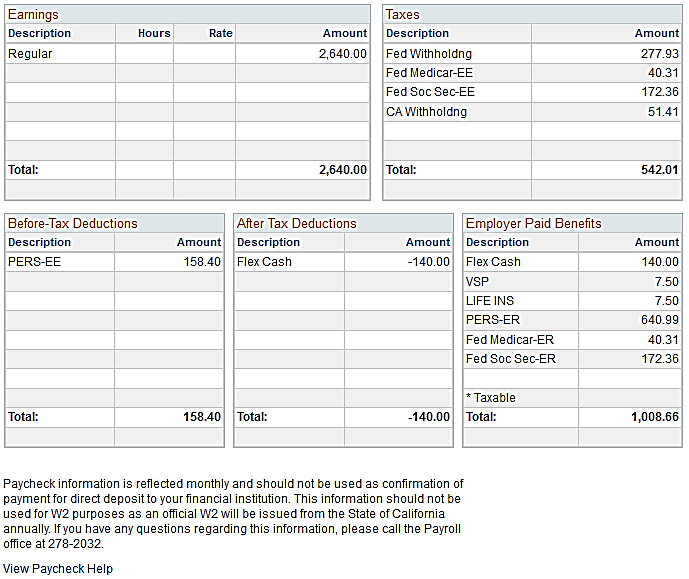
- Use your scroll bar to view the rest of the information.
Scroll to the top of the page.
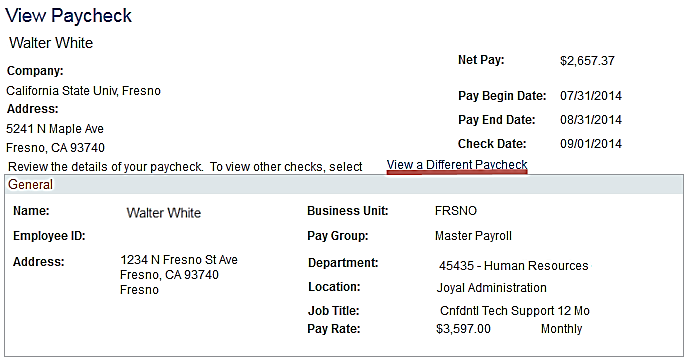
- Click the View a Different Paycheck hyperlink
The View Paycheck search page displays.
From this page, you can look at any check you have received.
- Click the hyperlinked date of the check you wish to review.
Fresno State Human Resources
User Guide
Updated 12/2/14
Absence Management-Employees
34–36