Student Accounts
ACH (E-Check) Instructions
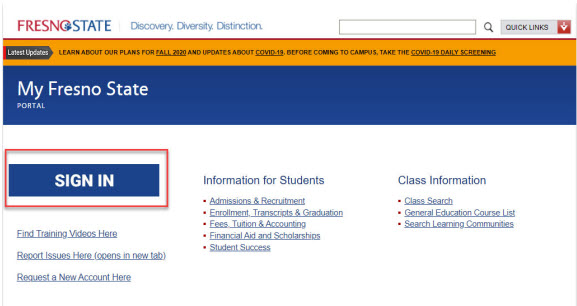
1. Go to https://my.fresnostate.edu and Sign In.
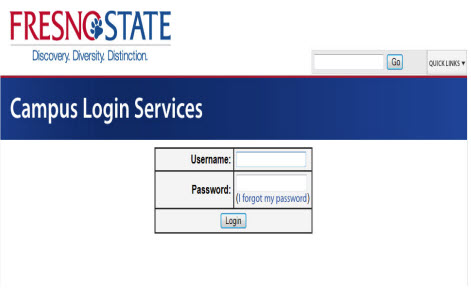
2. Sign in using your Username and Password.
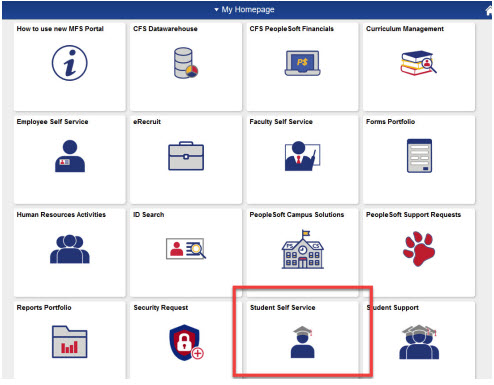
3. Click "Student Self Service".
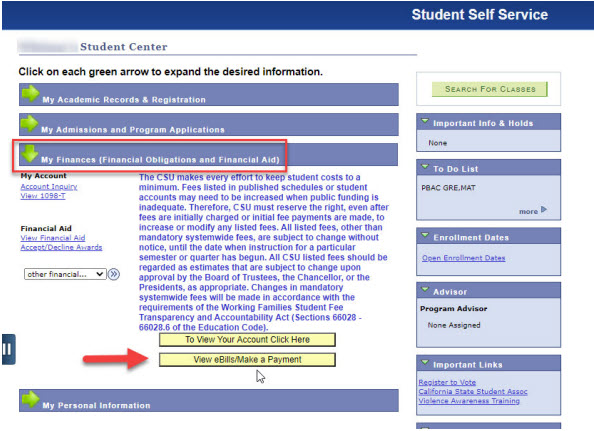
4. Select the "My Finances" green arrow, then click "View eBills/Make a Payment".
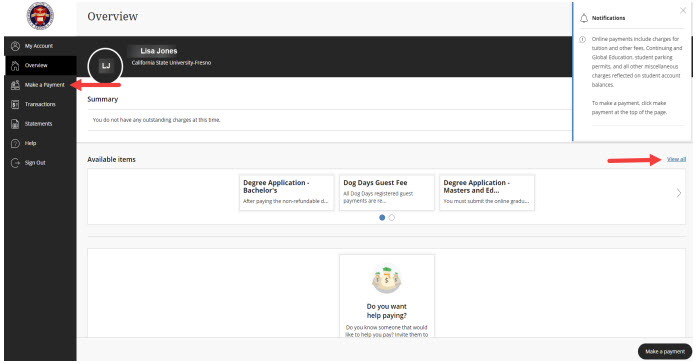
5. Click "Make a Payment" and then click "View All".
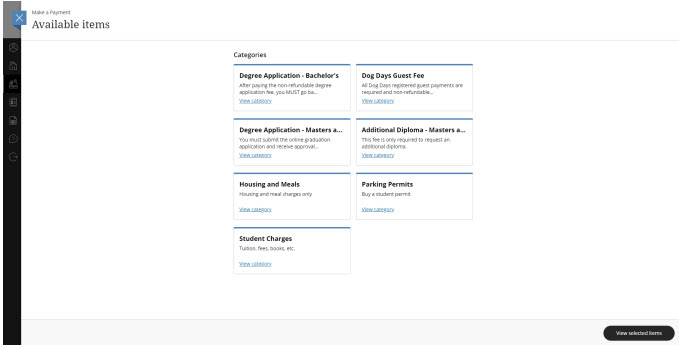
6. Select item(s) you will be paying for.
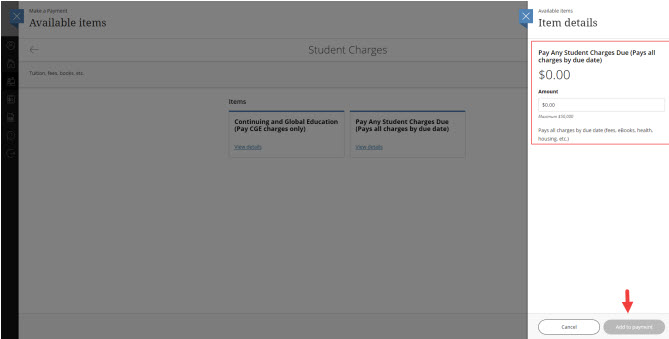
7. Confirm or enter the dollar amount and then select "Add to payment".
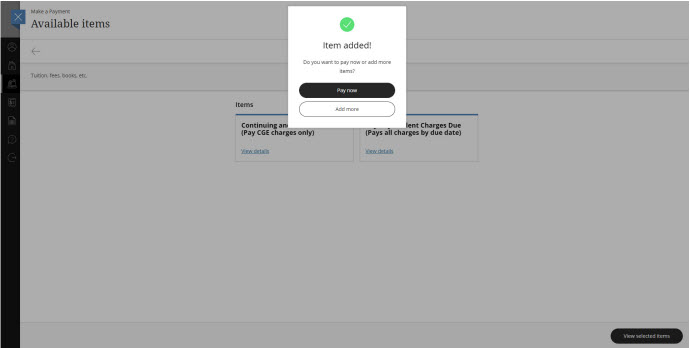
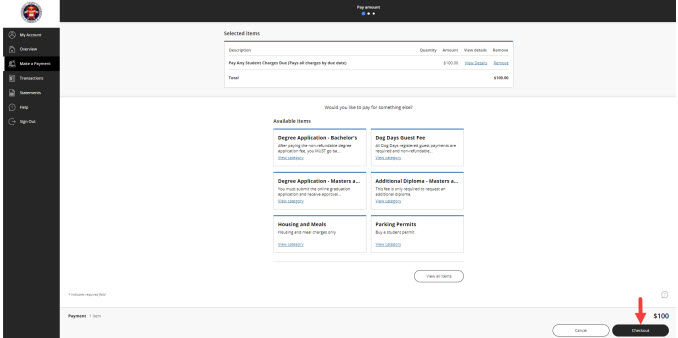
8. After all items have been selected, click "Pay Now". If you would like to add more items, click "Add More".
9. Once the item(s) are selected, click "Continue".
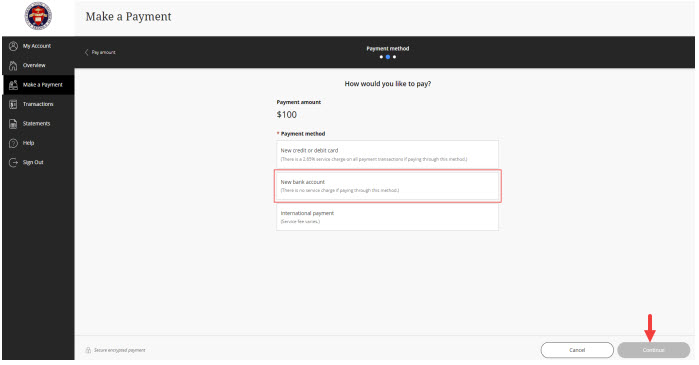
10. Select "New bank account" and click "Continue".
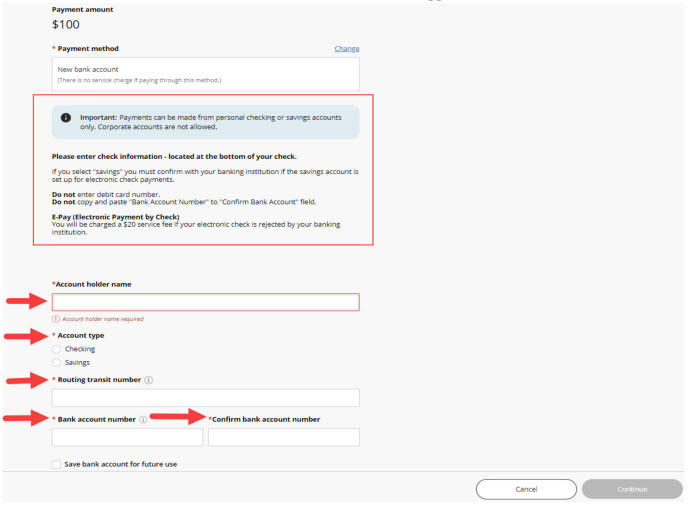
11. Read the instructions and then enter the information with the "*" that appears next to it.
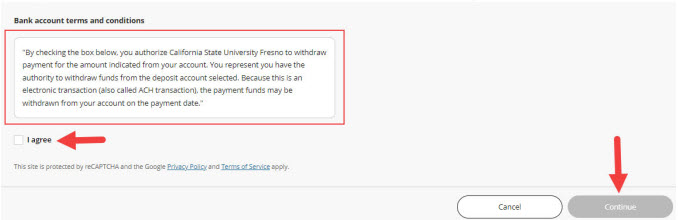
12. After you read the Bank Account terms & conditions, check mark the "I agree" box and "Continue".
13. Once the transaction is complete, you will then receive your receipt of payment via email. Check your student account to confirm that the payment has posted.