CSU Learn
Your new portal for learning and professional development
Access CSU Learn: https://csu.sumtotal.host/Core/dash/home/Home_Fresno
or
through PeopleSoft: PeopleSoft/Employee Self Service/Learning and Development/CSU Learn
With more than 75,000 books, courses and videos on everything from Adobe Acrobat to work-life balance, you’re sure to find something that meets your career interests. In CSU Learn you can:
- Like
 your favorites for easy access
- One-click access to your transcript, assigned learning and campus training
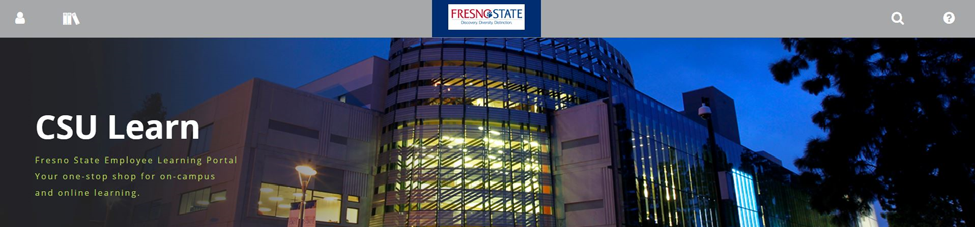
| Self menu | Library | Home | Search | Help |
|---|---|---|---|---|
| Quick profile access | Browse 60+ topics | Returns to this screen | 75,000+ books, videos and courses | context-sensitive help |
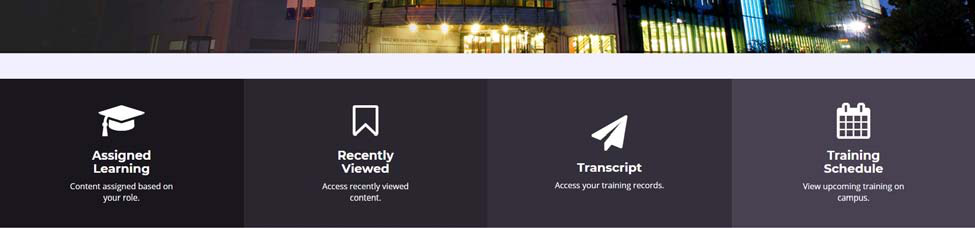
| Assigned Learning | Recently Viewed | Transcript | Training Schedule |
|---|---|---|---|
| View courses assigned to you | Revisit your last learning activities | Your learning history in one place | Register for on-campus professional development workshops |
EITHER
- Click the Enterprise Search icon (top-right).

Select ‘Learning’ from the drop-down and enter the search term. You can also select ‘Learning Content’ if you want results sorted by type (video, books etc.)

Note: You can also search for people, reports or navigation help.
OR
- Click the Library icon (top-left)
 then browse learning by content topics.
- Search for the class you’re interested in.
- Click the Select button that displays to the right of each class name, then choose
Register.
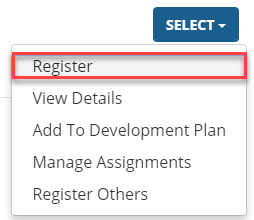
All registrations display on your Training Schedule. To access:
Select: Learning > Registrations from the Self menu (top-left).

- Search for the class you’re interested in.
- Click the Select button that displays to the right of each class name, then choose
Register.
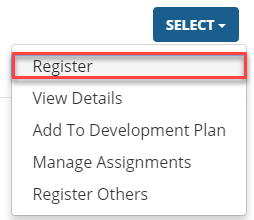
All registrations display on your Training Schedule. To access:
Select: Learning > Registrations from the Self menu (top-left).

A link will be available in the email notification you receive to complete the course
OR
Using the Dashboard, click the Assigned Learning button (lower-left on the Dashboard home page).
You’ll see all your learning activities (assigned, critical, upcoming etc.) listed on one easy-to-access page.
It’s available any time from the CSU Learn home page. Just click the Transcript button at the bottom of your screen.
You can sort by dates, print or export the data to PDF.

This HTML version was generated with AI assistance and may contain errors or omissions. The original approved PDF remains the official document of record. An alternative accessible format is available upon request from the document creator in accordance with Title II of the ADA.