Transact SMS Notification Instructions for Parents
(How to Sign Up or Unsubscribe)
What Are Transact SMS Notifications?
Transact SMS Notifications are optional text alerts that help students and authorized users (such as parents or guardians) stay informed about important financial activity on a student’s Fresno State account. Notifications may include billing statement reminders, alerts when new statements are available, and payment confirmations.
Can Parents Enroll in Transact SMS Notifications?
Yes, parents, guardians, or other authorized users can enroll in Transact SMS notifications — but only after being granted access by the student.
The student must first authorize them through the Transact ePayment system. Once access is granted, the authorized user will receive an email with a link to set up their own login credentials and password. From there, they can sign in and manage their SMS notification preferences.
How to Sign Up for Transact SMS Notifications
Go to https://commerce.cashnet.com/FRESNO_PROD_WEB?LT=P and sign in using your authorized parent credentials.

07.01.25 gt
You will be redirected to your student’s Overview page in the Transact ePayment site.
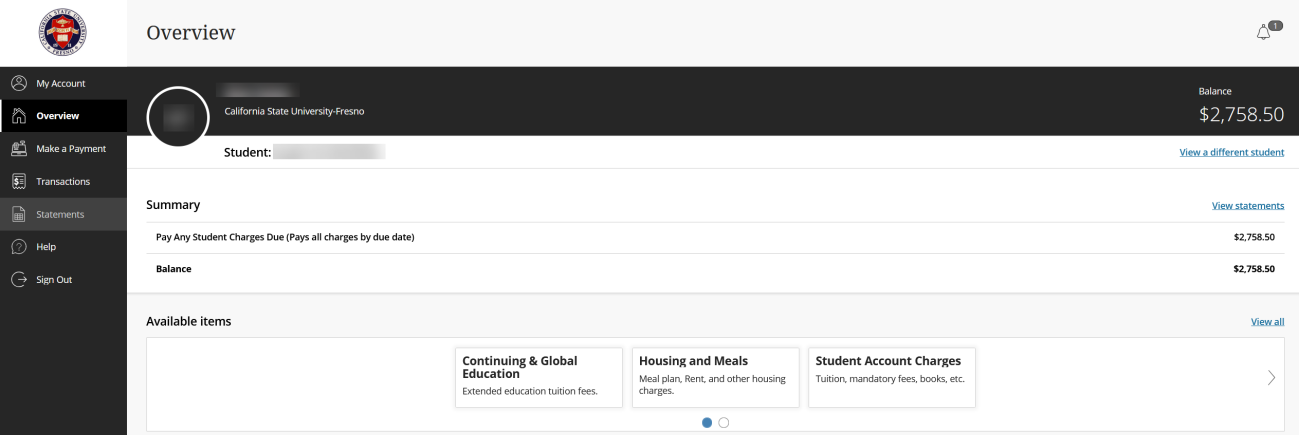
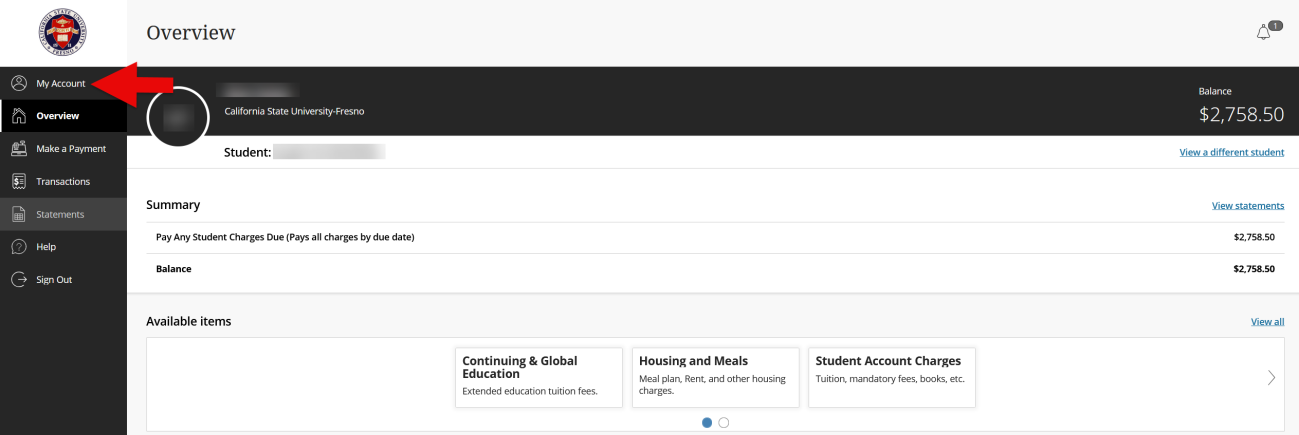
In the left-hand menu, click My Account.
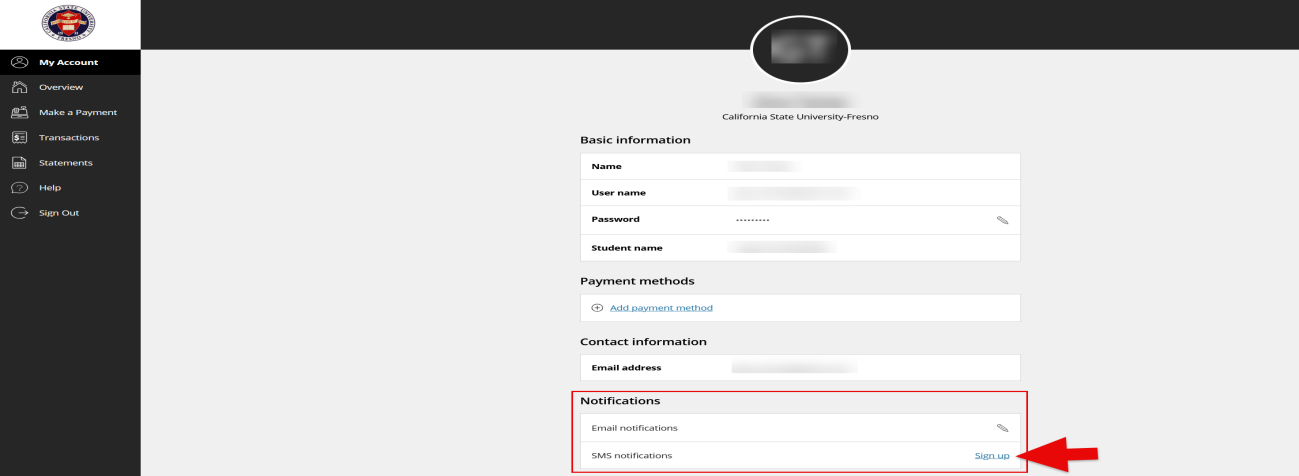
Scroll down to Notifications and click SMS Notifications Sign-Up.
Note: Your student must still grant permission for email notifications separately.
07.01.25 gt
Enter your mobile phone number and click Continue.
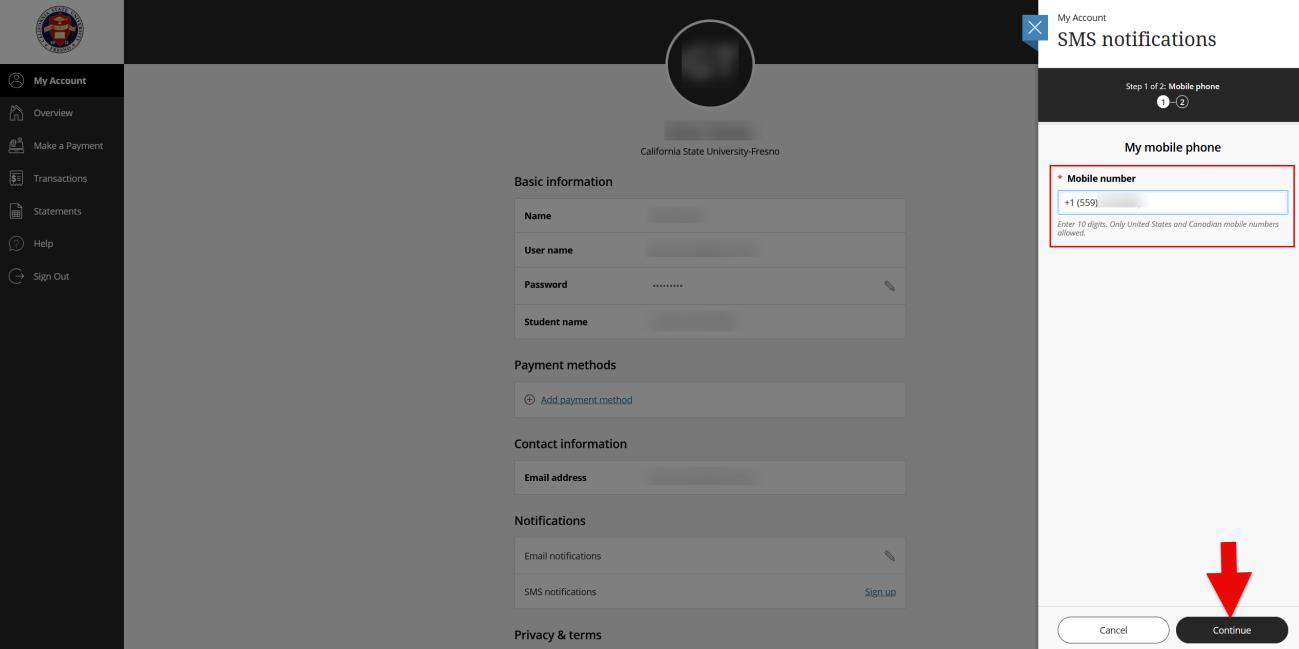
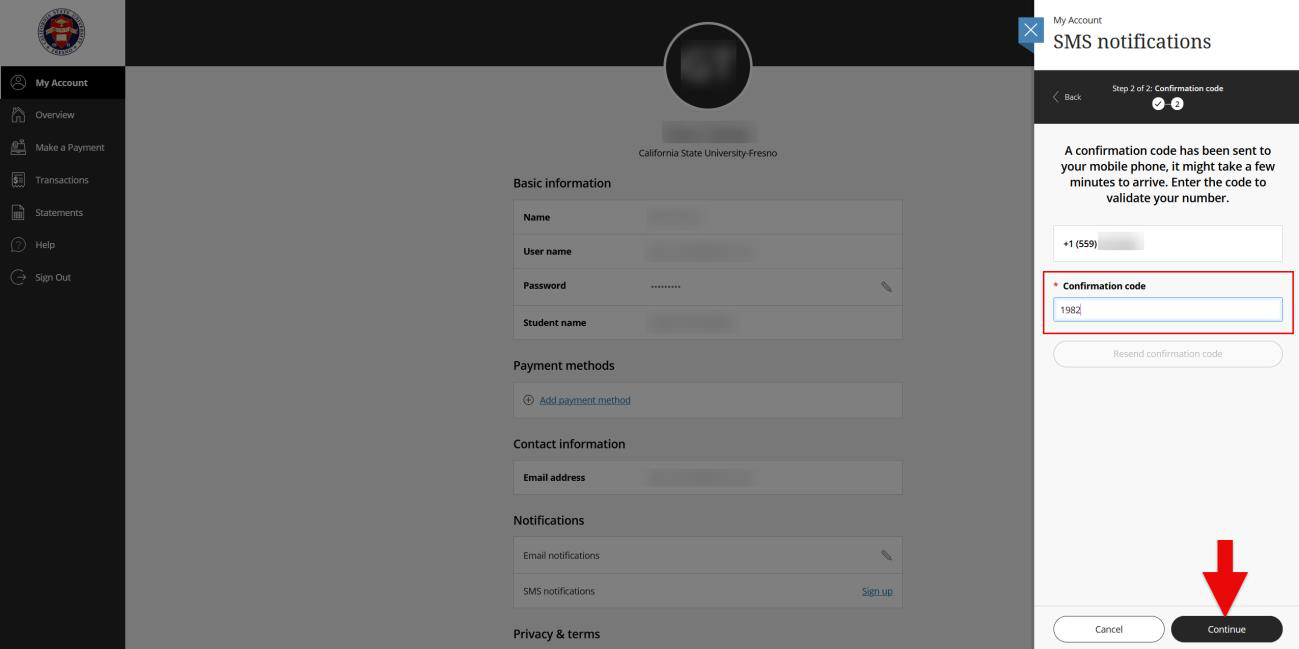
A confirmation code will be sent to your phone via SMS. Enter the confirmation code and click Continue.
07.01.25 gt
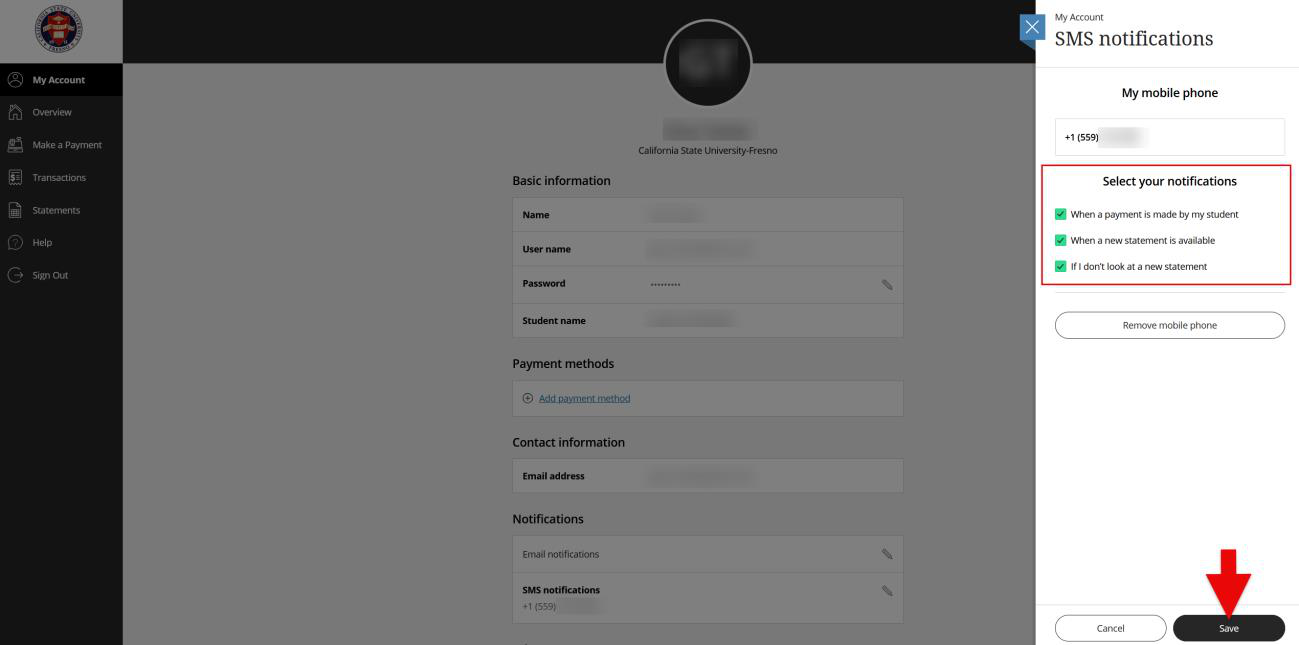
Select your notification preferences, then click Save.
How to Unsubscribe from Transact SMS Notifications
Go to https://commerce.cashnet.com/FRESNO_PROD_WEB?LT=P and sign in using your authorized parent credentials.

07.01.25 gt
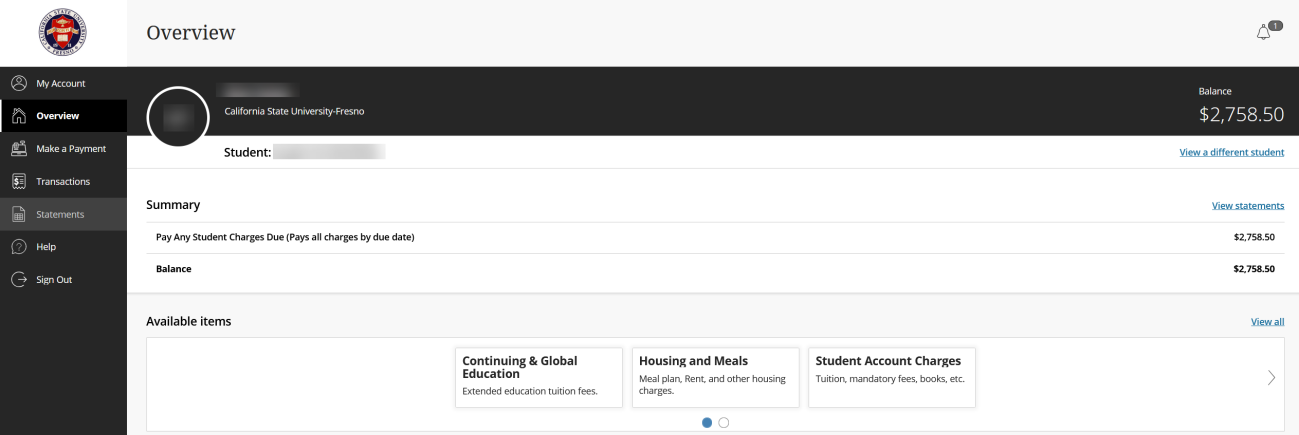
You will be redirected to your student’s Overview page in the Transact ePayment site.
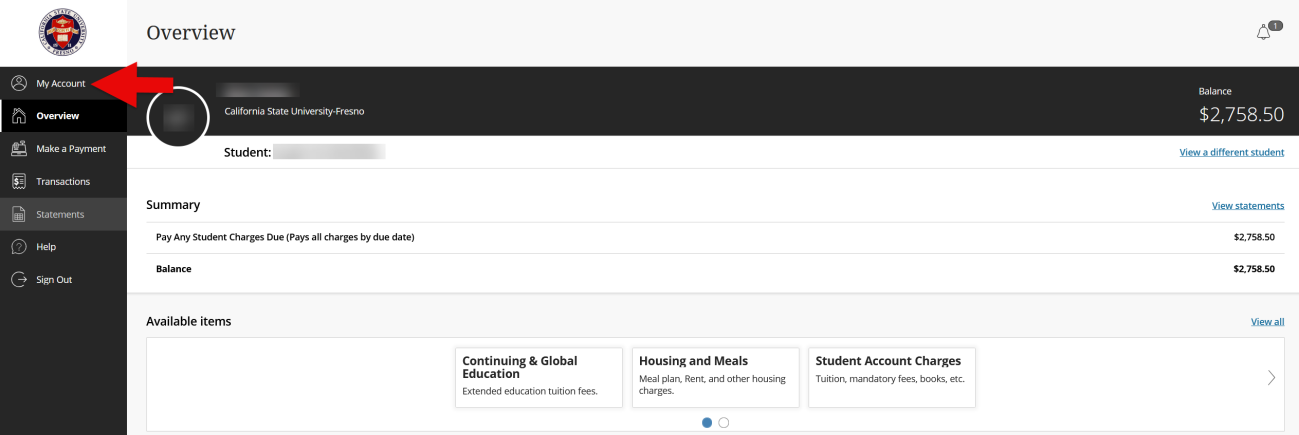
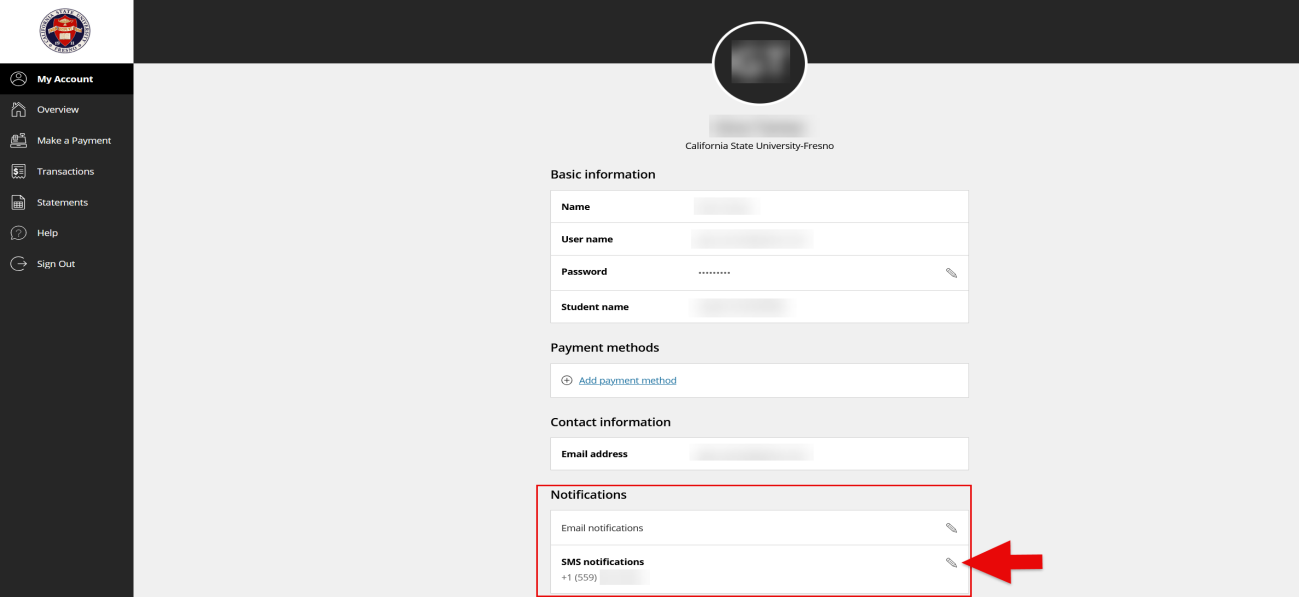
In the left-hand menu, click My Account.
Scroll down to Notifications and click SMS Notifications Sign-Up.
07.01.25 gt
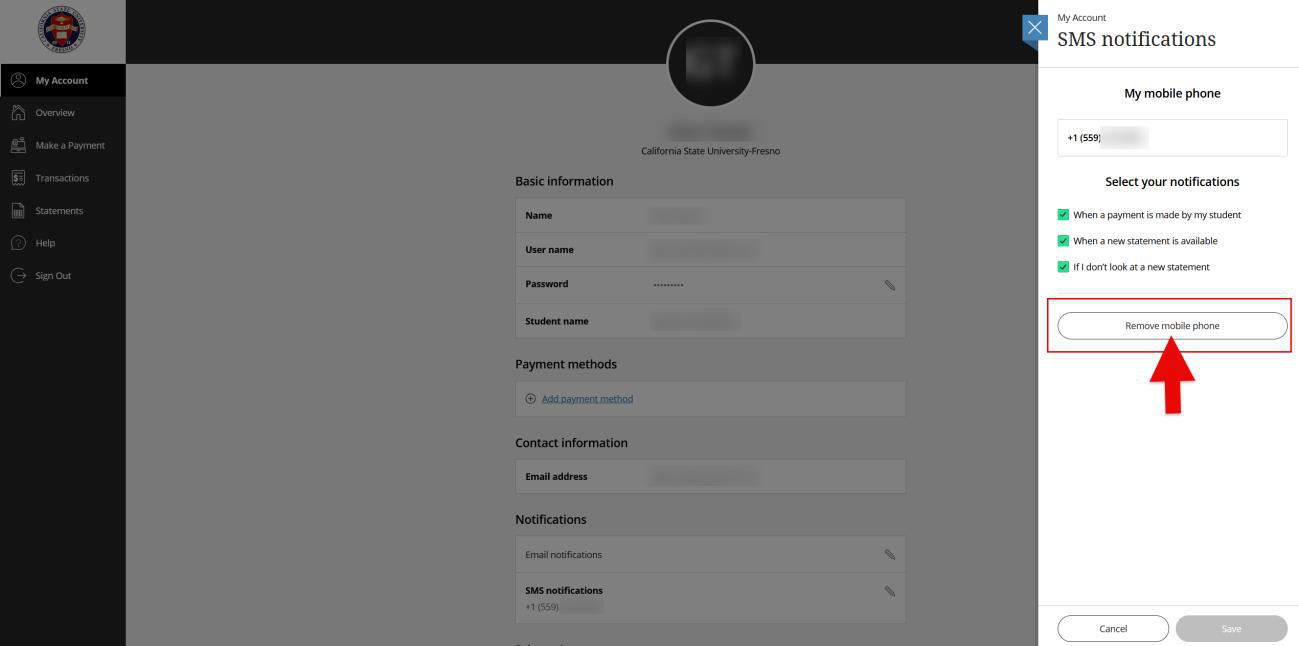
Click Remove Mobile Phone.
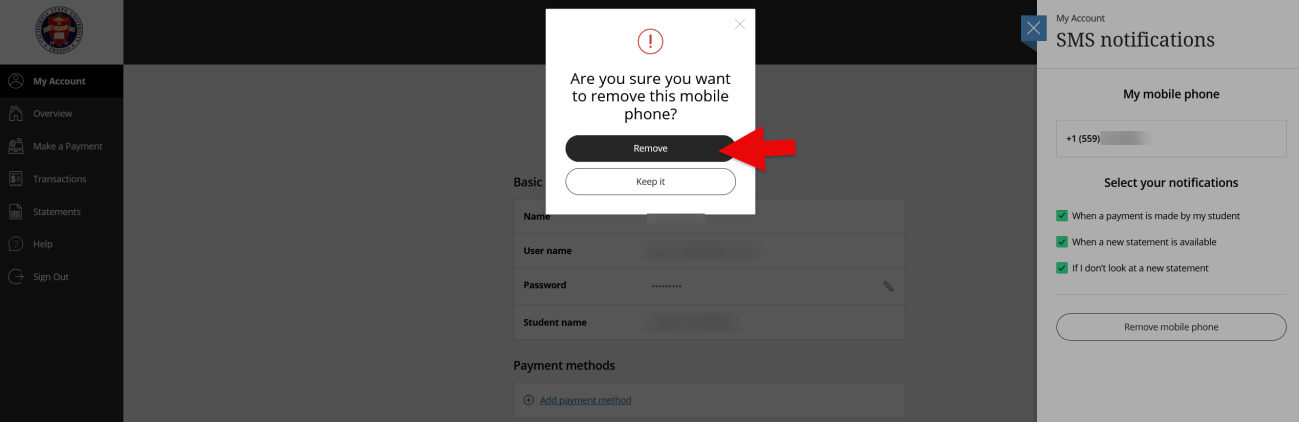
Confirm by clicking Remove.
07.01.25 gt
This HTML version was generated with AI assistance and may contain errors or omissions. The original approved PDF remains the official document of record. An alternative accessible format is available upon request from the document creator in accordance with Title II of the ADA.